Introducing the ThriveDesk MCP Server
Let your AI assistant search conversations, draft and send replies, update contacts, read reports and manage help center articles, with only the permissions you approve.
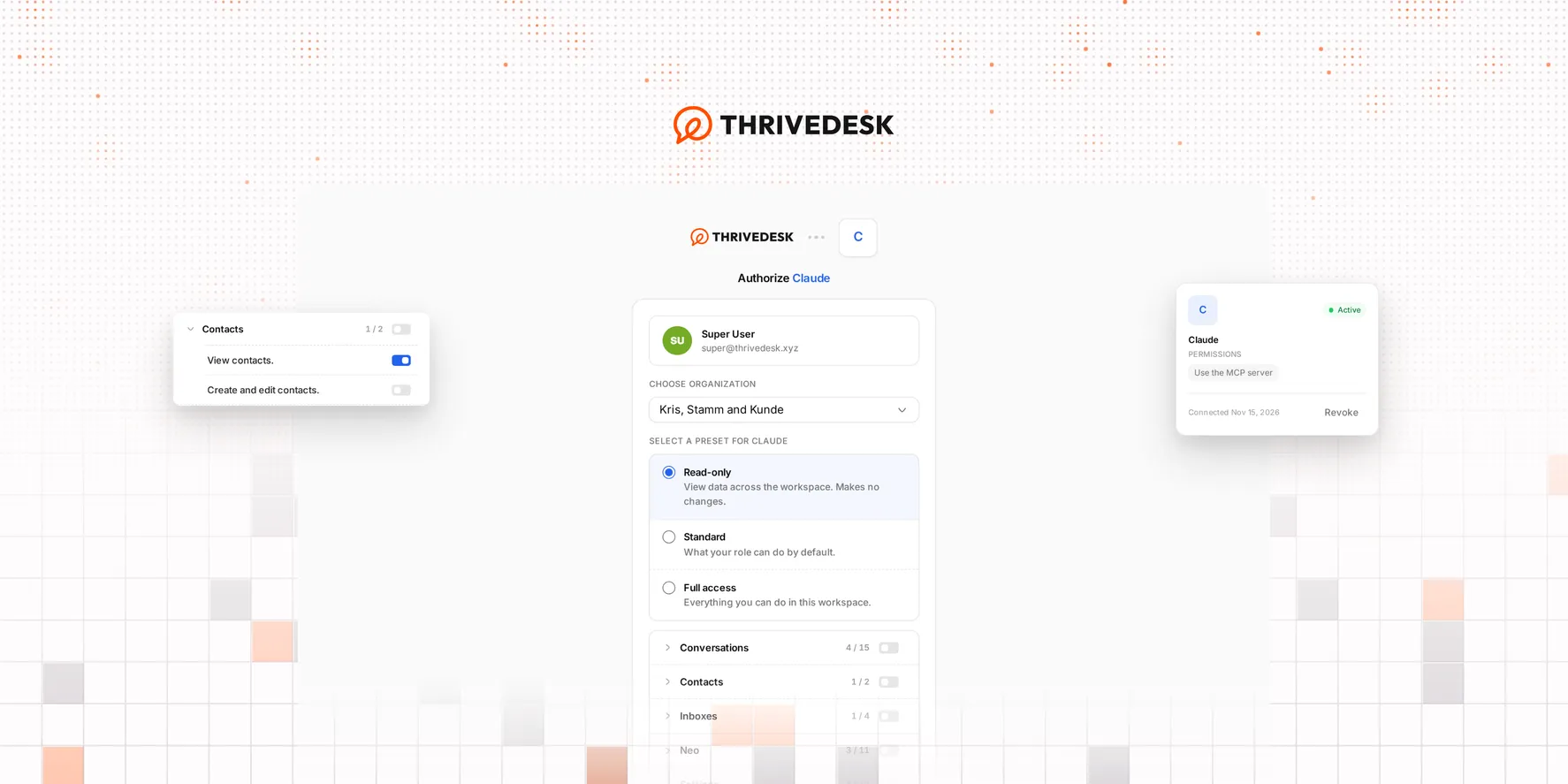
The ThriveDesk MCP server connects an AI assistant to your helpdesk. The assistant works as you, on your real conversations, instead of on text that you paste into a chat. Ask it “What is still open in the Billing inbox from this week?” or “Summarize ticket #2841 and draft a reply, but don’t send it.”
MCP is available on all plans. Every teammate can connect their own assistant: the Account Owner, Administrators and Users. A connection never gets more than the permissions you hold.
Connect your assistant
Add the server address https://mcp.thrivedesk.com to your assistant. It is the same for every customer, with no path and no API key. Claude (web, desktop, mobile and Claude Code), ChatGPT, VS Code and Cursor are supported. In Claude Code, run claude mcp add --transport http thrivedesk https://mcp.thrivedesk.com, then type /mcp and select Authenticate.
Your assistant sends you to a ThriveDesk approval page. There you choose the organization the assistant can work in, and how much it can do.
Choose what the assistant can do
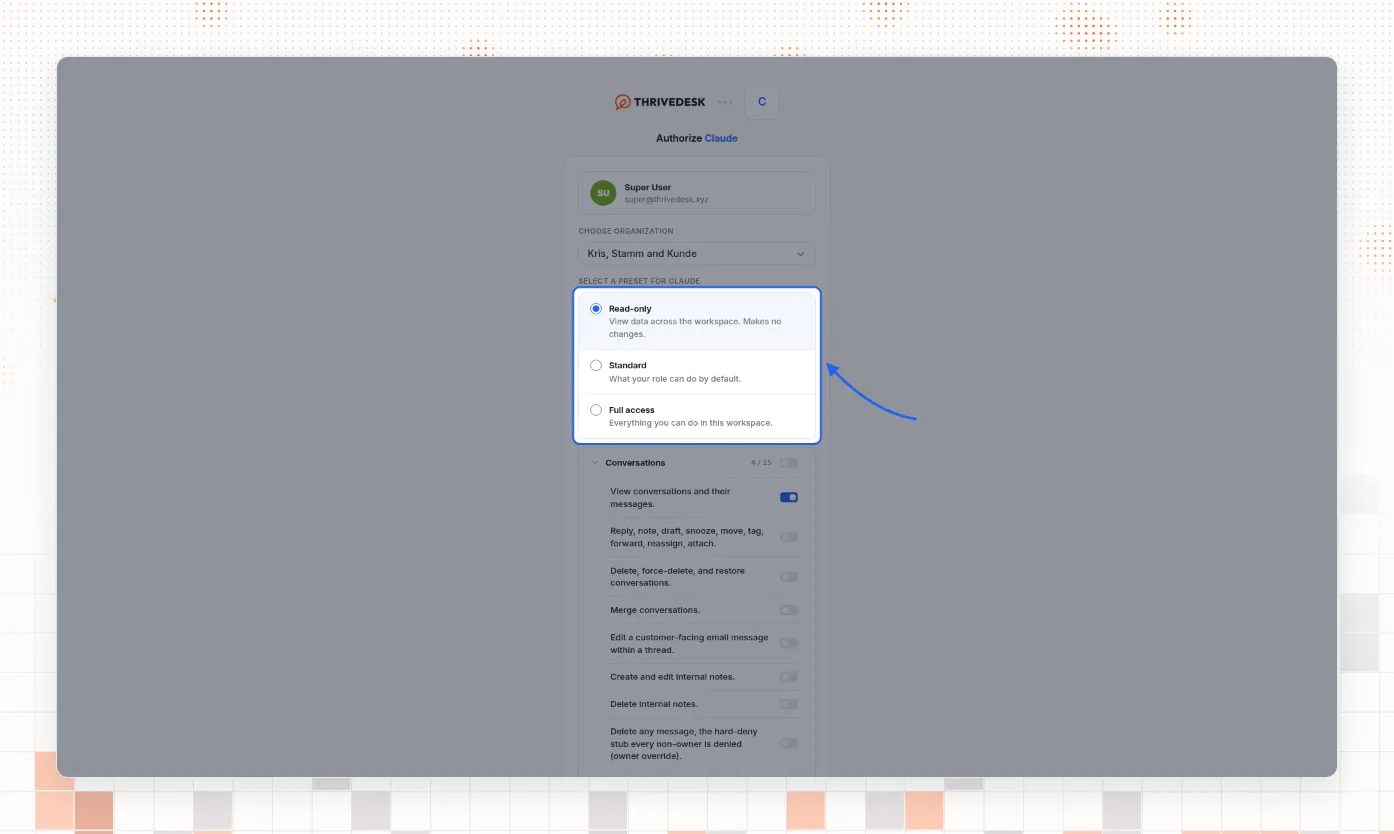
Start with a preset. Read-only is selected by default and changes nothing. Standard gives the permissions your role has by default. Full access gives every permission you hold in the organization.
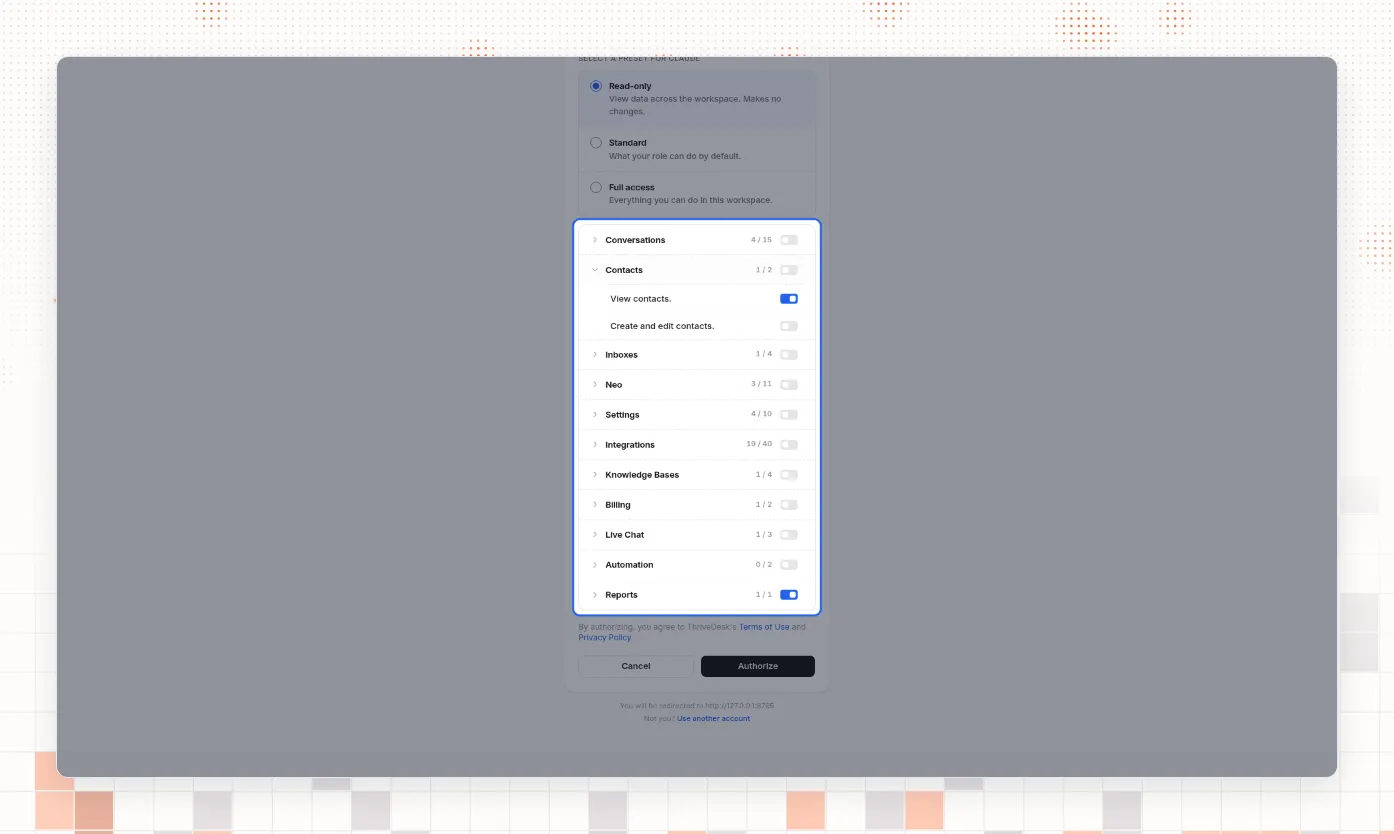
Below the presets, the permissions are in groups, such as Conversations, Contacts and Reports. Turn a whole group on or off, or open it and choose single permissions. Then select Authorize. The assistant can’t use a permission you left off, even if you can use it in ThriveDesk.
What the assistant can do
The server gives your assistant 39 actions:
- Conversations: search and open conversations, reply, forward, schedule a reply, add notes, save drafts, set the status or priority, snooze, assign, tag, set custom fields, and move to another inbox.
- Contacts, inboxes and saved replies: search and update contacts, list your inboxes and your saved replies.
- Live chat: list and open chats, reply to visitors, and accept or close chats.
- Help center: search, write and publish articles, and upload their images.
- Reports and more: read conversation and resolution counts for each agent, search your AI knowledge sources, and read your notifications.
A reply, a forward and a live chat reply reach the customer at once. Notes, draft replies and new conversations that the assistant creates never send an email. Replies, notes and status changes show in the conversation under your name.
See and revoke connections
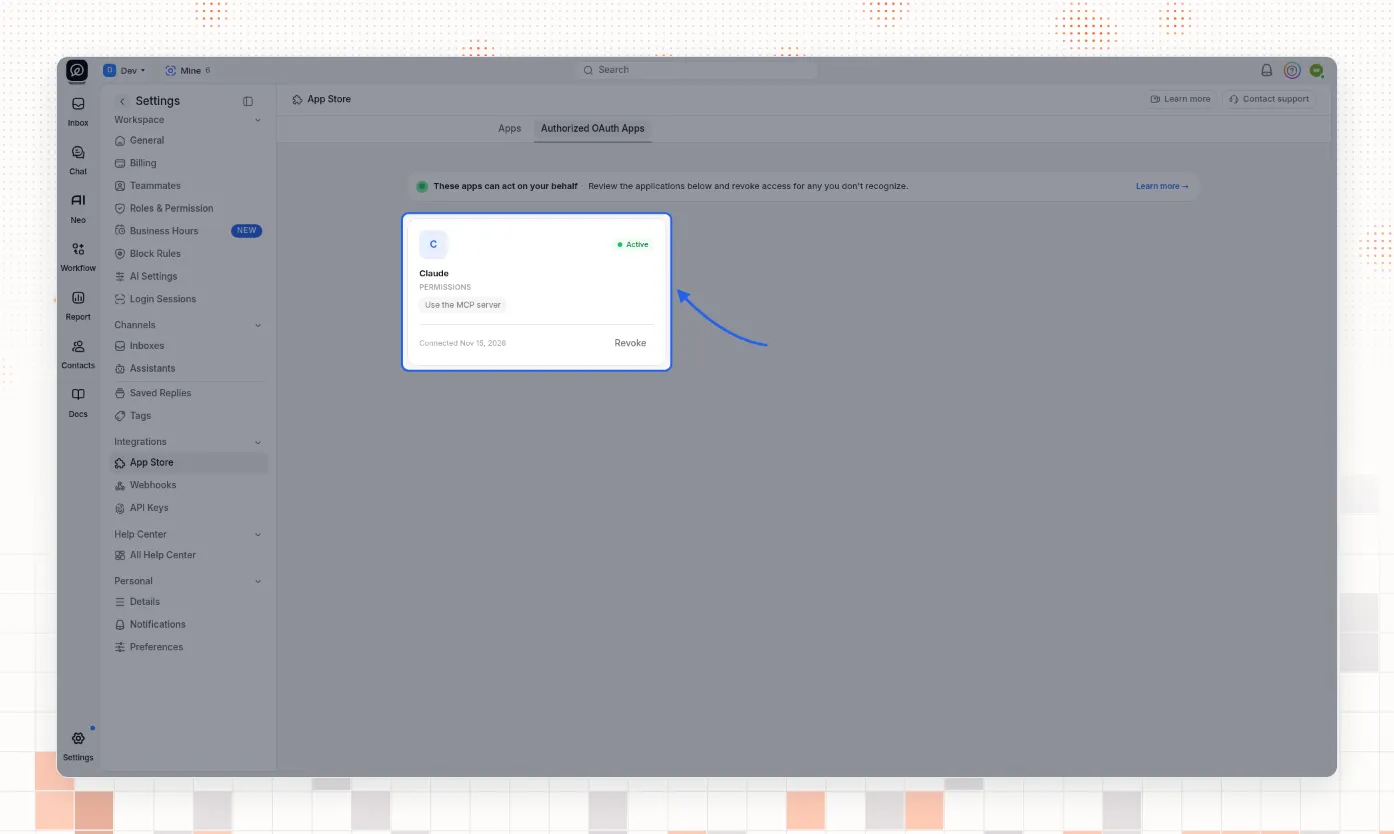
Go to Settings → App Store and select the Authorized OAuth Apps tab. Each assistant you connected has a card with the date you connected it.
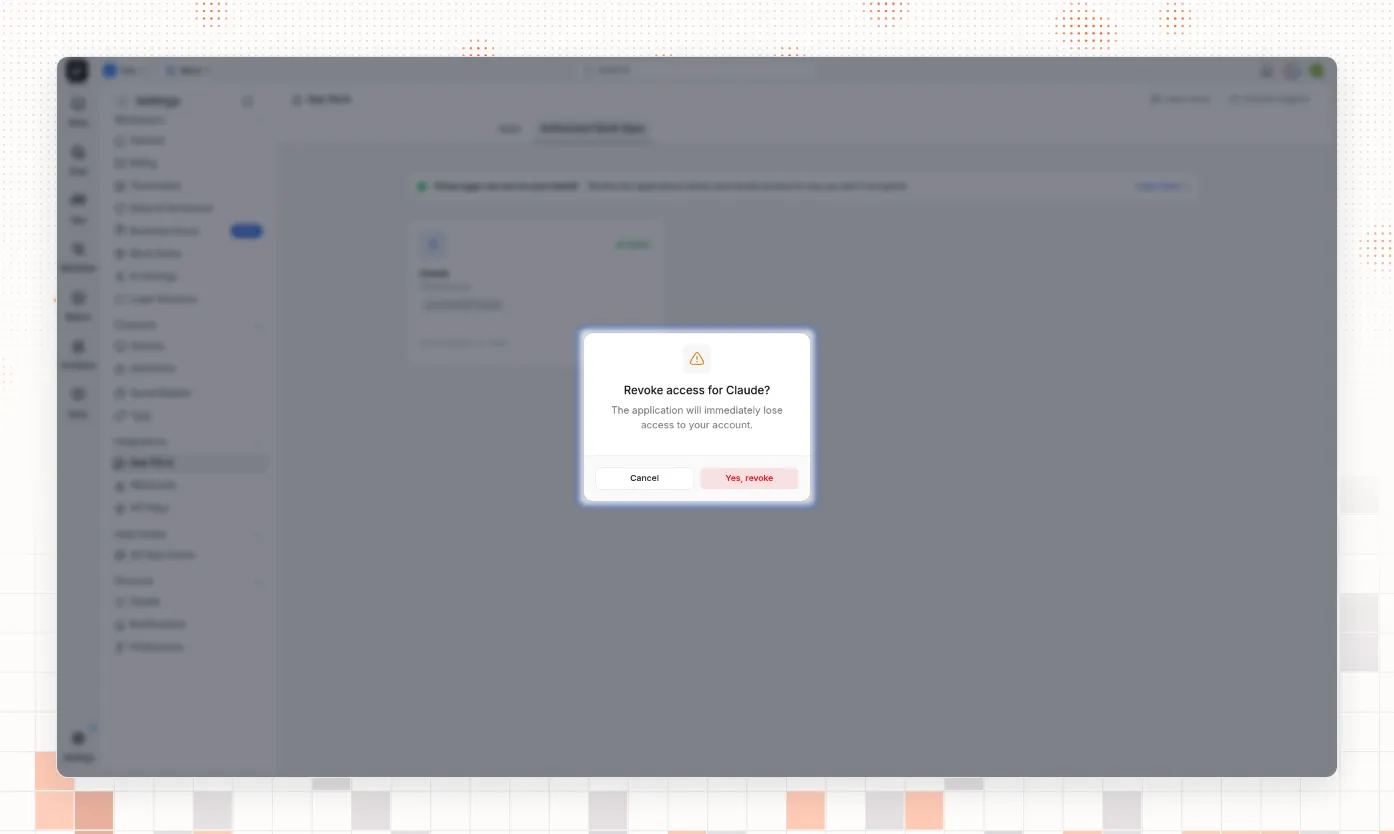
Select Revoke, then Yes, revoke. The assistant loses access at once. The tab shows the connections of the organization you are working in.
Each person can make 60 requests a minute, and a connection works in one organization only.
Read the documentation