Set Business Hours and Holidays for Each Inbox
Tell ThriveDesk when your team works for each inbox and channel, add the days you are closed, and send an auto reply outside those hours.
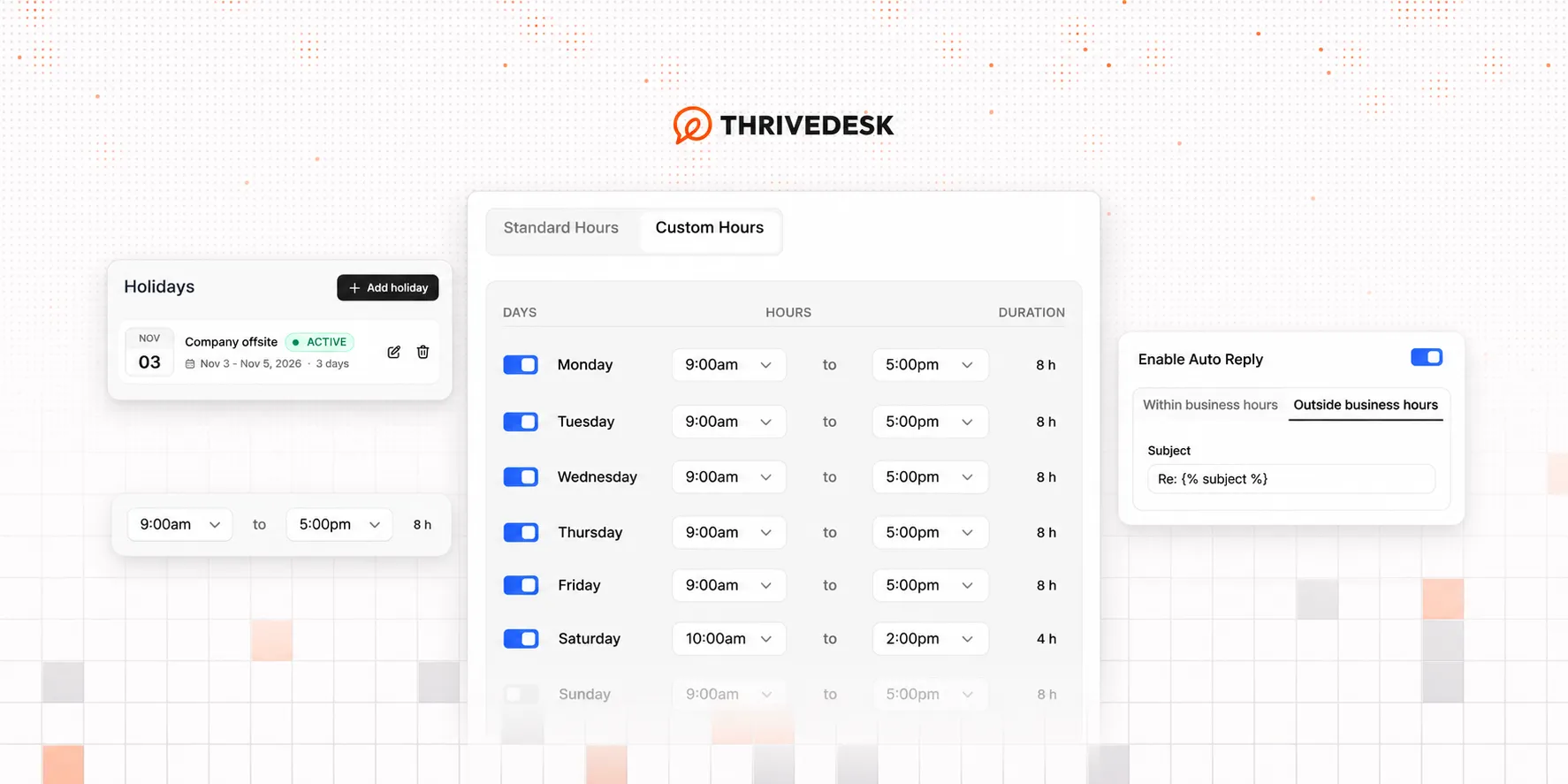
Business hours cover email tickets in your shared inbox and live chat. To set them up, go to Settings → Business Hours. The page has two tabs: Business Hours and Holidays.
Business hours are available on the Standard plan and higher. Account owners and admins can change business hours and holidays.
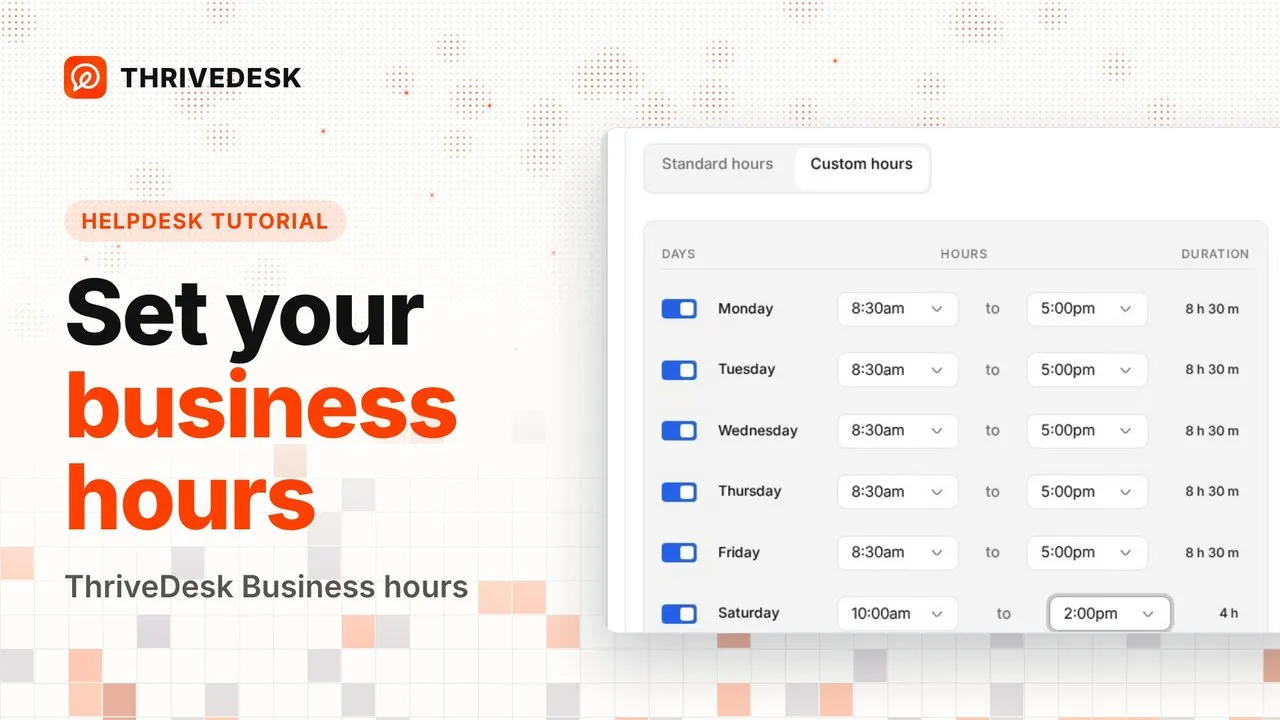
Set hours for each inbox and channel
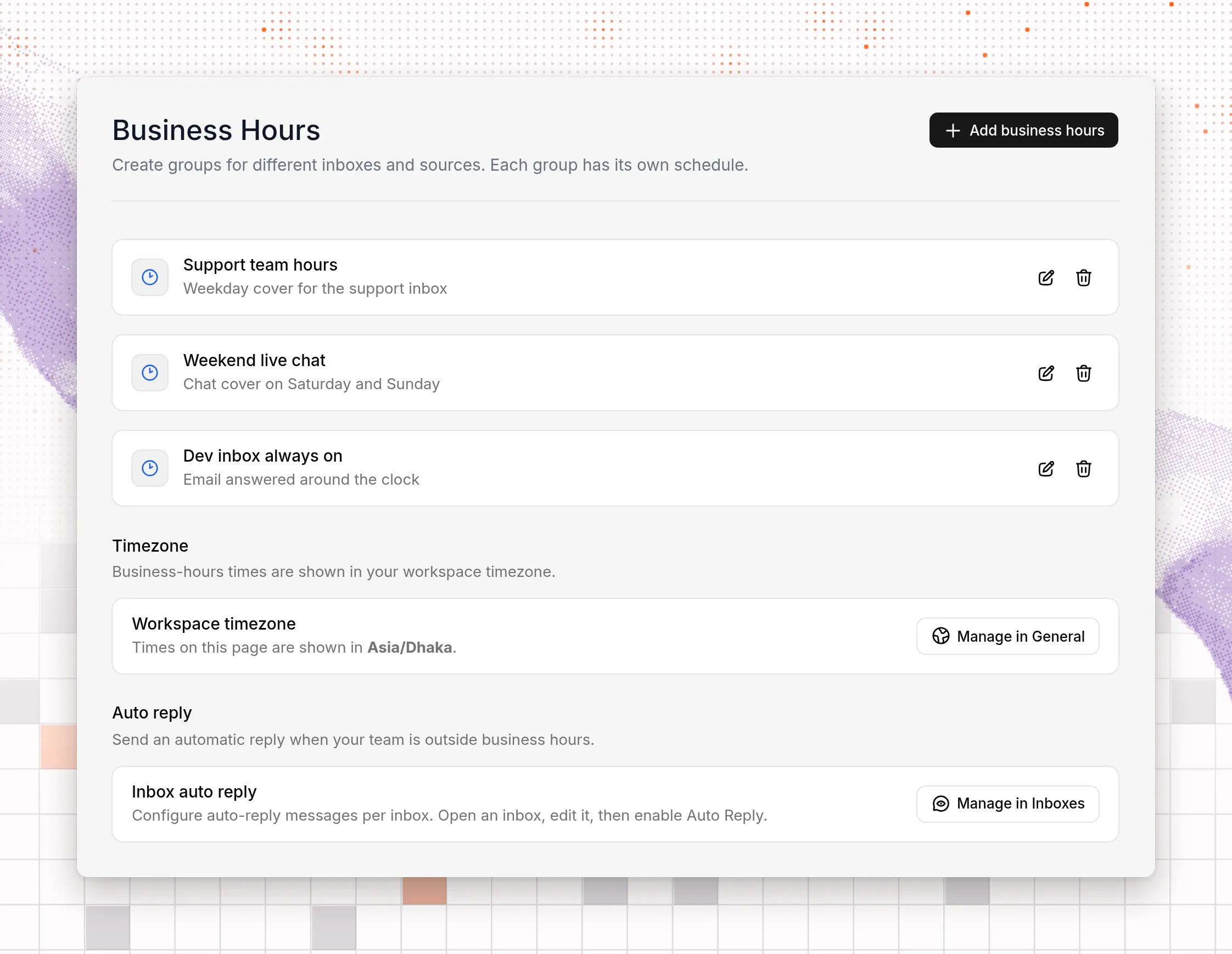
A business hours group sets the schedule for one inbox, or for All Inboxes. Give the group a name and, if you want, a short description. Then turn on the channels it covers: Ticket / Email, Live chat, or both.
Each inbox and channel pair can belong to one group only. If an inbox needs different hours for email and live chat, make one group for each channel.
Choose 24/7 or working hours
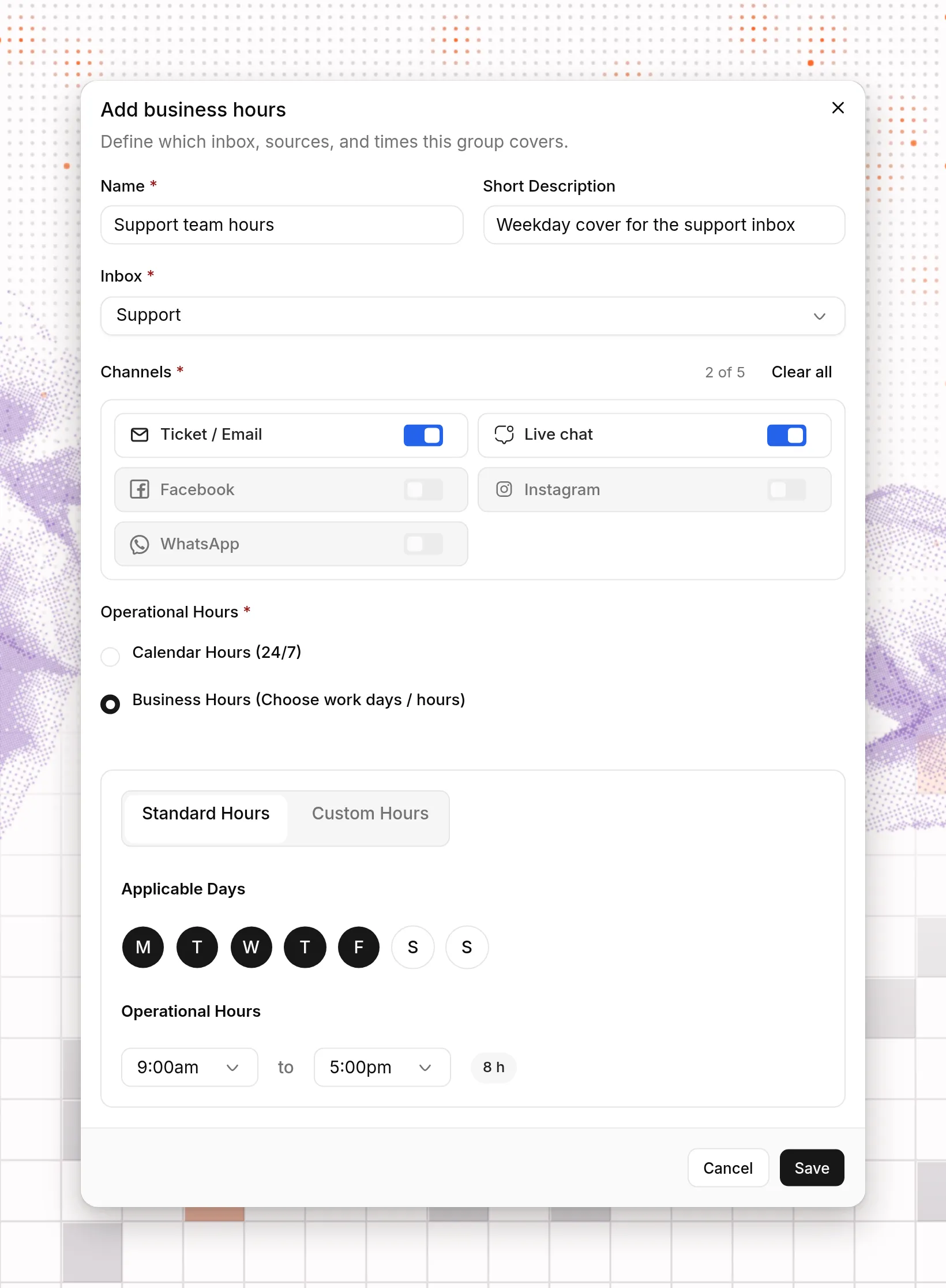
Each group runs on Calendar Hours (24/7), the default, or on a business hours schedule that you set. Standard Hours use one time range for every day you select. The default is Monday to Friday, 9:00am to 5:00pm.
Custom Hours give each day its own row, with a switch and a time range. Use them when one day is different, for example a short Saturday.
Times move in 15-minute steps, and you can search the time list. If the end time is before the start time, the range ends the next morning.
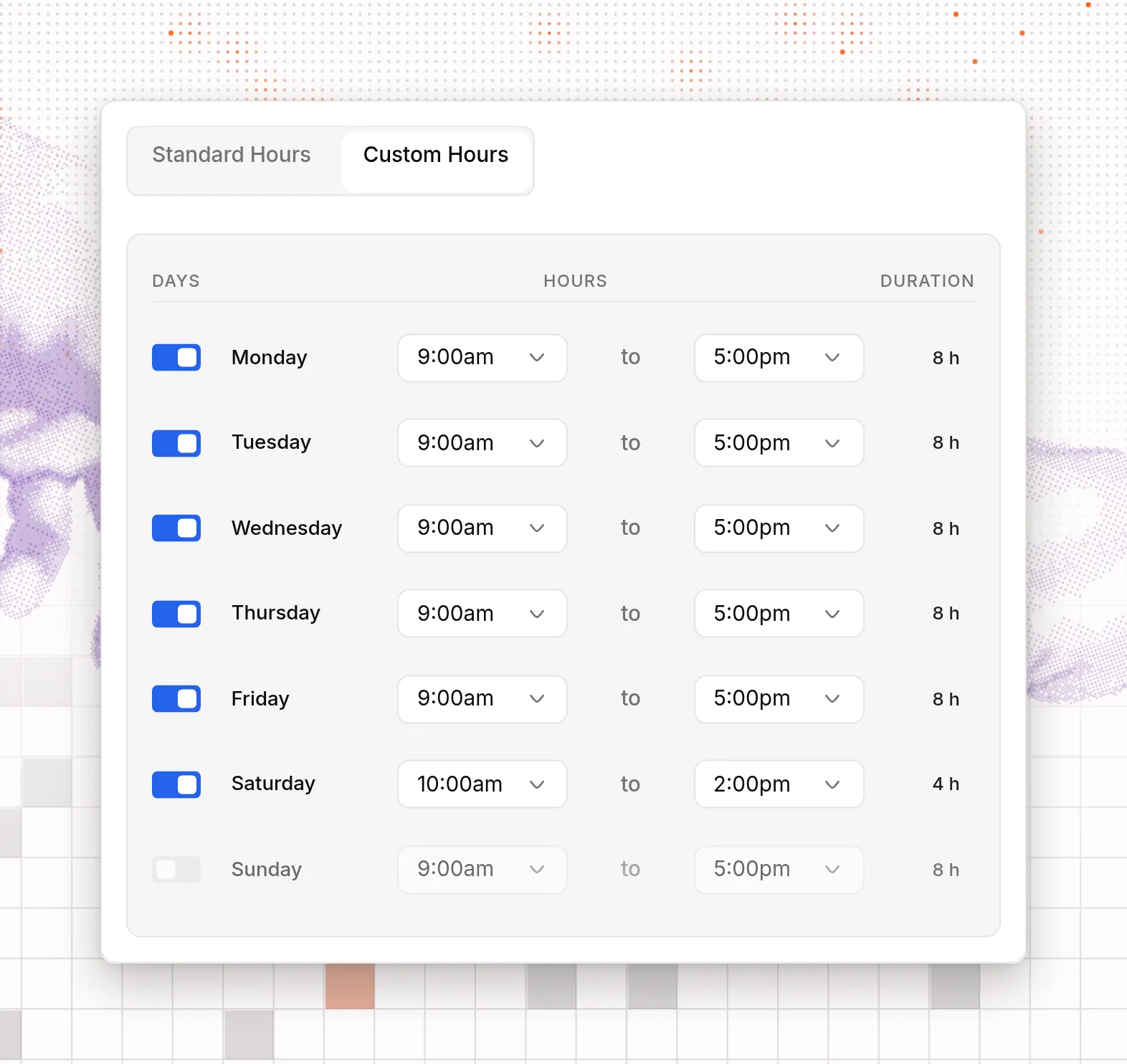
Business hours and holidays use your workspace timezone. To change it, go to Settings → General.
Add holidays
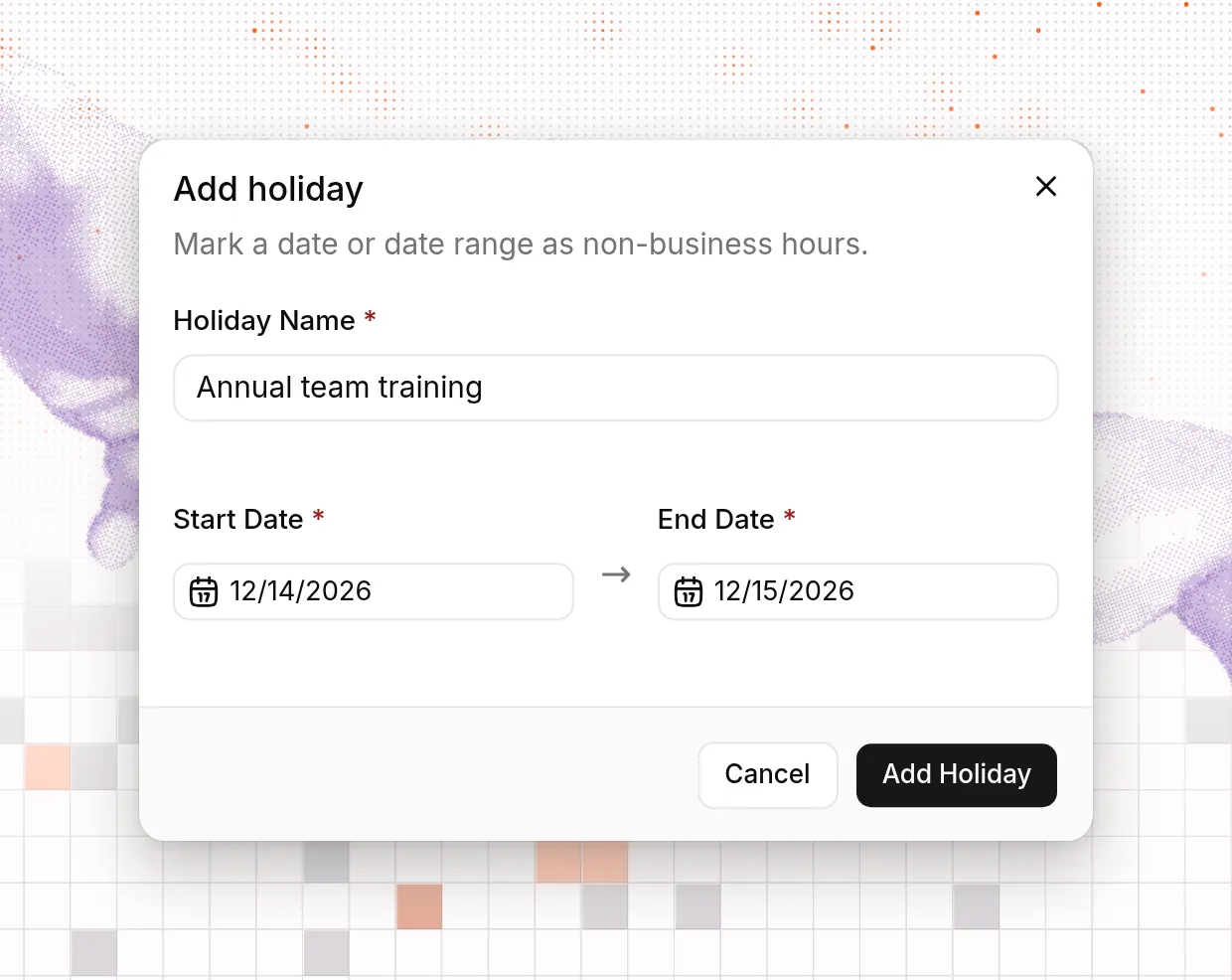
On the Holidays tab, select Add holiday. Enter a name, a start date, and an end date. For a one-day holiday, choose the same date for both.
A holiday applies to your whole workspace, so you don’t choose inboxes for it.
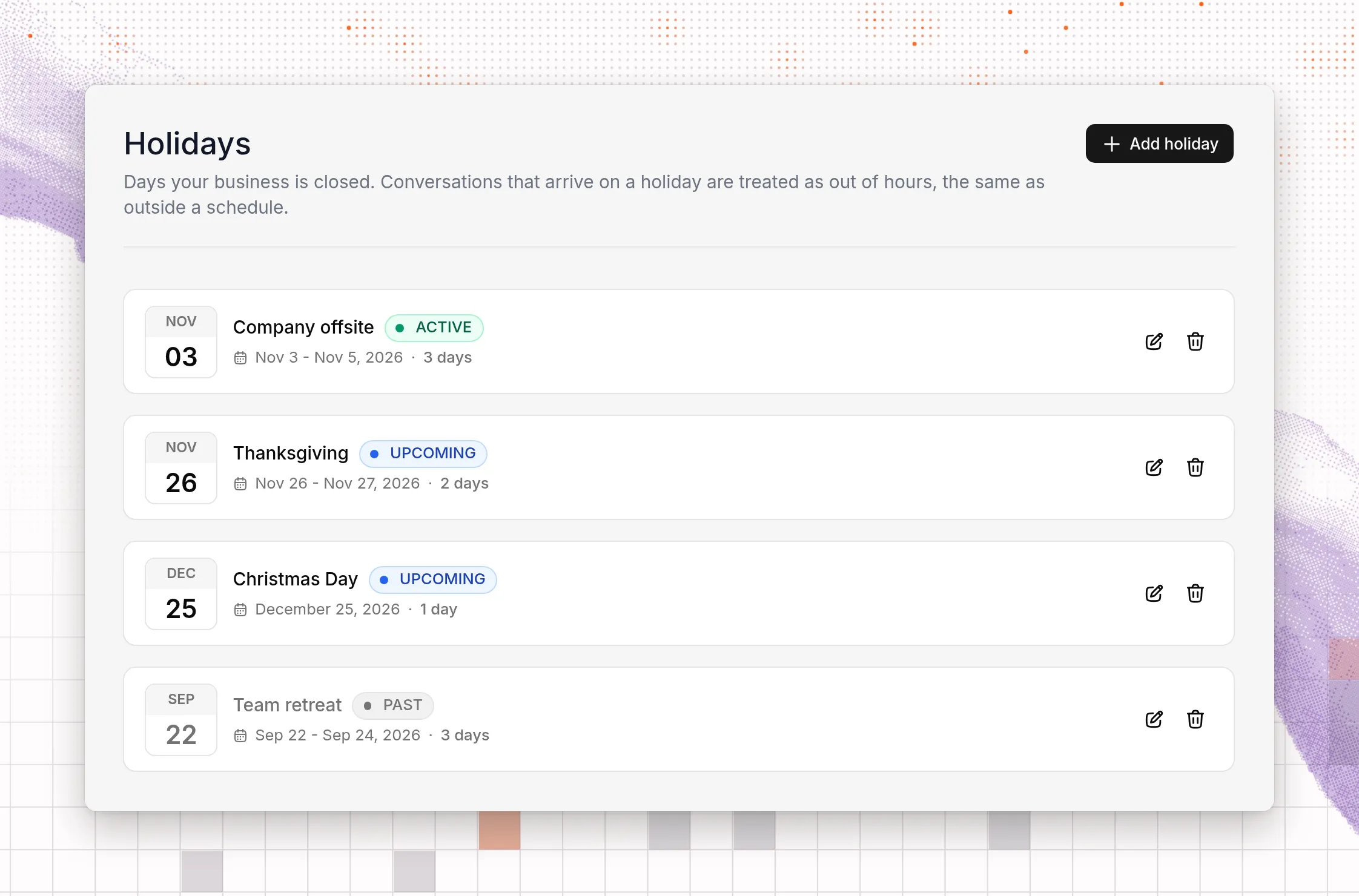
Each holiday shows as Active, Upcoming, or Past. On a holiday, every inbox and channel on a business hours schedule is out of hours for the whole day. Inboxes on Calendar Hours (24/7), and inboxes with no business hours, stay open.
Holidays don’t repeat. To close on the same date every year, add the holiday again for each year.
Reply and automate outside your hours
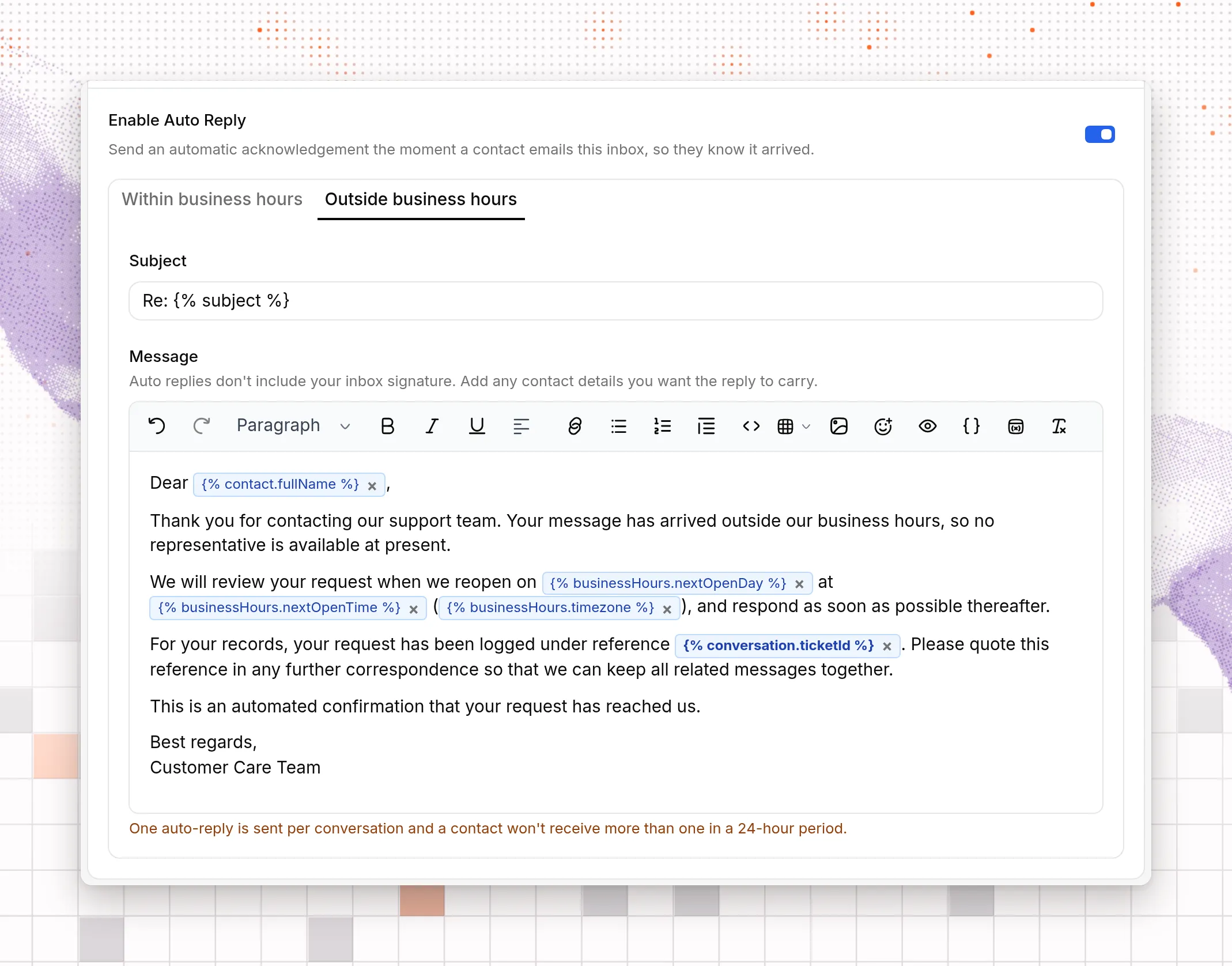
An inbox can now send an auto reply when a conversation arrives out of hours. Go to Settings → Inboxes and edit the inbox. Turn on Enable Auto Reply, then select the Outside business hours tab and write your reply.
This reply needs a business hours group for that inbox. Without one, the tab shows Business hours required and a Set up business hours button.
Automation rules can also check Within Business Hours or Outside Business Hours. Use these conditions to make a workflow run only during your hours, or only outside them.
Read the documentation