Two-Factor Authentication Is Here
Add an authenticator app or passkey after your password, keep recovery codes, and require a second factor for the whole organization.
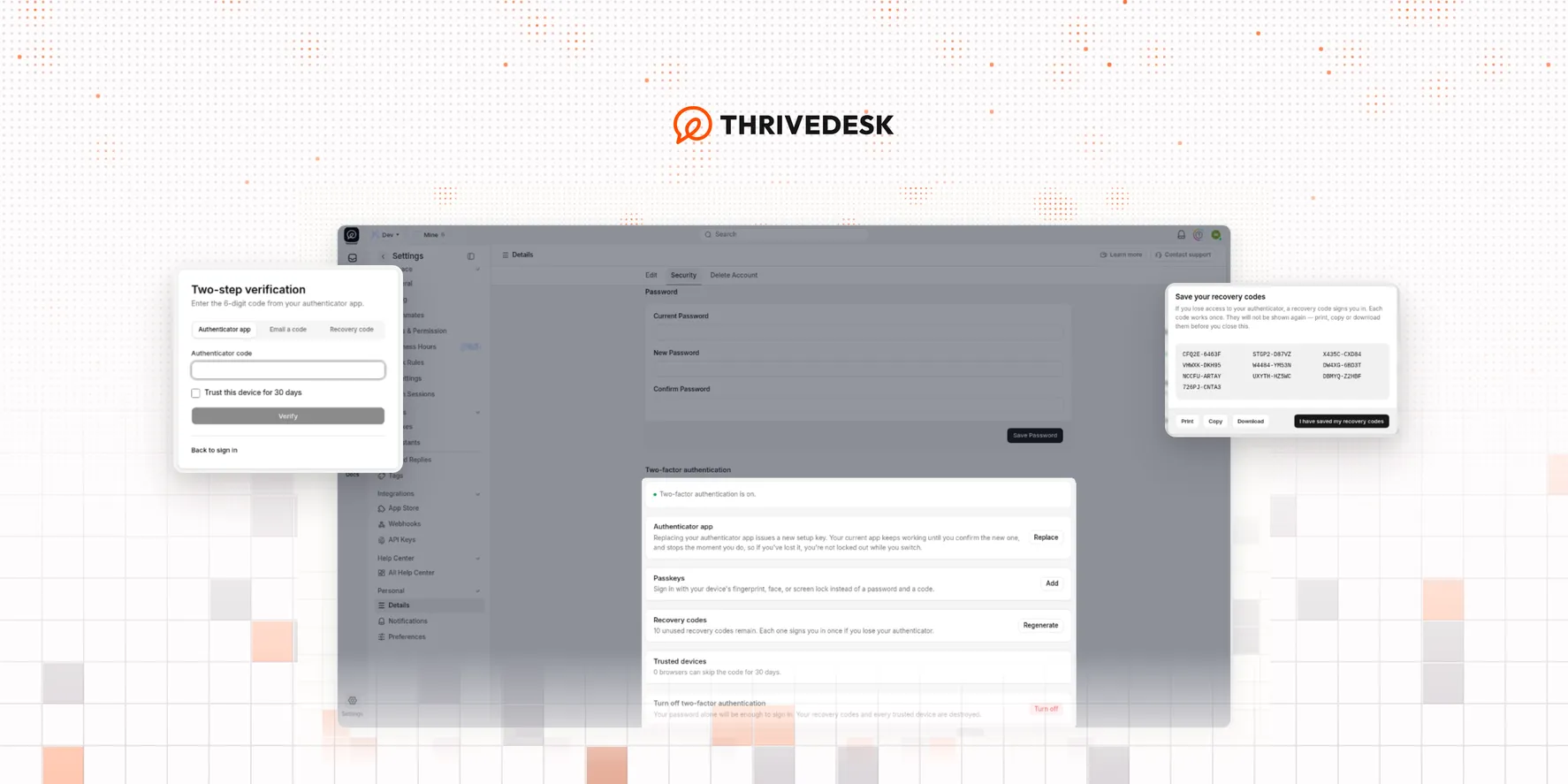
A stolen password alone should not open your inbox. Two-factor authentication asks for a second check after your password — a one-time code from an authenticator app, a passkey, an emailed code, or a recovery code.
Every member can turn it on for their own account on all plans. Owners and teammates with Company Write can also require it for everyone in the organization.
Go to Settings → Personal → Details → Security.
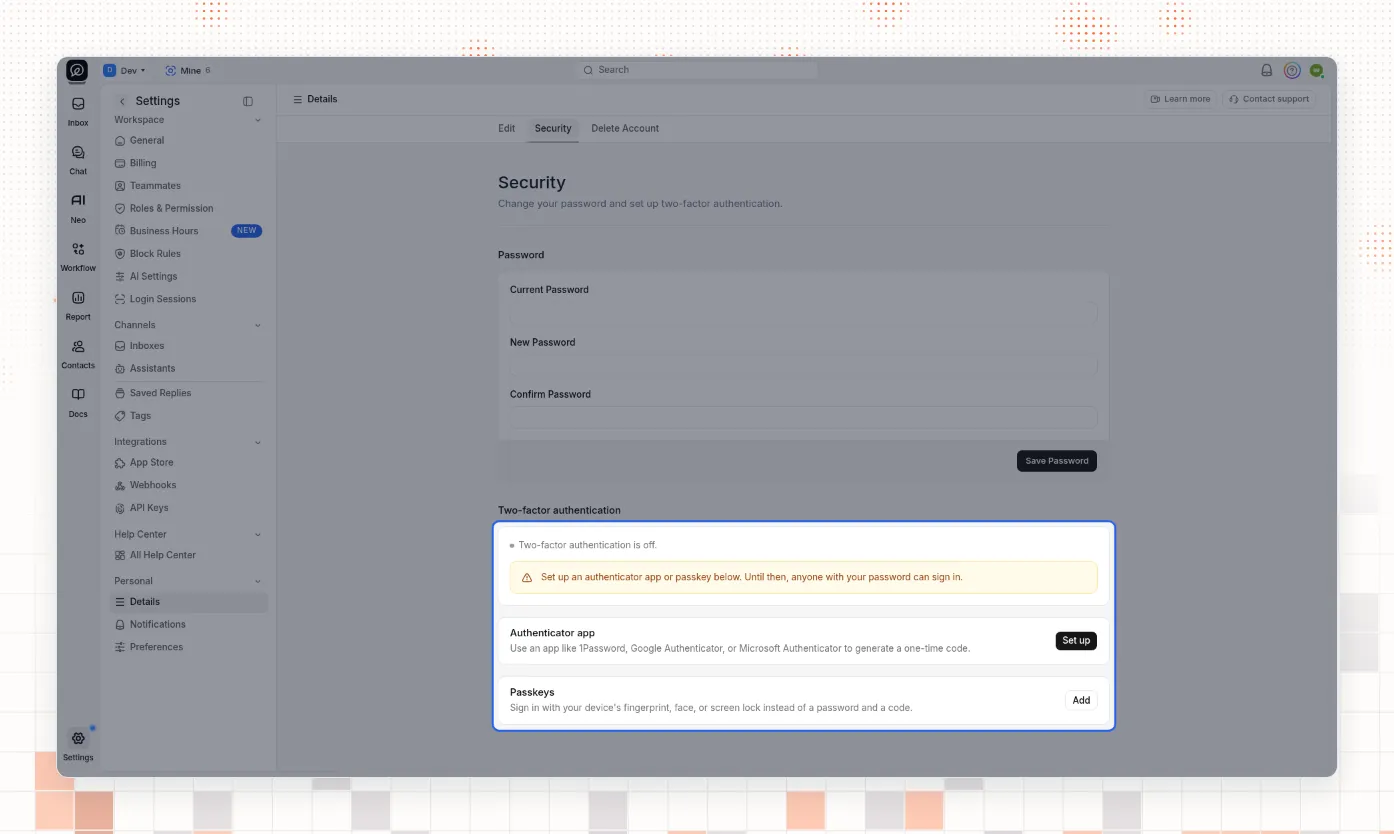
Set up an authenticator app
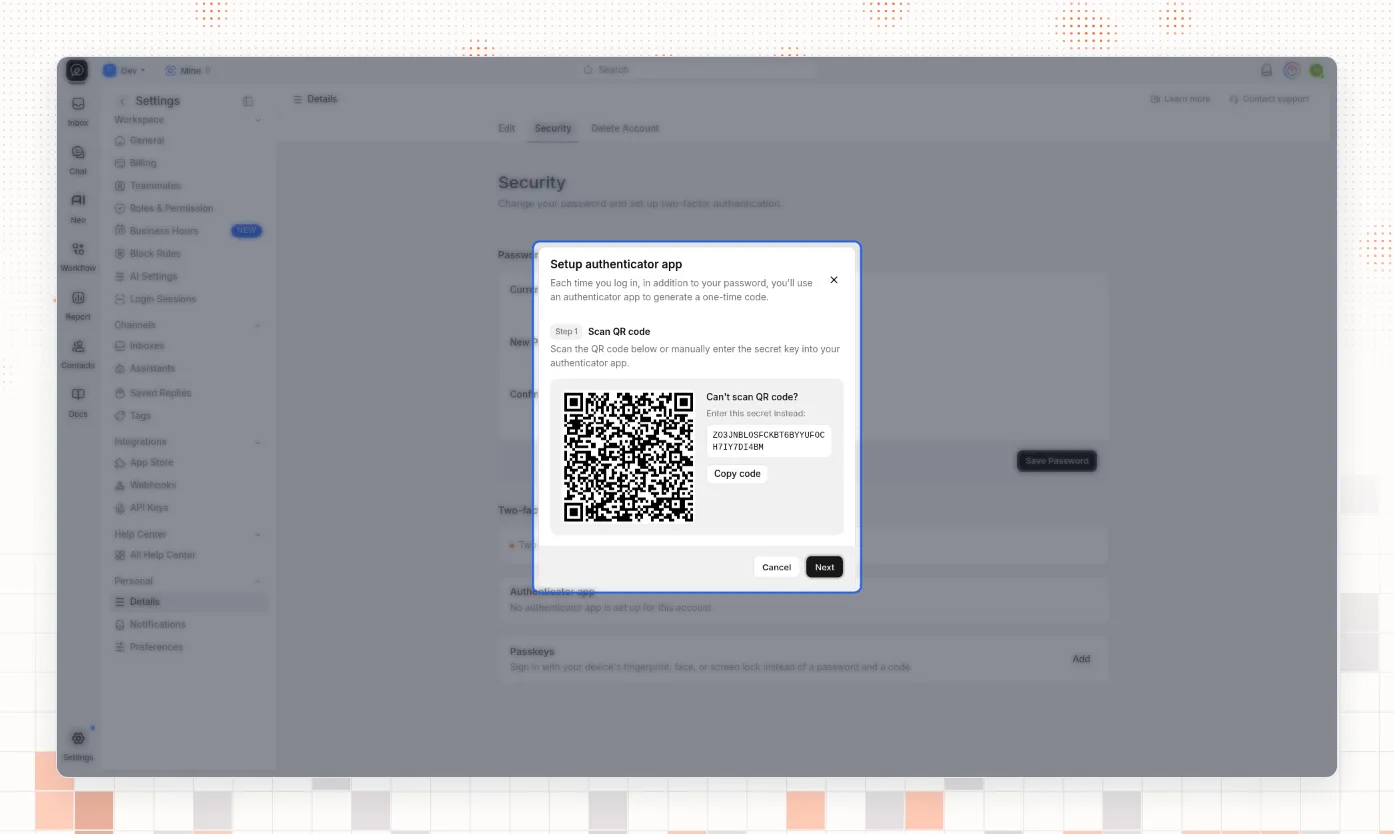
Under Authenticator app, select Set up. Scan the QR code with an app such as 1Password, Google Authenticator, or Microsoft Authenticator. If you cannot scan, copy the secret and enter it in the app by hand.
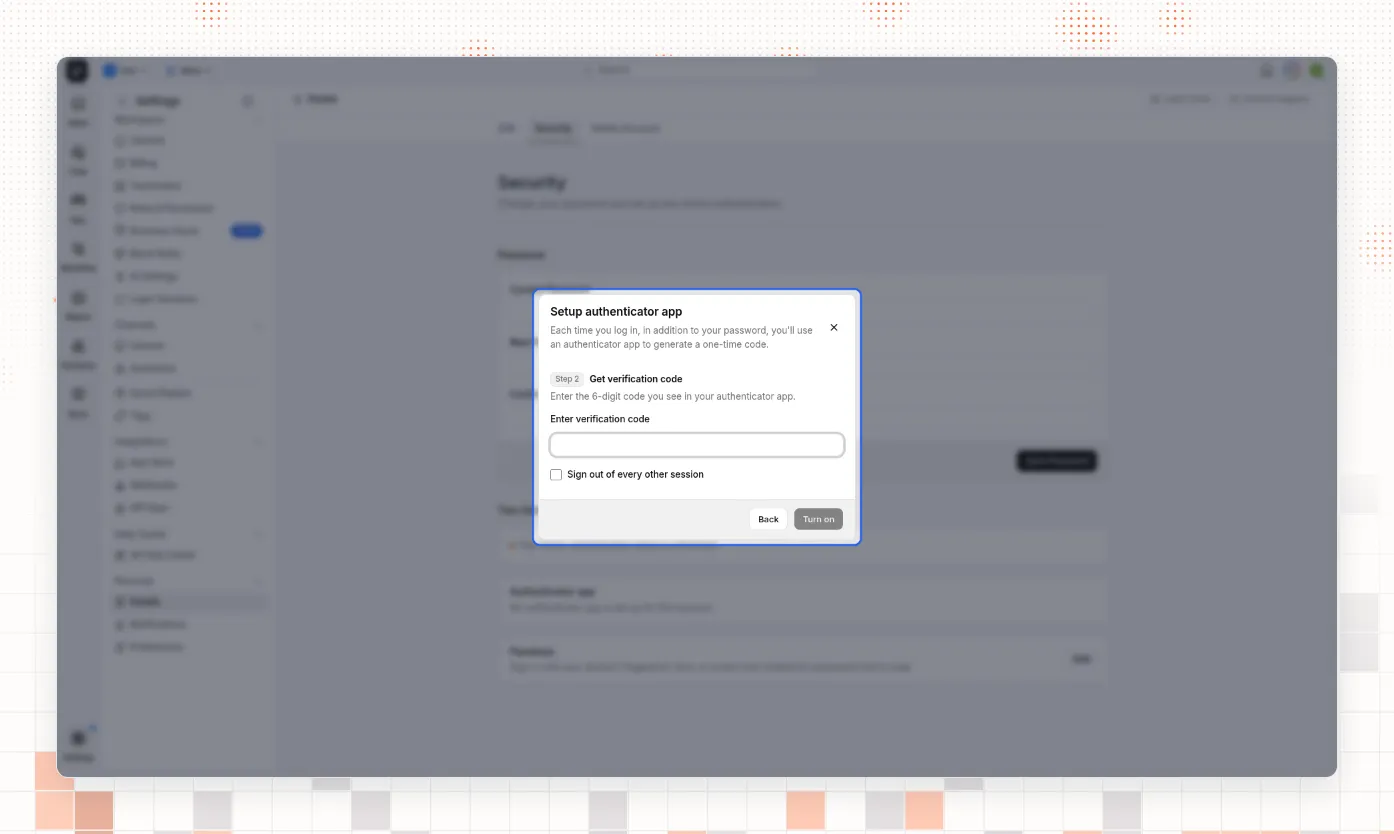
Enter the 6-digit code from the app, then confirm your account password. You can also choose to sign out of every other session. Setup, replace, regenerate, and turn off always ask for your password again.
When setup finishes, the status reads Two-factor authentication is on. You can Replace the authenticator later. The old app keeps working until you confirm the new one, then it stops. Your recovery codes stay the same when you replace the authenticator.
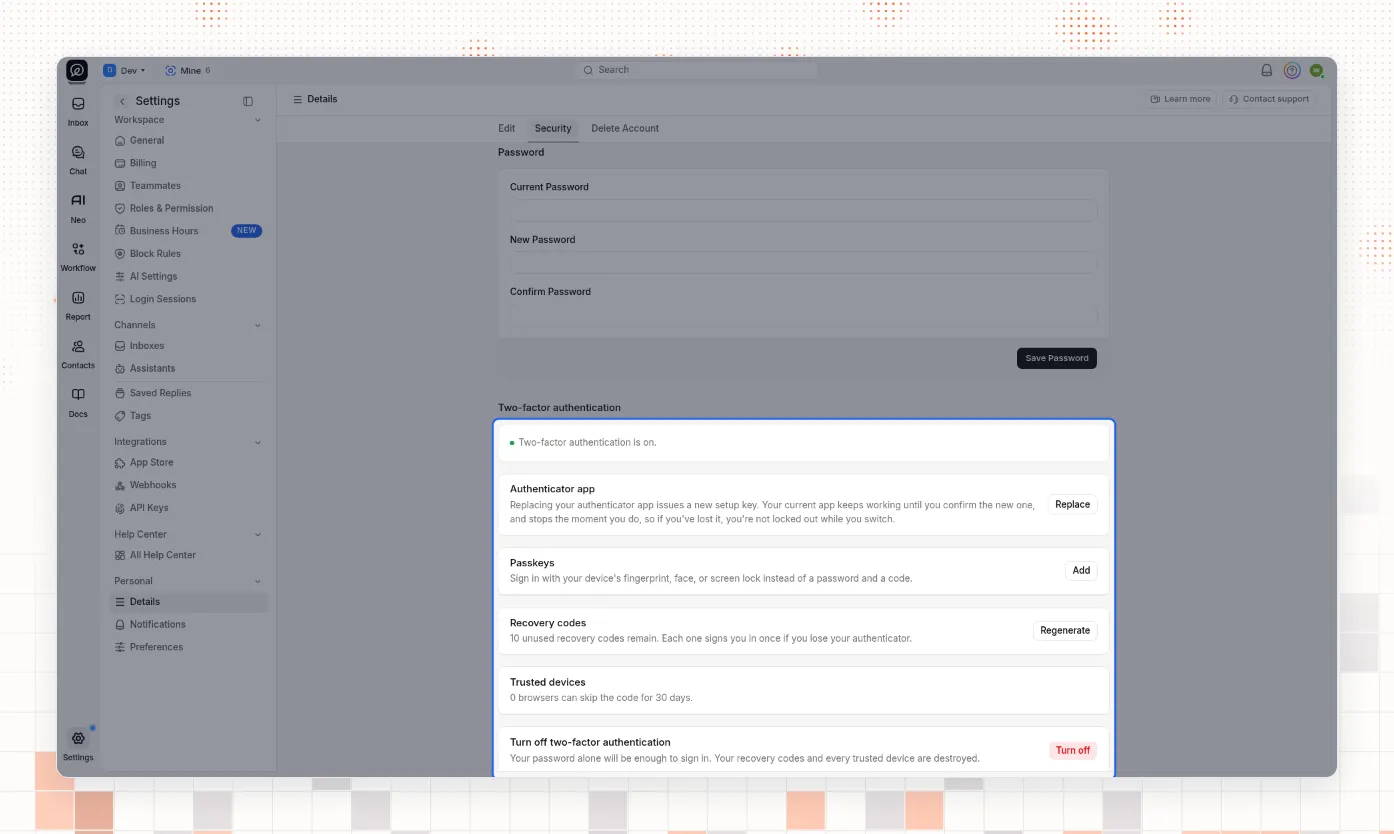
Add a passkey
A passkey signs you in with your device’s fingerprint, face, screen lock, or a hardware key. You can use a passkey alone or together with an authenticator app. Either one turns two-factor authentication on.
Under Passkeys, select Add, optionally name the passkey, complete the browser prompt, then confirm your password.
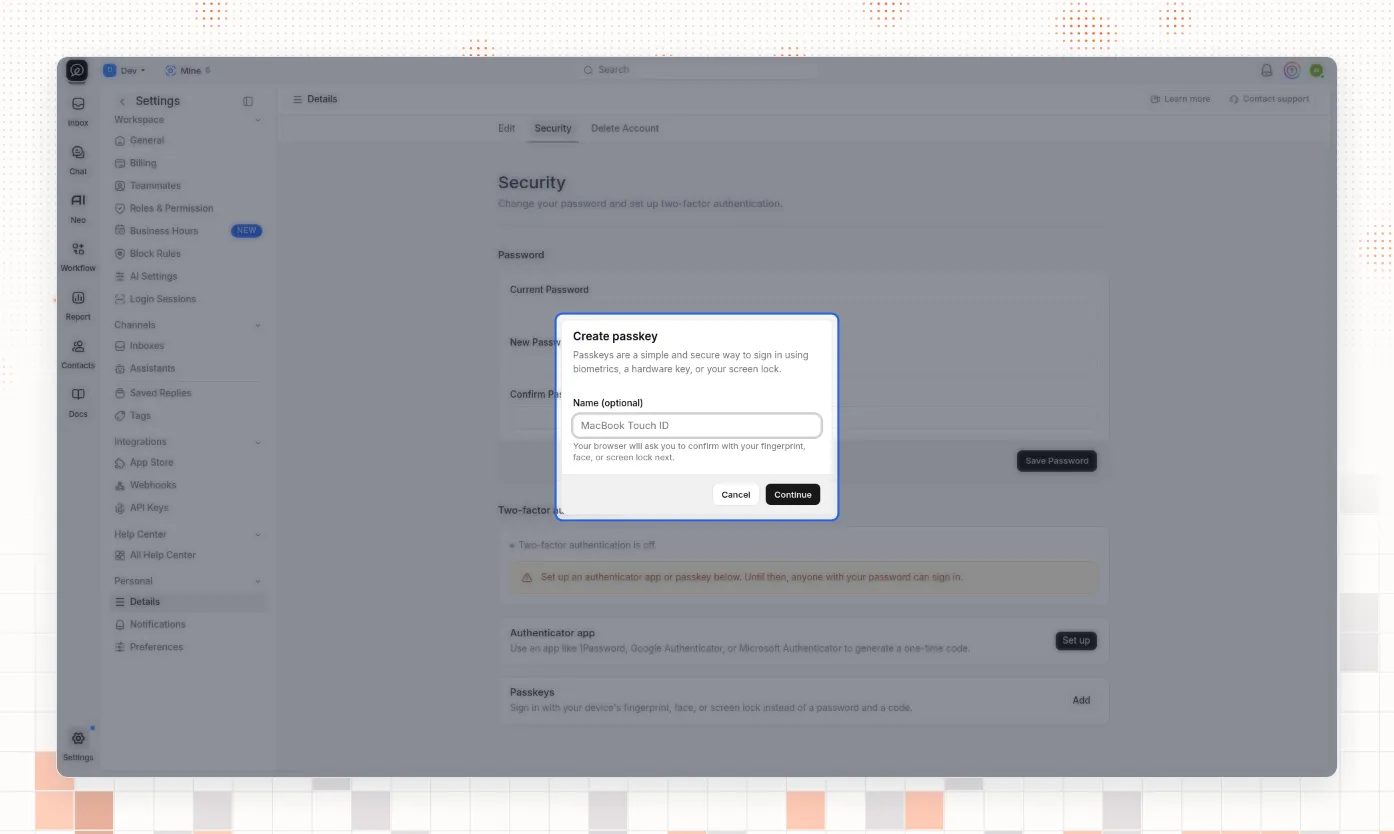
If the page says the browser does not support passkeys, open ThriveDesk in a browser that does, or use an authenticator app instead.
Save your recovery codes
After the first successful setup, ThriveDesk shows Save your recovery codes. Print, copy, or download them before you close the sheet. Each code works once. They are not shown again.
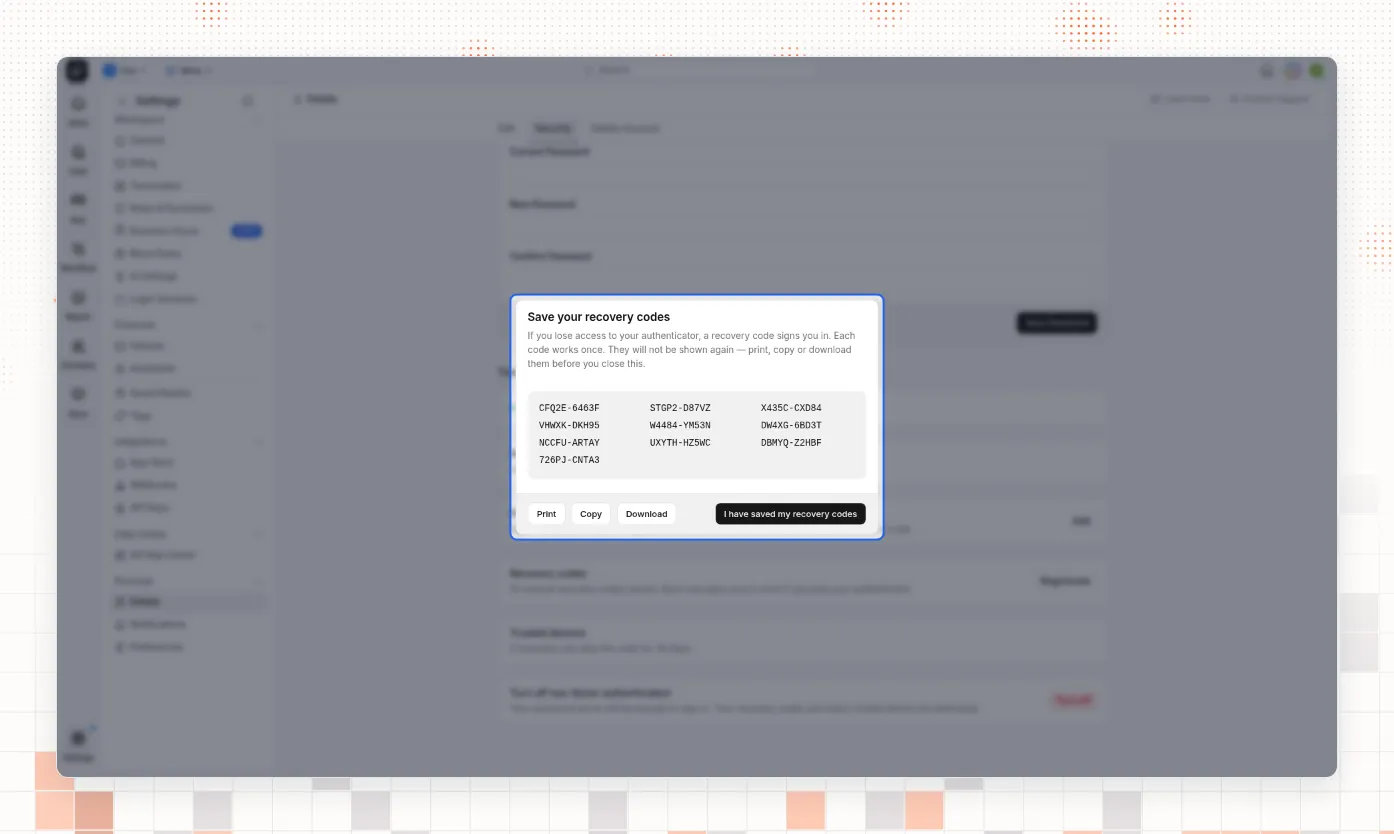
If you lose the list, select Regenerate on Security, confirm your password, and save the new set. The previous codes stop working as soon as the new set is issued.
Sign in with a second factor
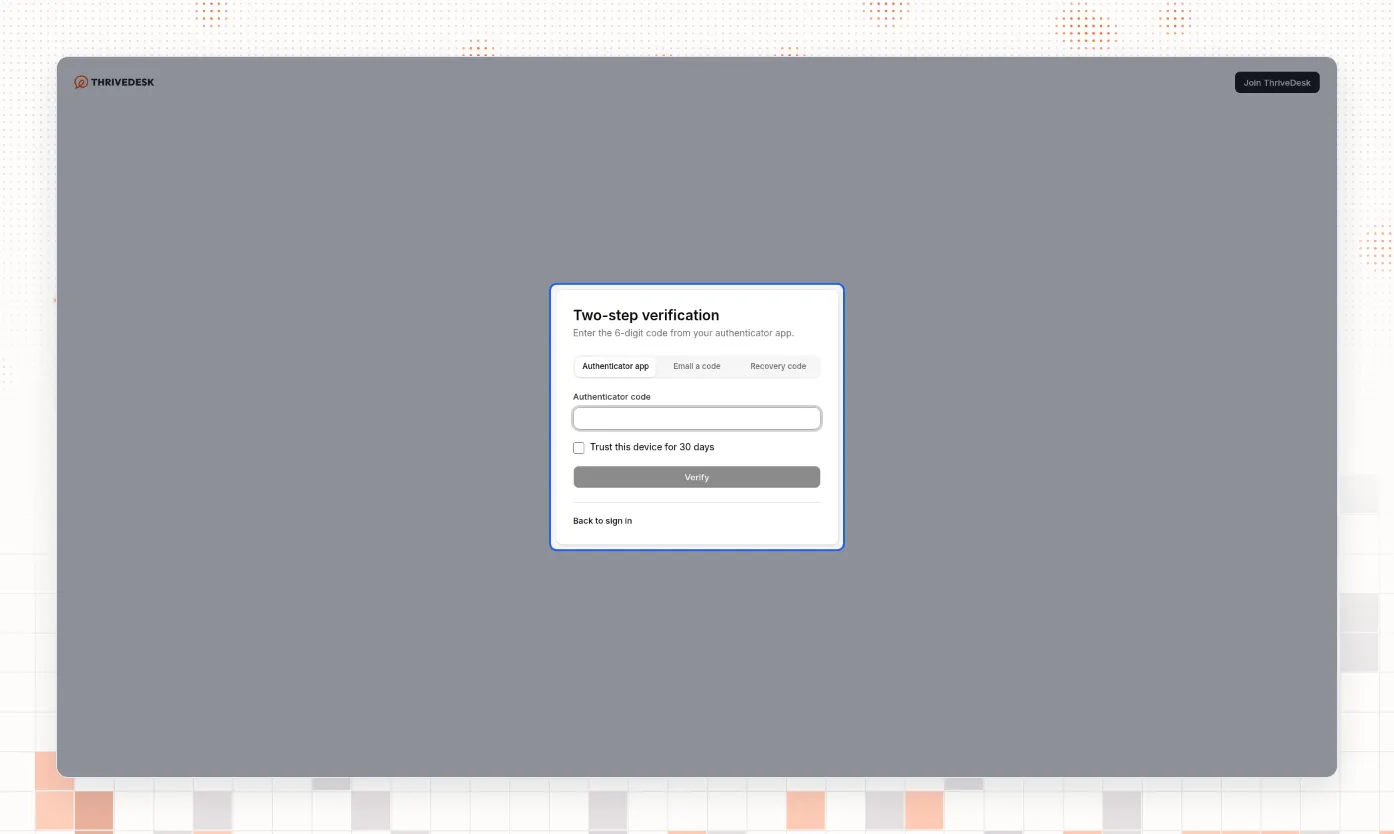
After your password is accepted, ThriveDesk opens Two-step verification. Choose a method your account has — authenticator app, passkey, email a code, or recovery code — then verify. You can turn on Trust this device for 30 days so that browser skips the second factor for a month. Revoke trusted browsers later under Trusted devices on Security.
Require it for the organization
Owners and members with Company Write can require a second factor for every member. Go to Settings → General (under Workspace), open the Security section, and select Require two-factor authentication.
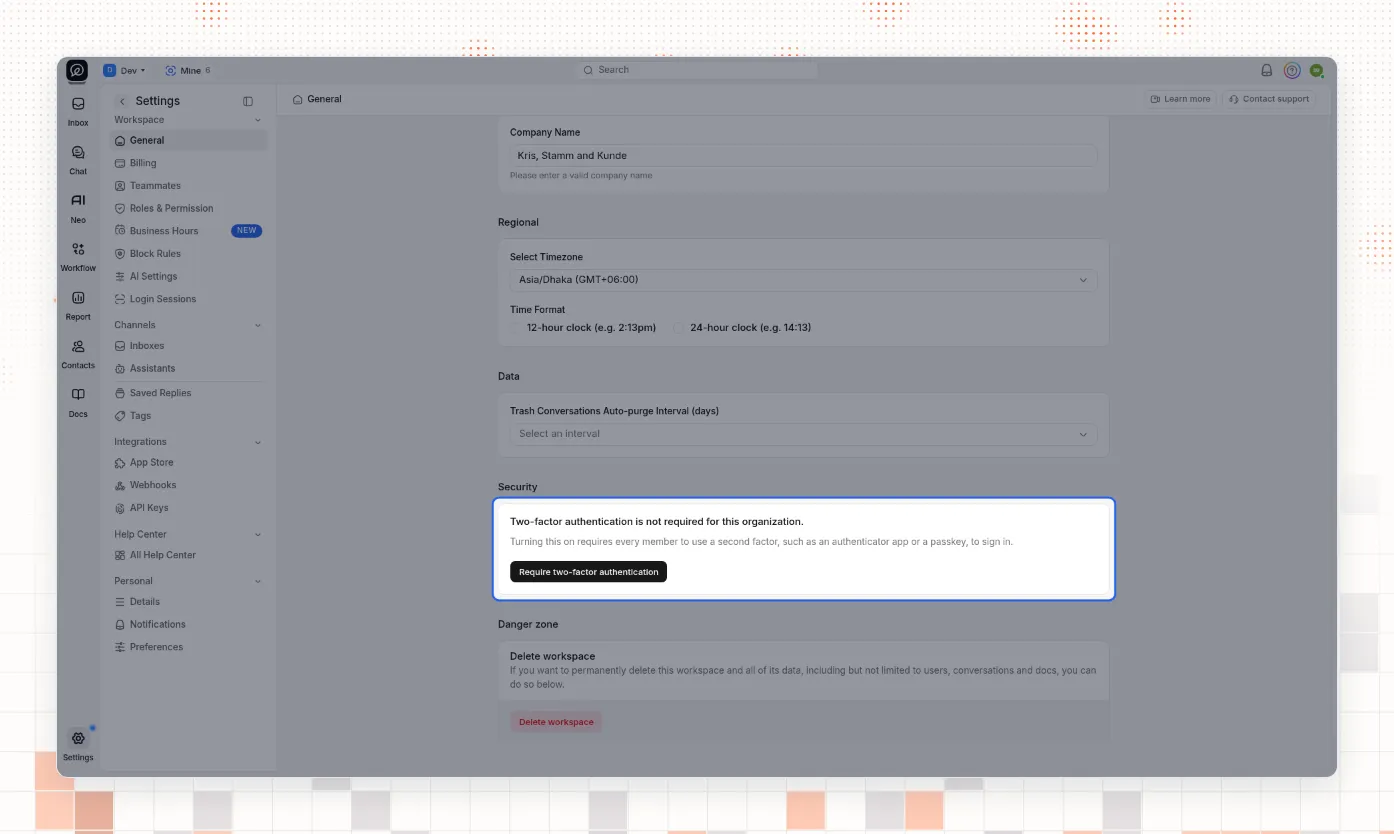
Anyone who has not set up a factor — including you — must finish setup before they can use ThriveDesk again. Members without a factor land on a setup screen and cannot continue until they enroll.
Stop requiring two-factor authentication removes the requirement only. Members who already turned it on keep their own setup. While the organization requires it, ThriveDesk refuses to turn personal two-factor authentication off.
Read the documentation