Choose What Each Role and Teammate Can Do
Turn capabilities on or off for the Administrator and User roles, and give one teammate more or less than their role.
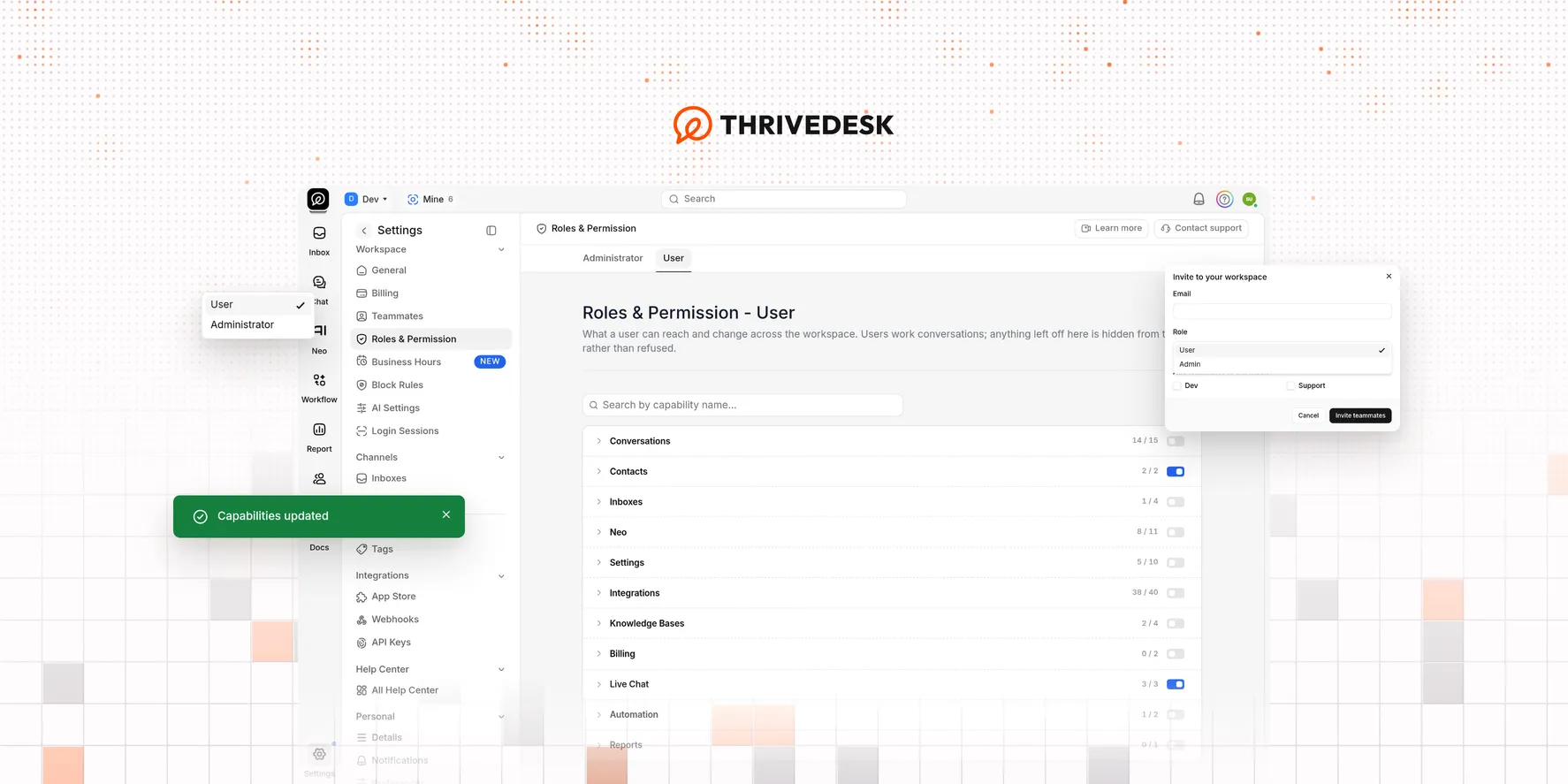
Go to Settings → Roles & Permission to decide what the Administrator and User roles can do. The Account Owner always holds every capability. The three roles are fixed, so you can’t add, rename, or delete a role.
Roles & Permission is available on the Standard plan and higher. The Account Owner and Administrators can open the page by default. Other teammates need the Permissions Write capability.
Choose what a role can do
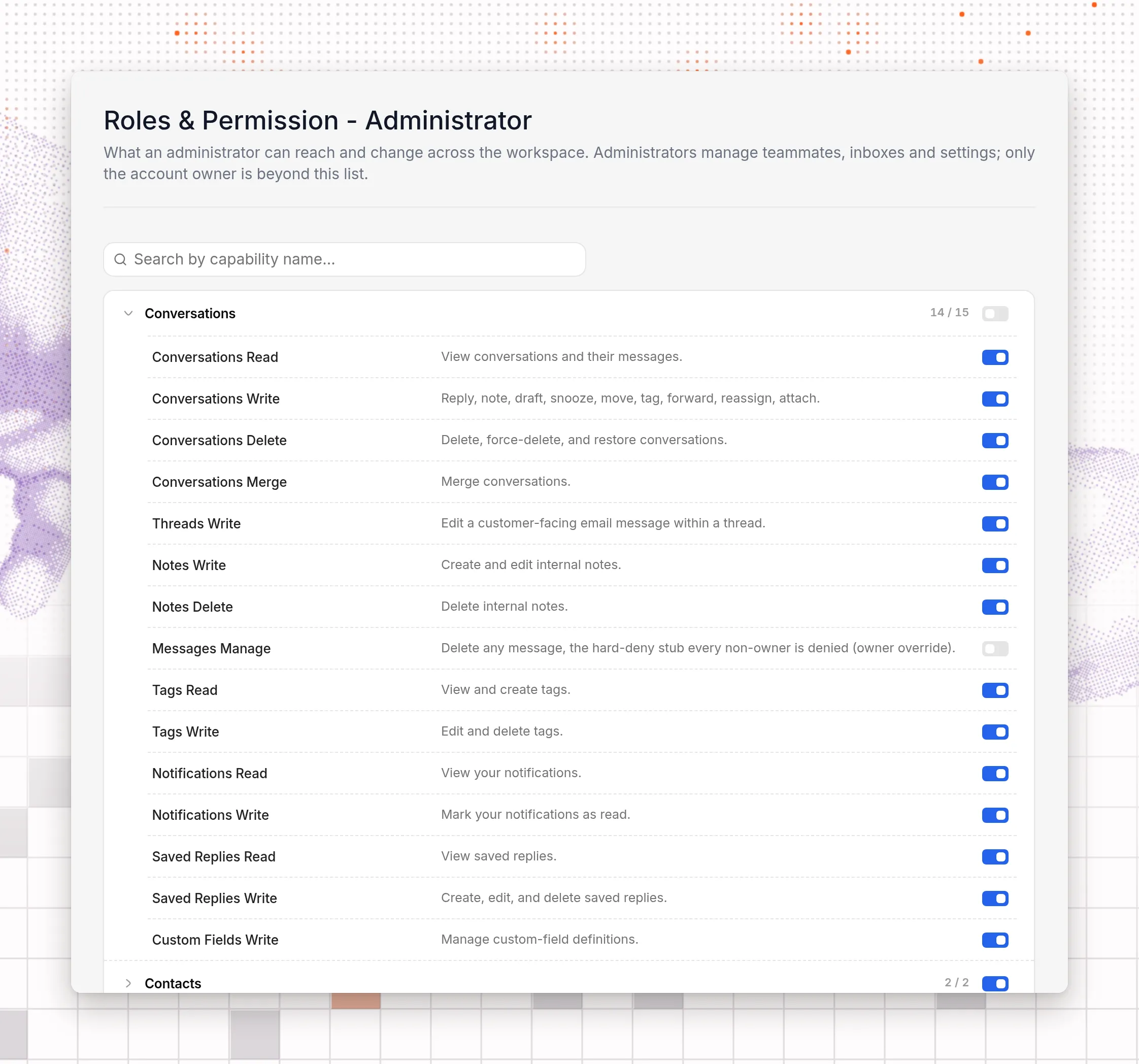
The page has two tabs: Administrator and User. There are 94 capabilities in 11 categories. Each row shows the name of a capability, a short description, and a switch. Conversations opens first. Select a category header to open that category.
To change a capability, turn its switch on or off. Each switch saves at once, and the message Capabilities updated shows. The page has no Save button and no undo button. To undo a change, turn the switch back. A change on a role tab applies to everyone in that role.
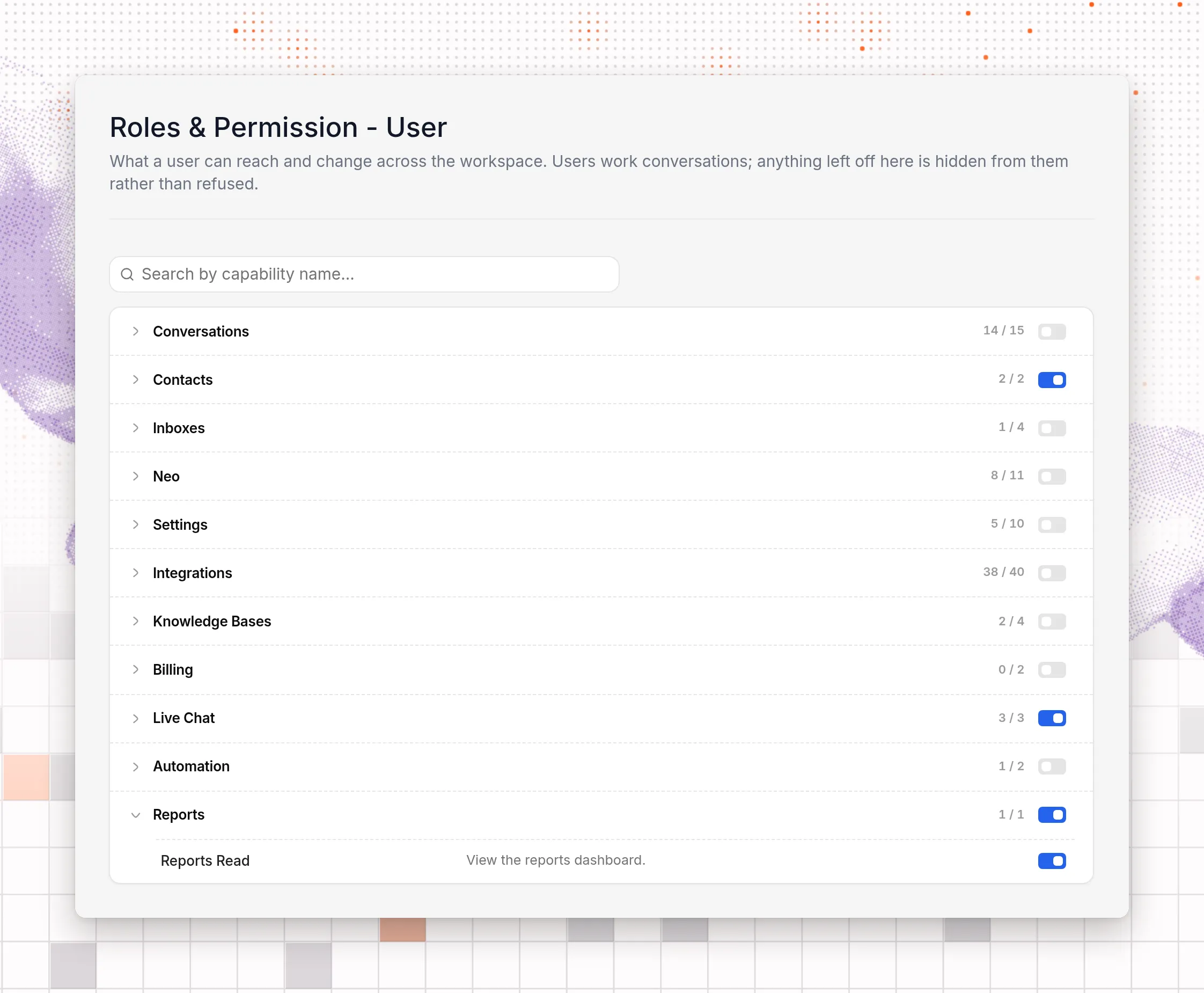
Each category header shows a count, such as 1 / 4. The first number is how many capabilities in the category are on for the role. The second number is how many capabilities the category has. The switch on the header turns on every capability in the category that you can change. When all of them are on, the same switch turns them all off.
Six capabilities are off for both roles by default, including Billing Read and Inboxes Manage. Only the Account Owner sees them, and the Account Owner can turn them on for a role. You get no warning when you do. Be careful: Inboxes Manage on the User tab lets every User reach the conversations of every inbox, including inboxes where they are not an agent.
Find a capability
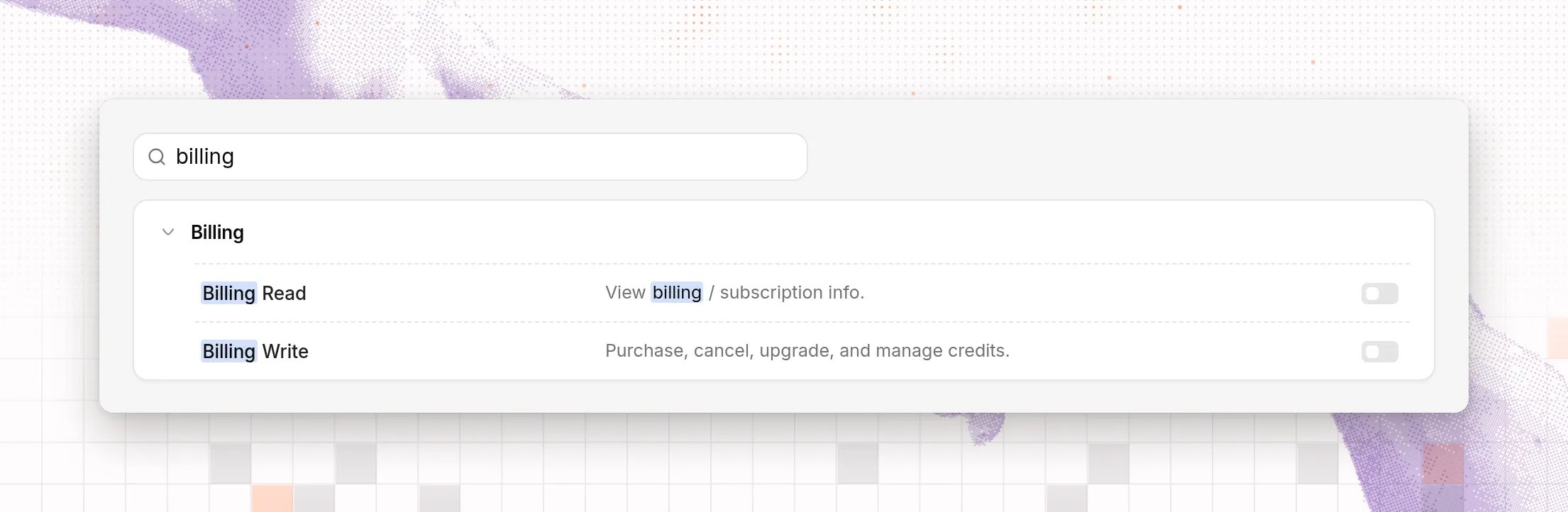
Type a word in the Search by capability name… box. The search checks the name, the description, and the category of each capability. Every category with a match opens. Type billing to show only the Billing category.
Give one teammate more or less than their role
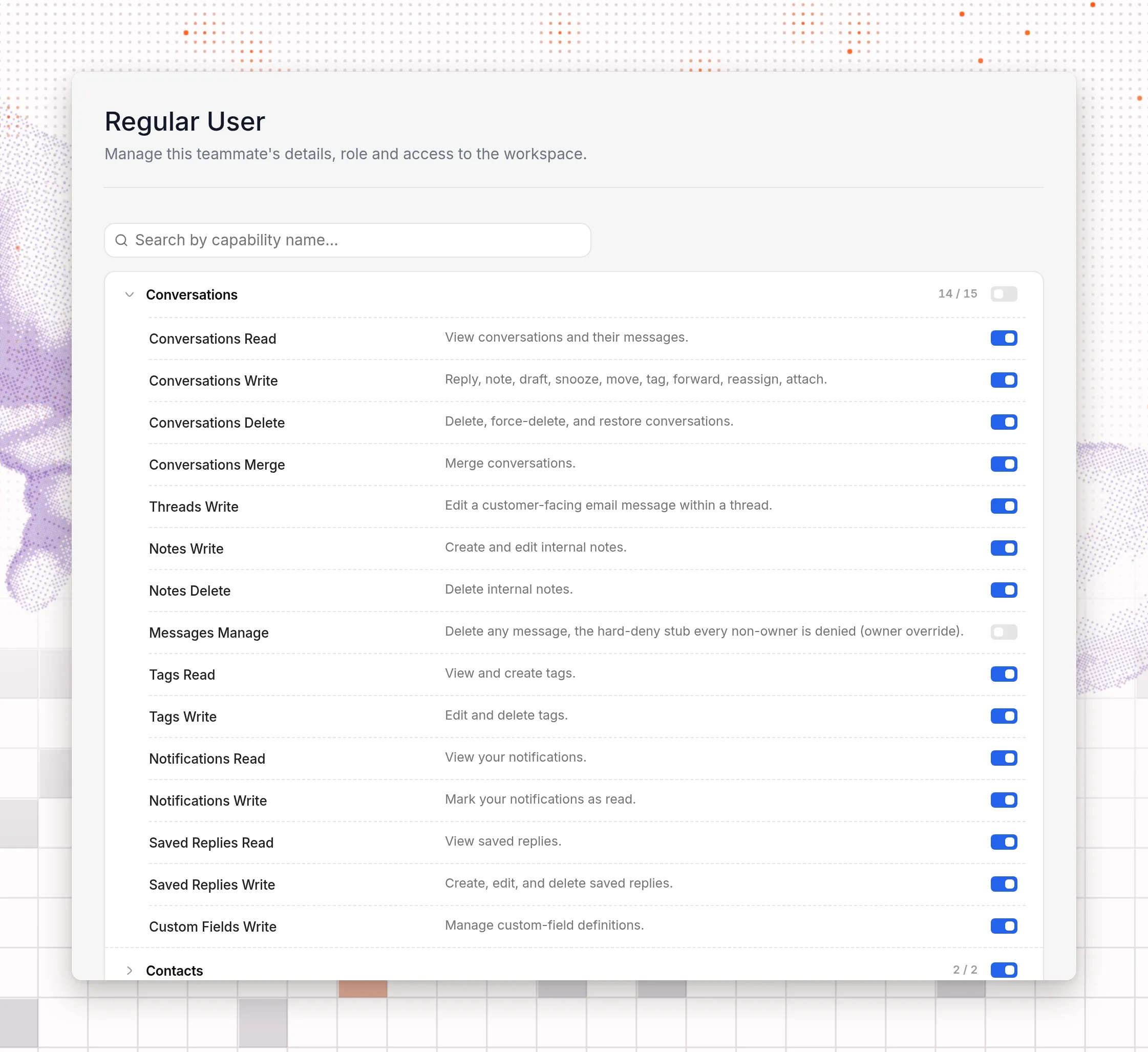
A teammate’s capabilities start from their role. To change them for one person, go to Settings → Teammates and select Manage on the teammate’s row. Then select the Capabilities tab. It has the same categories, search, and switches as the role tabs, and each switch saves at once.
Use it, for example, to turn on Reports Read for one User only.
A setting on this tab wins over the role. If you later change the same capability on the Roles & Permission page, the teammate keeps their personal setting. The tab doesn’t show on your own profile.
What Administrators can change
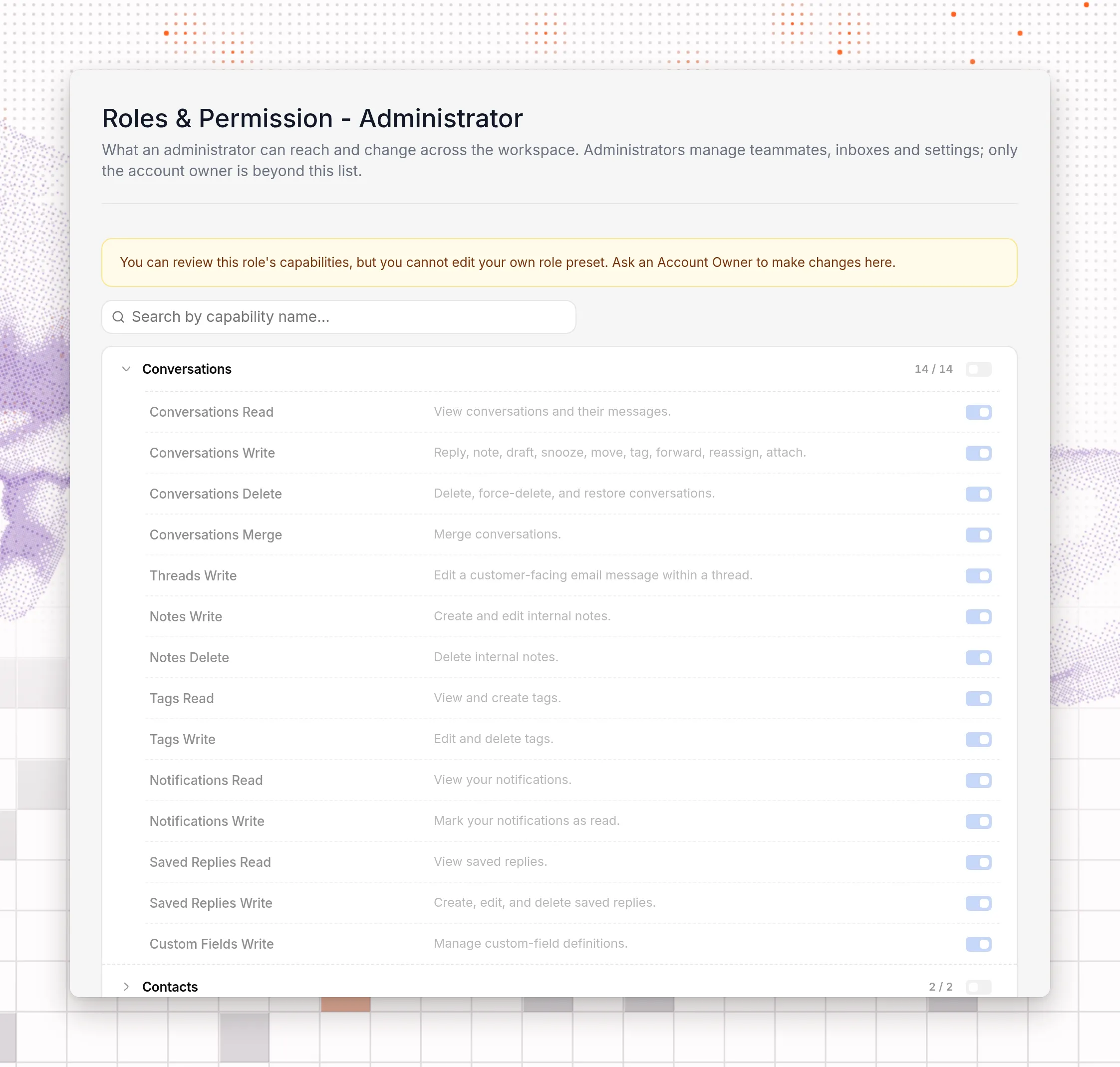
Administrators can change the User role. Only the Account Owner can change the Administrator role. When an Administrator opens the Administrator tab, the switches are dimmed, and a banner tells them to ask an Account Owner for changes.
Administrators don’t see the six owner-only capabilities, so some of their counts are lower: Conversations shows 14 / 14.
Give a teammate a role
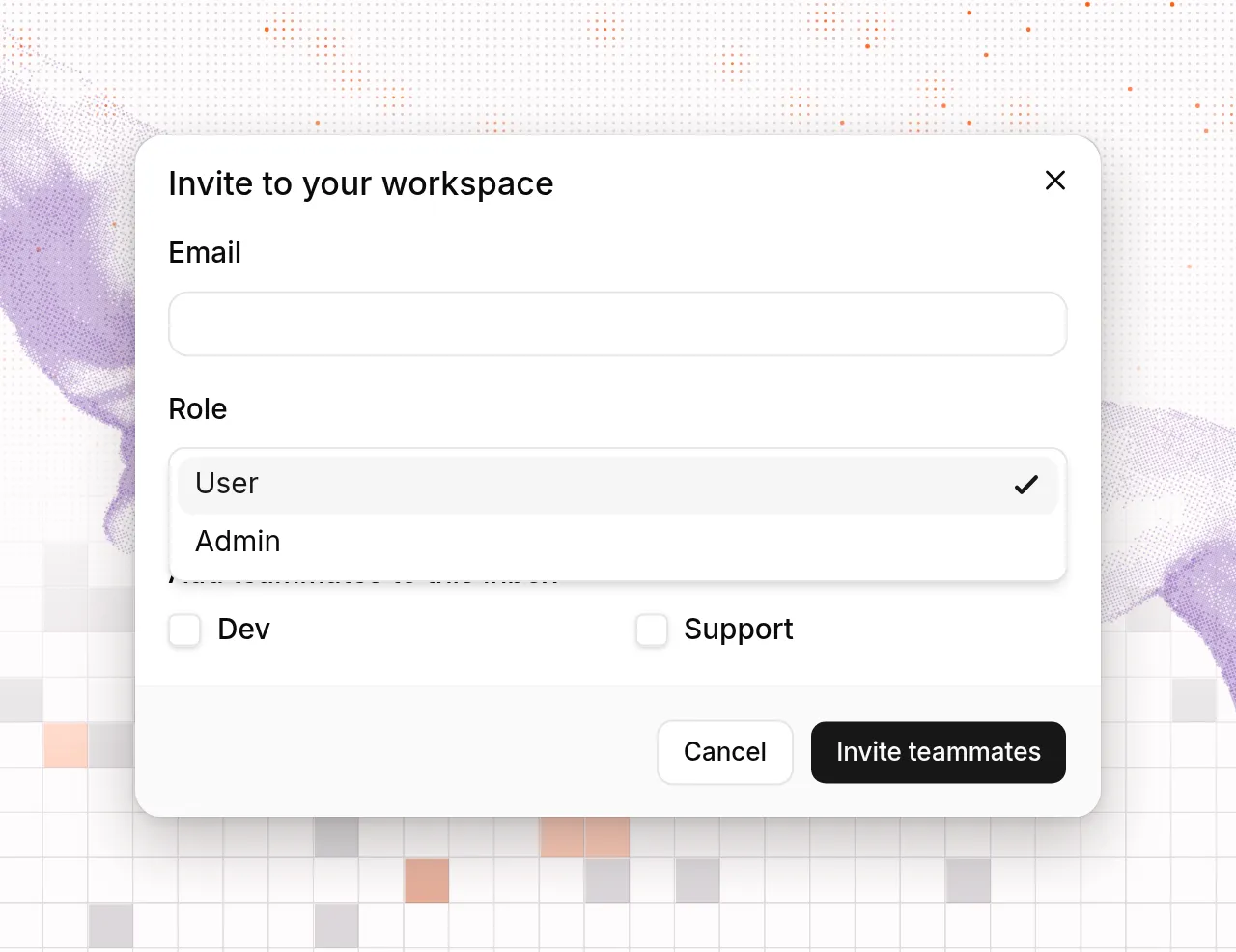
When you invite a teammate, choose User or Admin in the Role list. Admin is the Administrator role. User is the default.
To change the role of a teammate who has joined, select Manage on their row in Settings → Teammates. On the Edit tab, choose User or Administrator in Role, then select Save Profile.
The Account Owner can change the role of any Administrator or User. An Administrator can change a User’s role, but not the role of another Administrator. Nobody can change their own role.
Read the documentation