Live chat is a real-time text conversation between a shopper and your store, held in a chat window on your website. The shopper types a question and gets an answer in the same window. There is no phone call and no email wait. Stores use live chat for sales questions, order status and returns. A person, a chatbot or an AI agent can send the answer. This guide answers “what is live chat” and shows how it works. You will see who answers the chats, when an online store needs them, and how to set up the widget.
How live chat works
Live chat has three parts. A widget sits on your site. An inbox receives the messages. Someone, or something, replies.
The widget on your site
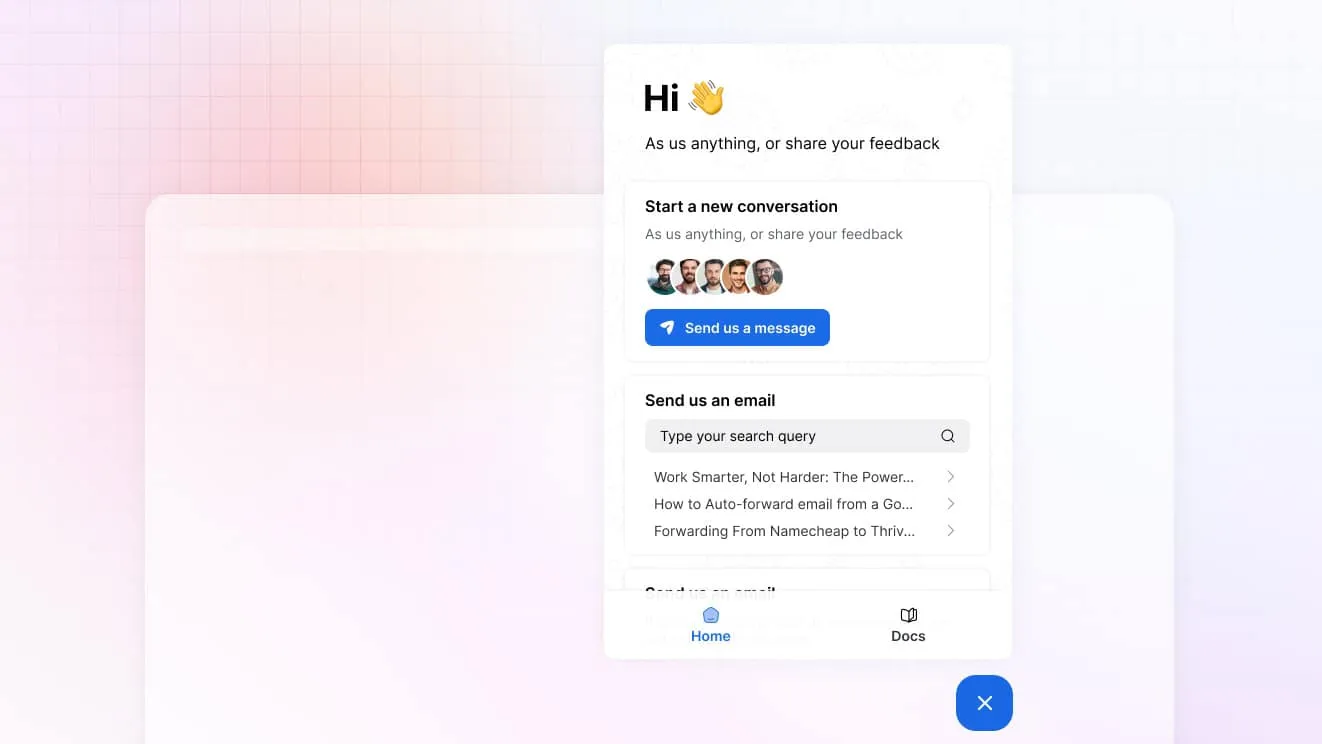
You add a short code snippet to your site. The snippet shows a chat button, usually in the bottom corner. A shopper clicks it and a chat window opens on the same page. The shopper does not leave the product or the cart. The live chat widget can carry your logo, your colors and a short welcome message.
The agent inbox
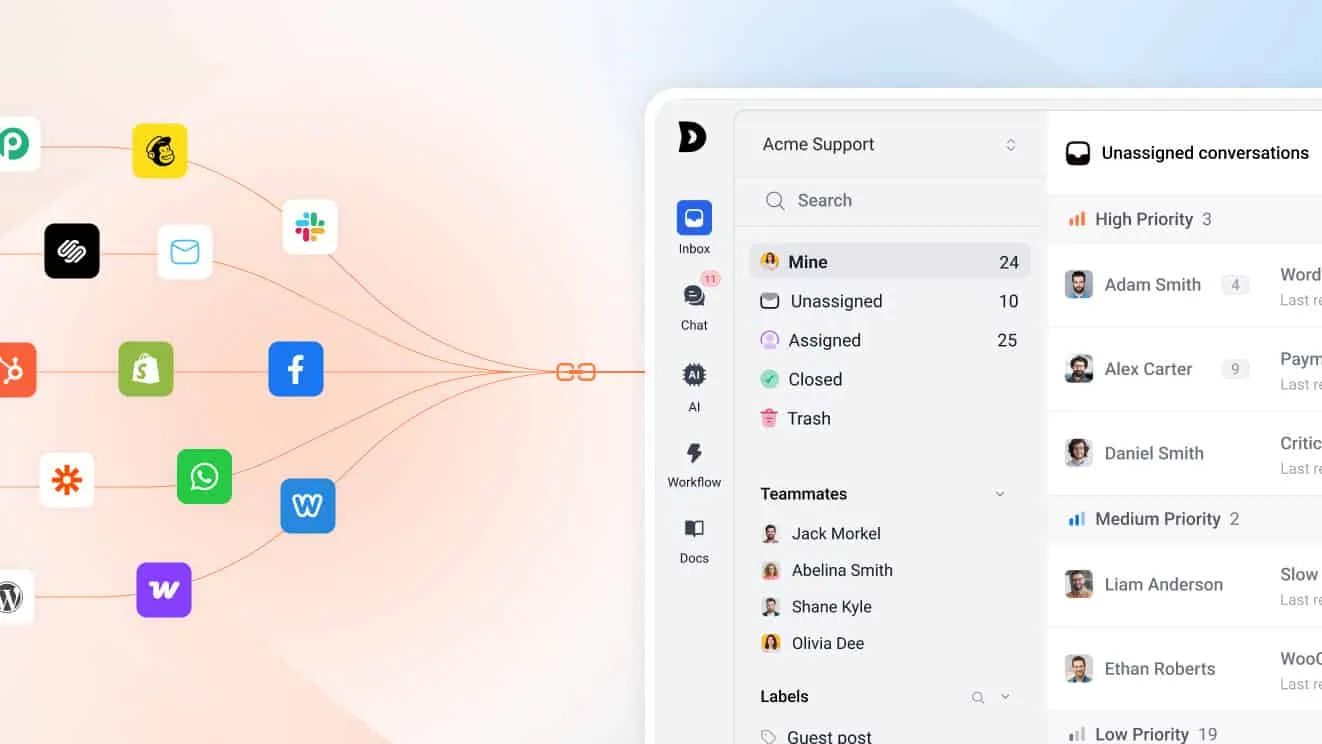
Each message from the widget goes to your support team. The agent sees the chat and the history of that customer. In a help desk, the chat lands in the same shared inbox as email and social messages. One customer has one history.
What happens when nobody is online
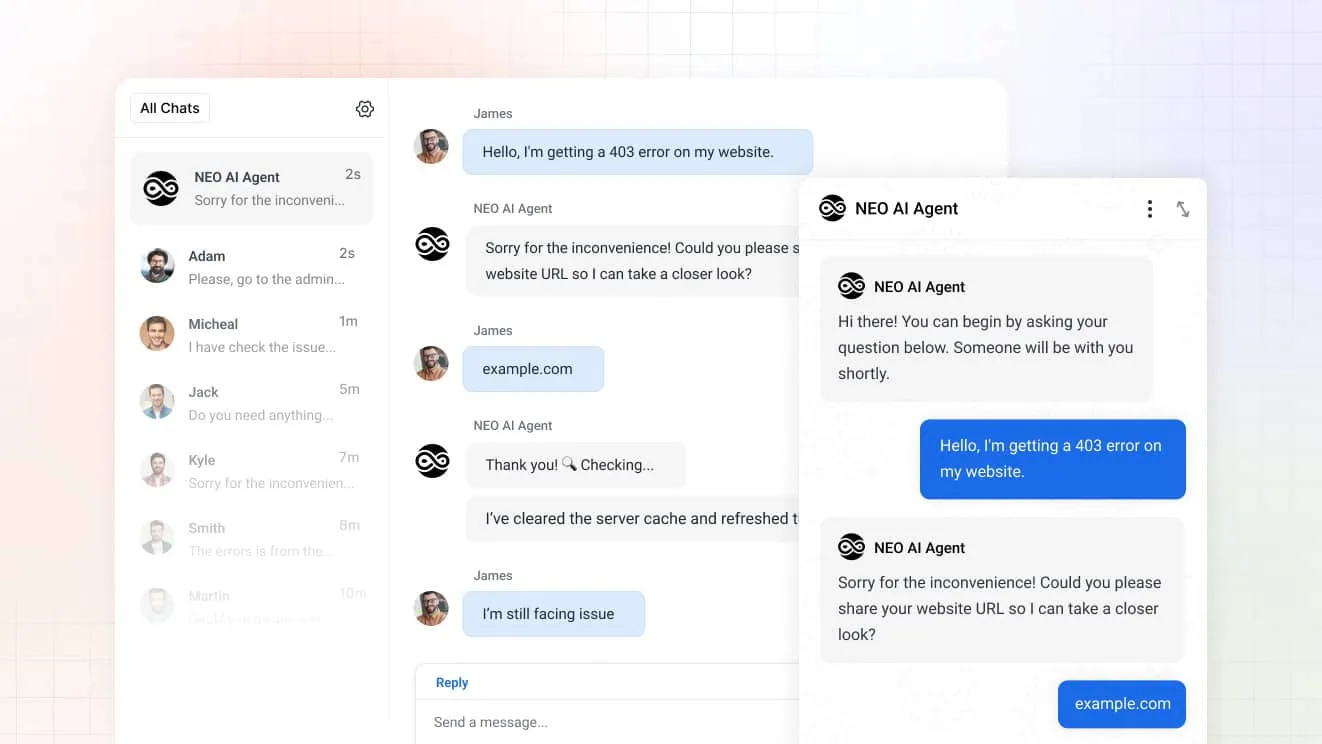
Shoppers write at night and on weekends, when your team is not at work. A good setup shows your business hours and takes a message when the team is offline. That message becomes a conversation in the inbox. An AI agent can also answer during those hours. Your team then picks up the cases the AI could not close.
Who answers a live chat: humans, chatbots, and AI agents
The chat window is the channel. The reply can come from three sources.
Human agents
A person reads the chat and types a reply. People handle tone, exceptions and upset customers well. A shopper who is angry about a late parcel needs a person who can say sorry and fix it. The limit is time. One agent can only run a few chats at once, and chats pile up when many shoppers write together.
Rule-based chatbots
A rule-based chatbot follows a script of buttons and keywords. It works for fixed paths, such as “Where is my order?” with a tracking link. Someone must write and update every path by hand. It fails when the shopper asks something the script does not cover, and the shopper then hits a dead end.
AI agents
An AI agent reads the question, finds the answer in your own content, and writes a reply. It can also act, for example look up an order. It handles open questions that a script cannot. It needs good source content, so write your help center and policies well first. It also needs a clear handoff to a person for the cases it cannot close.
Shoppers are open to AI, with limits. In a 2025 Gartner survey, 51% of customers said they would use a GenAI assistant for customer service on their behalf. An earlier Gartner survey found that 64% of customers would prefer that companies did not use AI in customer service, and difficulty reaching a person was the top concern. Both results point to the same design: let the AI agent answer first and keep a visible path to a person.
Most stores run an AI agent first and keep people behind it. For the longer comparison, read chatbots vs live chat.
| Dimension | Live chat with people | Chatbot | AI agent |
|---|---|---|---|
| Who replies | A support agent | A fixed script | An AI model trained on your content |
| Order lookups | Agent checks the store | Only if scripted | Yes, with store access |
| Judgment calls | Strong | None | Limited, hands off to a person |
| Hours covered | Team hours | Around the clock | Around the clock |
| Setup effort | Low | Medium, to write every path | Medium, to prepare your content |
| Typical failure | Long queue at peak time | Dead end on a new question | Wrong answer from weak content |
What is live chat used for in an online store?
Live chat is a normal channel for shoppers now. Forrester found that 53% of US online adults used live chat with a company in the past six months. Of those users, 43% said it is their preferred way to get help. Stores use live chat for a small set of repeat questions.
53%
of US online adults used live chat with a company in the past six months
Forrester, 2023
43%
of those live chat users say it is their preferred way to get help
Forrester, 2023
70.22%
average documented cart abandonment rate across 50 studies
Baymard Institute, updated 2026
51%
of customers would use a GenAI assistant for customer service on their behalf
Gartner, survey of 4,879 customers, 2025
Pre-sale questions
Shoppers ask about sizes, stock, shipping cost and compatibility before they buy. A fast answer in the chat window can save the sale. A slow answer by email often loses it, because the shopper has already opened another store in a new tab.
Order status and delivery
“Where is my order?” is the most common question in most stores. The answer lives in your store data. Live chat with store context lets the agent or the AI agent answer in one message. Without that context, the agent must ask for an order number and then look it up in another tab.
Returns and refunds
Return rules are easy to state and hard to find. A chat answer that quotes your policy, with the right deadline, prevents a longer email thread. The shopper learns what to do next in one minute. Refund decisions stay with a person, who can see the order and make an exception when it is fair.
When your store needs live chat
Add live chat when you see these signs in your own inbox:
- The same five questions fill your inbox every week.
- Shoppers leave carts with unanswered questions.
- Peak seasons bury your email queue.
- Customers ask about orders that your store data can already answer.
Cart data shows why this matters. Baymard Institute puts the average documented cart abandonment rate at 70.22%, based on 50 studies. Many shoppers leave for reasons you cannot fix with chat, such as high extra costs. Others leave over questions chat can answer on the spot: how long delivery takes, what the returns policy says, and what the total will be.
| Item | Share of shoppers who abandoned a cart |
|---|---|
| Extra costs too high | 40% |
| Delivery too slow | 20% |
| Did not trust the site with card details | 19% |
| Site required an account | 18% |
| Checkout too long or complicated | 17% |
| Returns policy not satisfactory | 13% |
| Could not see the total cost up front | 12% |
Source: Baymard Institute, cart abandonment statistics (updated October 2026). Shoppers who were just browsing are excluded.
Email may be enough for a store that gets a handful of messages a week, or one that sells a single product with few questions. In that case, start with email and add chat later. For habits that make chat work, read live chat best practices. For the case in favor, read the benefits of live chat.
Live chat vs email, phone and social messages
Each channel has a job. Email suits long, formal requests and gives you a written record. Phone suits urgent or sensitive cases, but it ties up a person for each call. Social and messaging apps suit shoppers who already use them every day. Live chat sits between email and phone. It is fast like a call, but one agent can handle several chats at once, and the transcript stays in the inbox.
Most stores need more than one channel, and shoppers pick the channel they like. The risk is a split team that checks four tools. Put every channel in one inbox, so a shopper who starts in chat and follows up by email has one history.
What to measure once chat is live
Track a few numbers each week, and keep them simple:
- First reply time: how long a shopper waits for the first answer.
- Chat topics: which questions fill the chat, so you can write better answers.
- Chats closed without a person: how many chats your AI agent solved alone.
- Handoffs: how many chats moved to a person, and why.
The topic list matters most, because it is the easiest one to act on. It shows which answers to add to your help center and saved replies. Each new answer makes the next chat faster. Send the new answers to your AI agent too, so it learns the same wording your team uses. Review the list every month. Questions change with seasons, sales and new products, and your answers must change with them. A store that checks the list after each big sale will find the gaps in its help center before the next one.
How to choose live chat software now that AI agents do the work
AI agents now do much of the daily work in support. They answer chats, route conversations and look up orders. Your team spends less time on manual, repeat tasks. That changes what you should look for in a tool.
What to look for
- AI built into the help desk. The AI should see the same inbox, customers and history as your team. A separate bot on top of a chat tool splits your data.
- A human in the loop. The AI must hand a chat to a person, with the context, when it cannot settle the case.
- Training on your own content. The AI should answer from your help center, policies and past answers, not from guesses.
- Proof under load. Ask how the product behaves in peak season, and read independent reviews.
- A track record. Check how long the vendor has operated and how long customers have stayed.
- Data security. Ask where your data lives and how you can export it.
- A real support team. You should reach a person when something breaks.
How to spot vibe-coded software
Some new apps are put together fast with AI code generators. Fast building is fine. The risk is what the builders skipped. Look for these signs:
- no track record or customer base you can verify
- no public uptime history
- thin security information
- no clear plan for how you export your data
- no sign the product has run under heavy load
Why cheap, untested software costs more
A low price looks good until a chat drops during a sale. Software with no record can have outages in your peak season. It can leak customer data. It can also disappear, and then you pay to move your history to another tool. Missed chats and lost trust cost more than the monthly fee you saved.
ThriveDesk has been built since 2021, which is more than five years. It has an established customer base and a reputation you can check. It is not vibe-coded, and it handles large support loads. Neo, the AI agent, answers chats from your own content and runs AI actions such as order lookups. Copilot drafts replies for your team. When a case needs a person, escalation to people passes the full conversation to your team. Your team works in one shared inbox, with live chat, a help center and order context from Shopify or WooCommerce in the same place. For ranked tools, see the best live chat software for ecommerce.
How to set up a live chat widget, step by step
This tutorial uses ThriveDesk. It has ten steps, and a small store can finish them in one sitting. The labels match the app. You need an account with access to settings.
Step 1: start a trial and pick the inbox for chats
Start a free trial on the ThriveDesk site. The trial lasts 7 days, and you do not need a credit card. There is no free plan. Chats go to an inbox, so decide which one gets them. To make a new one, open Settings, then Inboxes, and select New inbox. Type an Inbox name, such as “Store support”. Skip this if you already have an inbox for your store.
Step 2: create the chat widget
The widget is called a chat assistant in the app. Open the AI section, go to Deploy, open Chat widget, and select the plus button, New chat widget. Fill in two fields:
- Assistant name: a name for you, such as your store name.
- Select Inbox: the inbox from step 1.
You can add more than one widget. A second site can have its own widget and inbox. The Chat Assistant page also lists all widgets. It has a New Assistant button that does the same job.
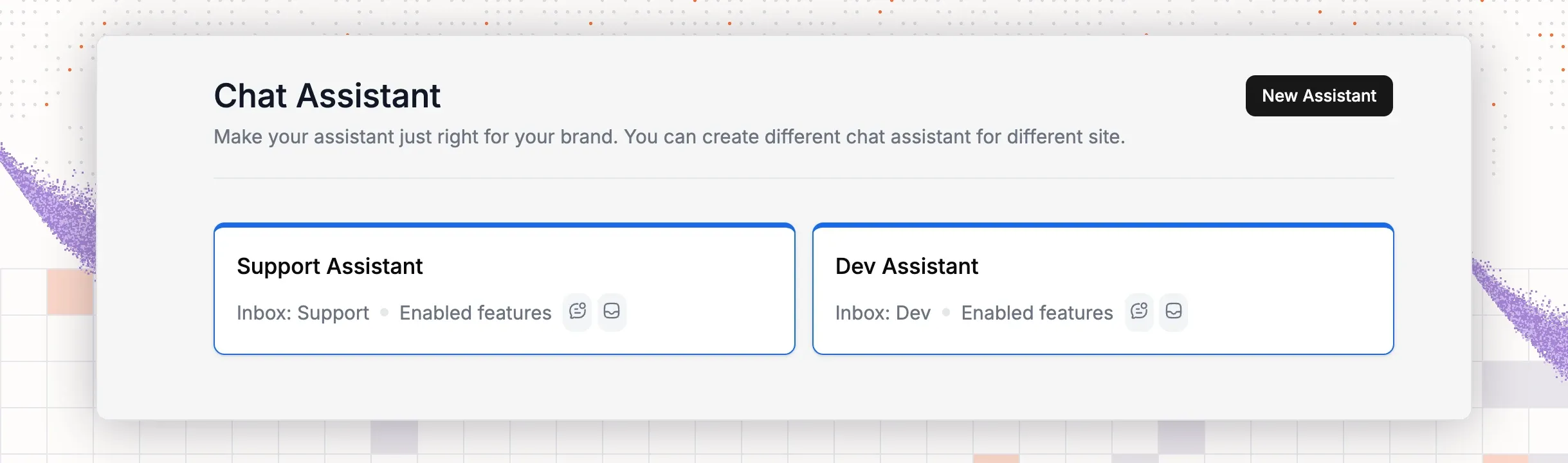
Step 3: set the brand, launcher and welcome message
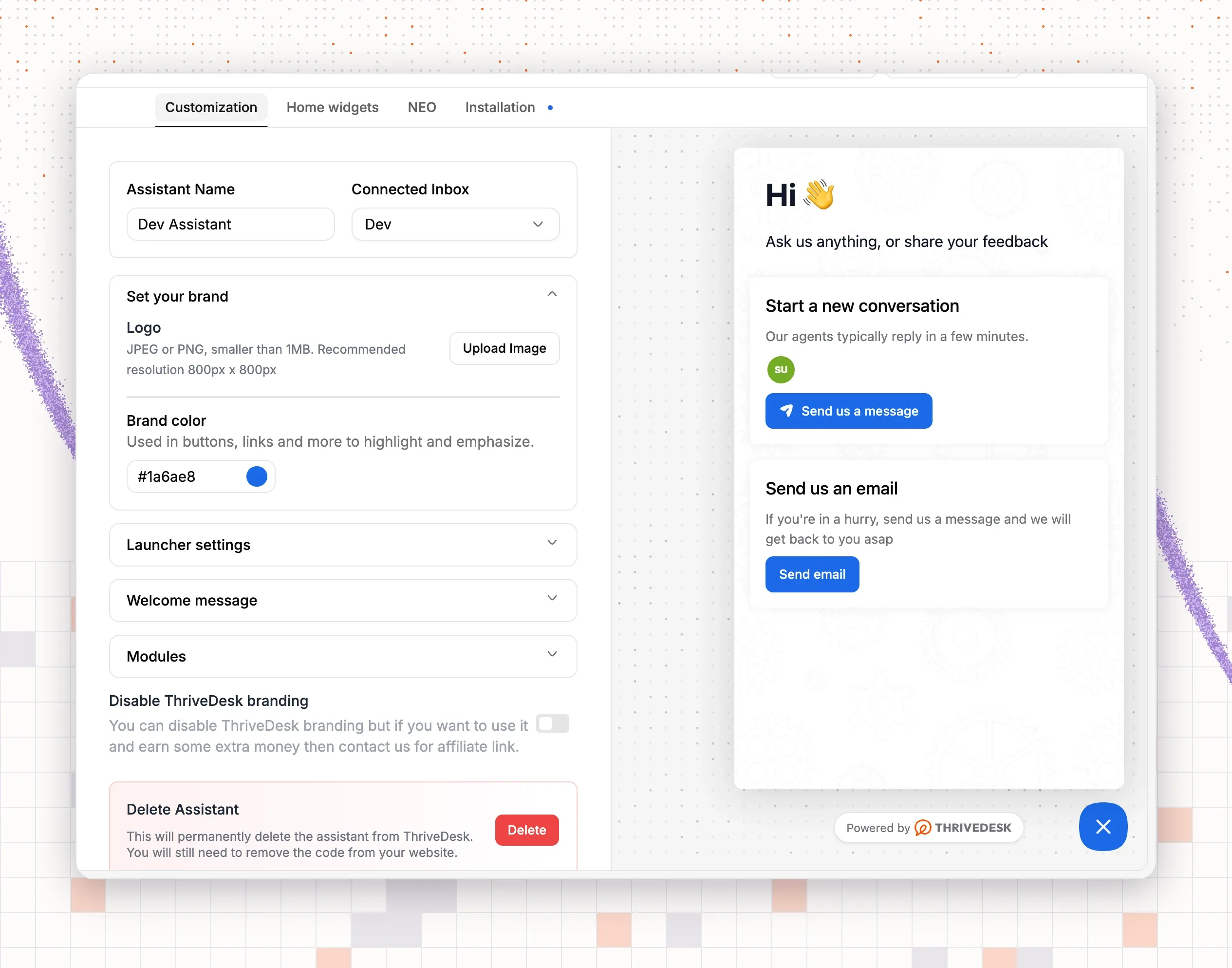
Open your widget and stay on the Customization tab. You can change the Assistant name and the Connected Inbox at the top. Then work through these groups:
- Set your brand: upload a Logo (JPEG or PNG, under 1 MB, 800 by 800 pixels is best) and pick a Brand color with the color picker or a hex code.
- Launcher settings: set the Launcher to Icon only, Icon & Text or Text only. Choose an icon with Select Icon or upload a Custom Icon. Set the button text.
- Horizontal Position: put the launcher on the left or the right. Z-Index controls how the widget stacks above other page items.
- Welcome message: write a Greeting and a Team intro. The team intro has a 160-character limit.
The preview on the right side shows the widget as shoppers see it. The form saves as you type, so there is no Save button.
Step 4: choose what the widget shows
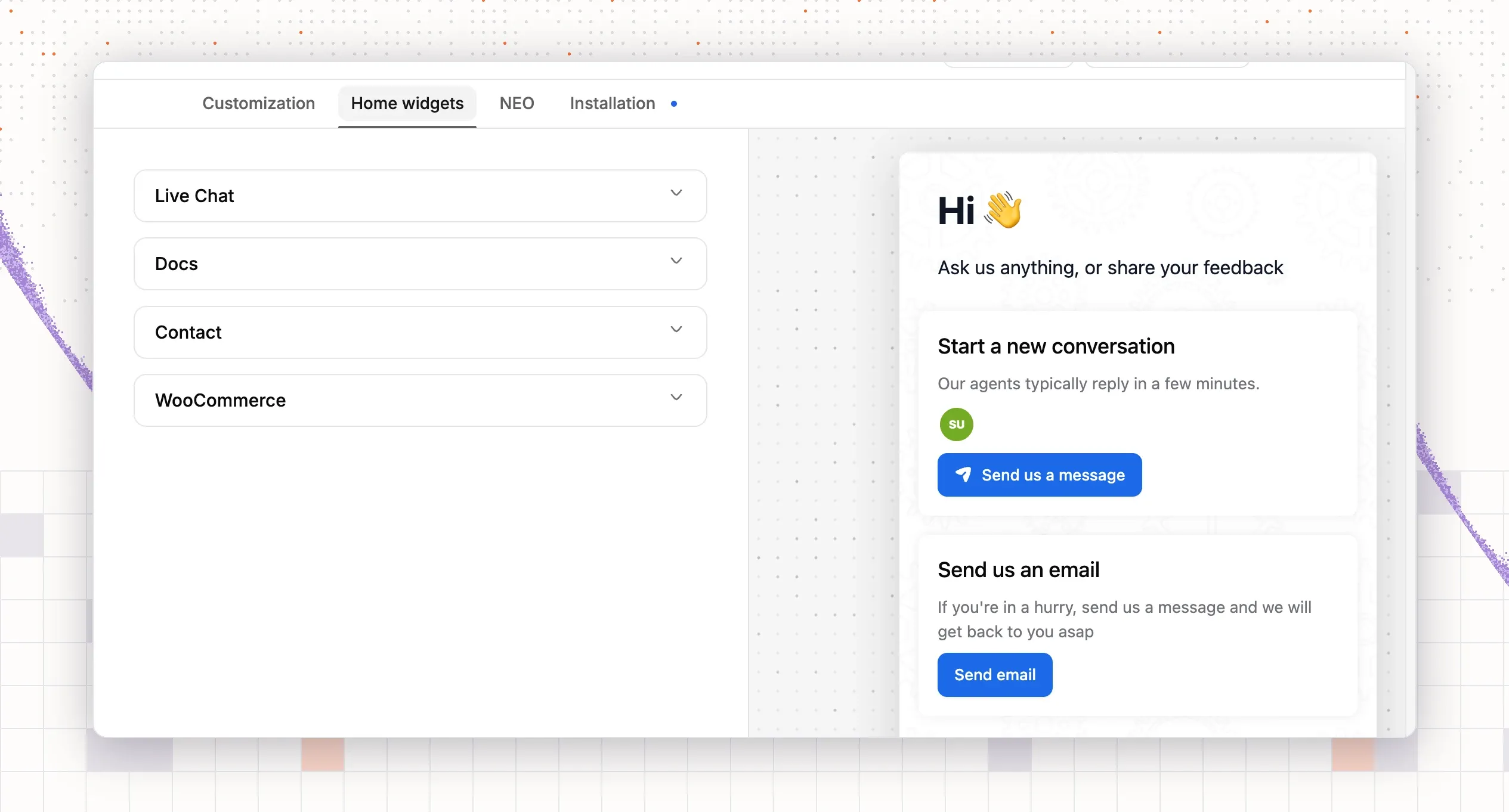
Open the Home widgets tab. It has one section for each part of the widget:
- Live Chat: switch on Enable live chat. Use Enable on agents availability to show chat only when agents are online. Show offline agents lists agents who are away. Require email? asks visitors for an email address before they chat, and you can edit the Email Query, Invalid Email Text and Valid Email Text. Allow attachments lets visitors send images. Edit the Widget Text (title, description, button) to match your voice.
- Docs: switch on Enable docs to add search over your help center. Use Select doc site to pick a knowledge base.
- Contact: switch on Enable contact form so visitors can send a message. You can ask for a name and a subject, and allow attachments.
- WooCommerce: shows an order status screen. See step 5 for the setup.
The Modules group in the Customization tab sets the text of the Home button and Docs button. When your plan allows it, Disable ThriveDesk branding removes the ThriveDesk badge.
Step 5: add the widget to your store
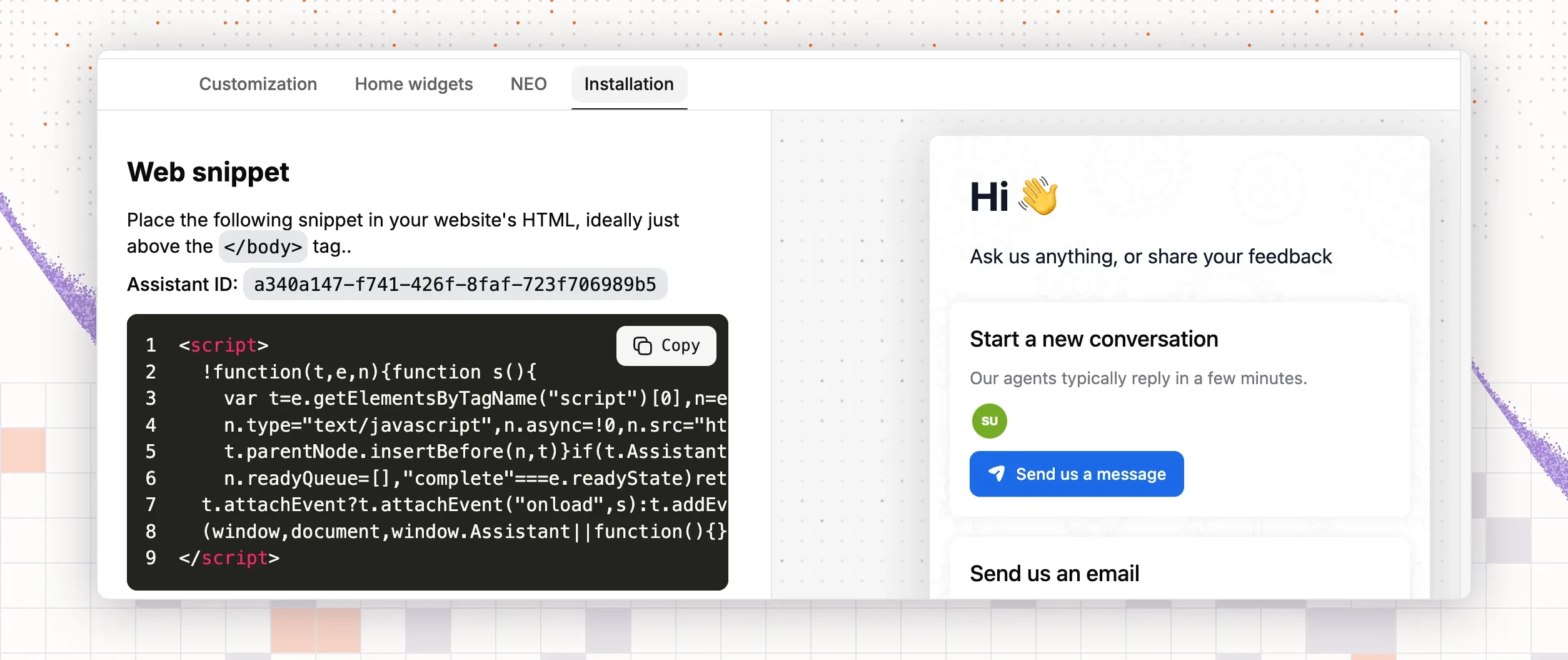
Open the Installation tab. It shows a Web snippet and your Assistant ID. Select Copy. Paste the snippet into your site’s HTML just above the closing body tag, on every page. Then use the Installation guide tiles below the snippet for platform steps. The tiles cover Google Tag Manager, Shopify, WordPress, Joomla, Squarespace, Wix, Webflow and Weebly.
- Shopify: open the Shopify tile for the guide. In short, you add the snippet to your theme code. To see customer metrics and up to 10 recent orders beside each conversation, connect the Shopify app. Open App Store, choose Shopify, enter a Label and your Shop address, pick the Inboxes, and select Connect.
- WordPress and WooCommerce: install the ThriveDesk plugin from the WordPress plugin directory and activate it. Open ThriveDesk in the WordPress admin menu and connect your account on the Overview tab. Open the Integrations tab to connect WooCommerce. Then open the Live Chat tab, pick your assistant and choose where the widget appears. You do not need to paste the snippet. In ThriveDesk, return to Home widgets, open WooCommerce, switch on Enable the app and choose your site in Select your WooCommerce site. Shoppers can then check an order from the widget.
Step 6: set business hours and offline behavior
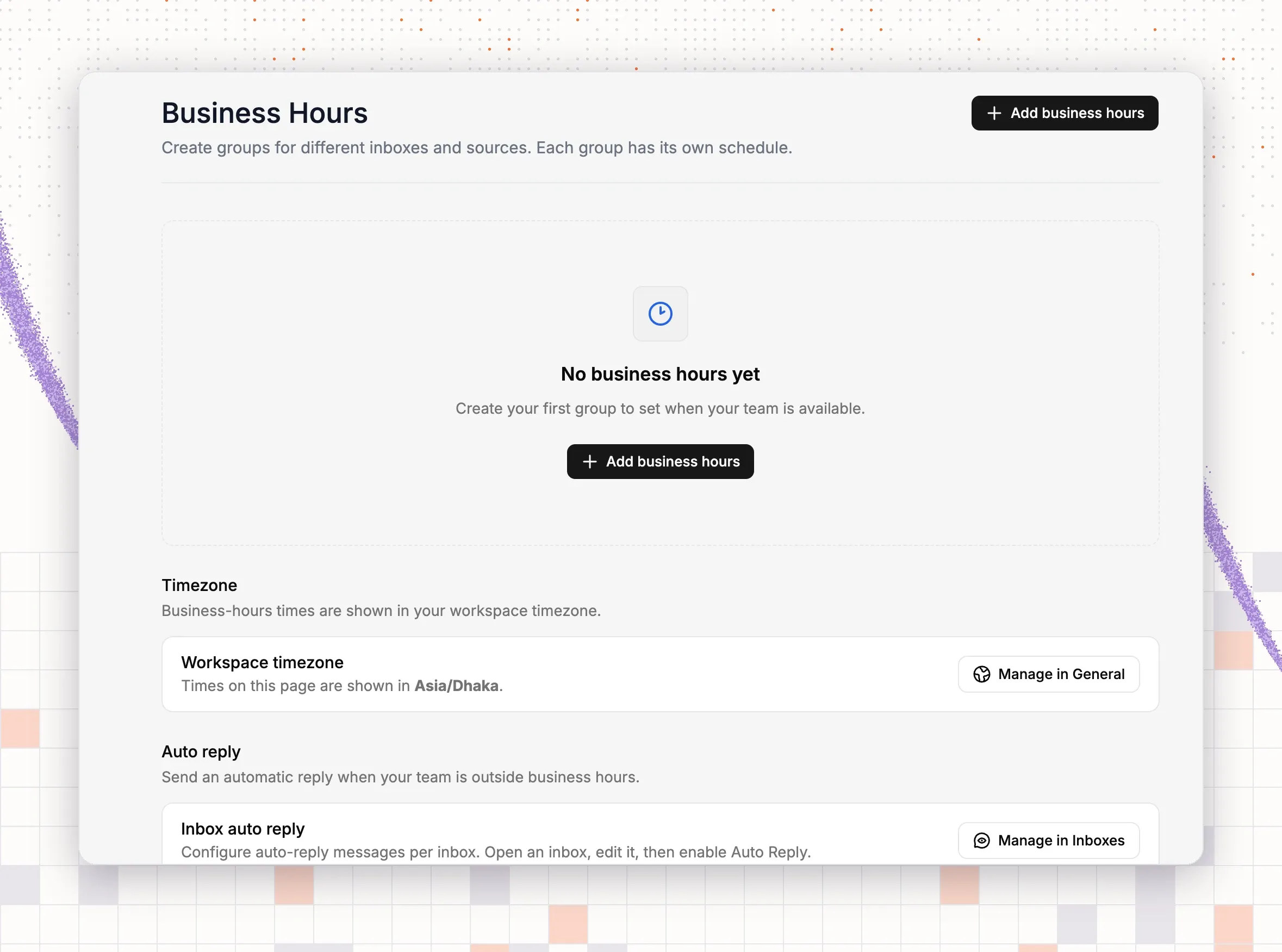
Open Settings, then Business Hours. Select Add business hours. Each group has an Inbox, a Short Description and its own schedule, and you pick which Channels it covers. Business hours show in your workspace timezone, which you change under General. Switch on Inbox auto reply to send an automatic reply outside hours. Use Add holiday for days you are closed. A chat that arrives on a holiday counts as out of hours. If you want chat hidden when nobody is online, use Enable on agents availability from step 4.
Step 7: turn on the AI agent
Open the NEO tab of your widget. Switch on Enable NEO. You can give the AI agent a name in Enter a name for NEO, upload a logo, and choose a persona with custom instructions. Then train it. Open AI, then Train, and add sources:
- Q&A: write answers to your common questions.
- File: upload documents such as a returns policy.
- Website: add pages from your site.
- Doc: use your help center articles.
Guidance tells the AI agent how to answer: tone, length, what to avoid and when to hand off. Actions sets what it can do for a customer, such as look up an order. Use Preview & Simulations to test live chat answers before real shoppers see them.
Step 8: set the handoff to people
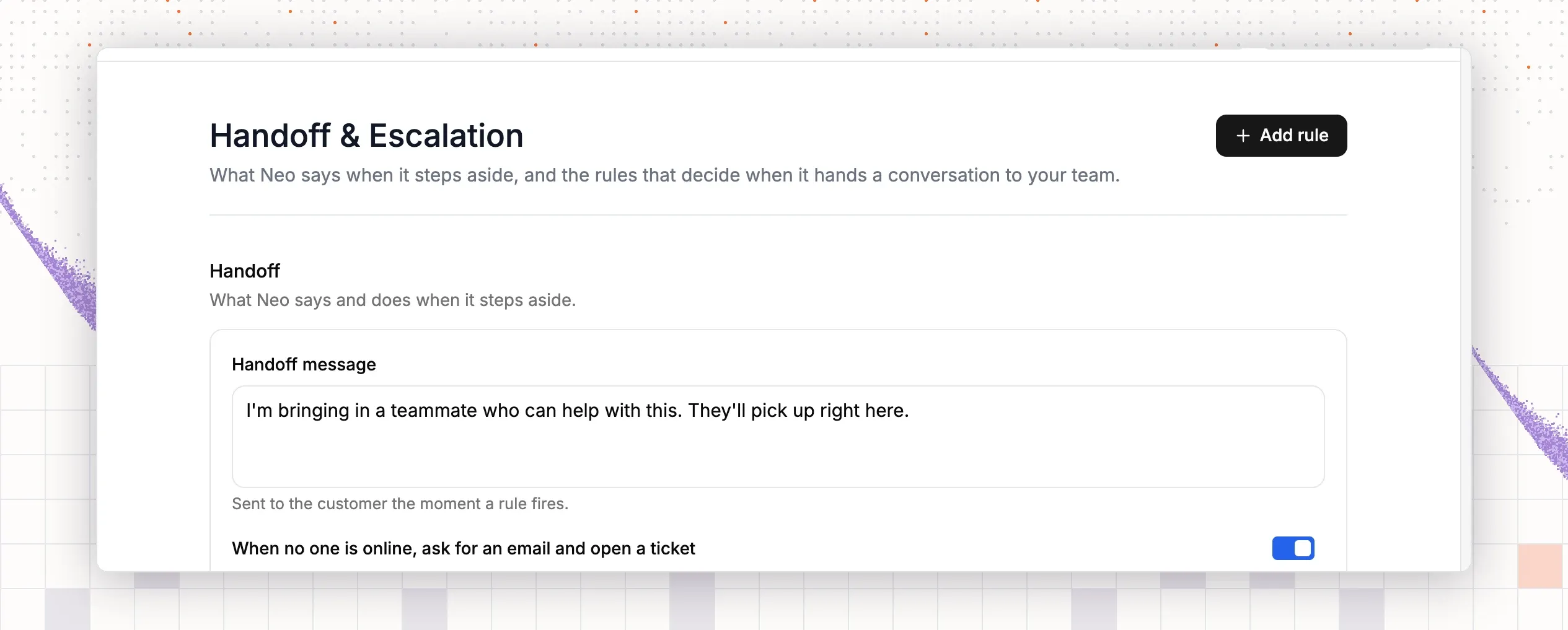
Open AI, then Train, then Handoff & Escalation. Write the Handoff message, which is what the AI agent says when it steps aside. Switch on When no one is online, ask for an email and open a ticket so a chat at night still reaches your team. Then select Add rule. Each rule has a Trigger:
- The customer asks for a person.
- A message mentions keywords, such as refund or chargeback.
- The AI agent’s confidence is low (Below medium or Below low).
- The customer keeps asking. Set Replies before handing over.
- The customer sounds upset.
A rule can Assign to a teammate, Add tag, set a Priority from Low to Urgent, and be switched Enabled or off.
Step 9: invite teammates and set notifications
Open Settings, then Teammates, and select Invite teammates. Open Settings, then Inboxes, and select Manage on your chat inbox to check who is on it. Each teammate opens Settings, then Notifications. The Live chat section lets them choose to be notified when a new live chat conversation is requested, when a contact writes in a conversation they are in, or when a contact writes in a conversation assigned to someone else. Select Enable browser notifications to get alerts, then Save notification settings.
Step 10: add saved replies, then test
Open Settings, then Saved Replies, and select Add New Reply. Write answers to the questions your team types most. For tips on wording, see canned responses for how to write them. The AI agent can learn from the same wording.
Now test the whole flow:
- Open your store in a new tab. Check that the chat button shows on a product page and on the cart page.
- Send a chat message as a shopper.
- Open Chat in the left bar of ThriveDesk. The chat appears there with the customer panel. Reply from the inbox.
- Send a message that asks for a person, or one with a rule keyword. Check that the conversation reaches your team with the earlier messages attached.
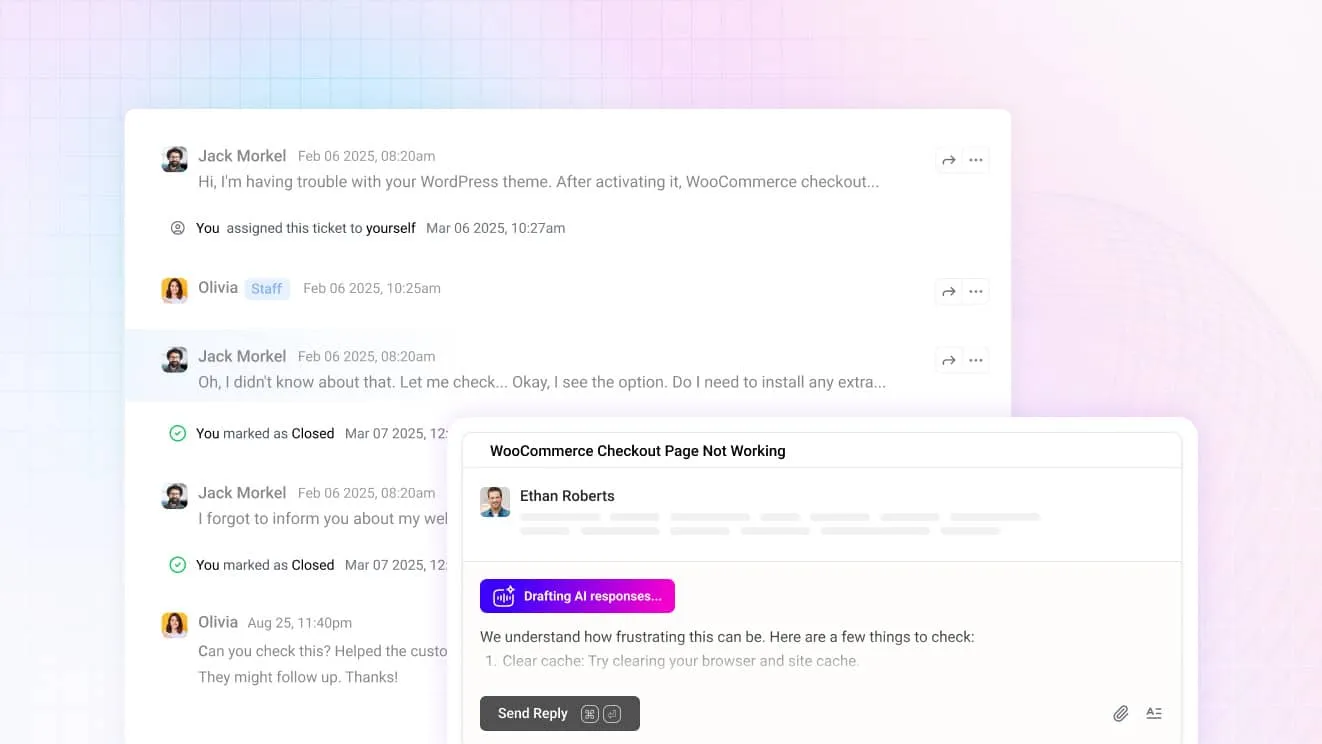
- When the AI agent drafts a reply, the draft shows in the thread. Read it, edit it if needed, and send it. If an answer is wrong, fix the source content.
How much live chat costs
Prices depend on the tool and on the number of agents. Many tools charge per seat, so the cost grows with your team. ThriveDesk uses flat plans. Basic is $29 a month for 2 teammates. Standard is $69 a month for 5 teammates. Unlimited is $129 a month for any team size. Annual billing lowers these to $19, $49 and $99 a month. Use the help desk cost calculator to compare totals for your team. For a wider market view, read the best live chat apps for Shopify.
How ThriveDesk handles live chat
Here is how the points above show up in the product:
- One inbox for every channel. Live chat lands in the same shared inbox as email and social messages, with one history per customer. Business hours, notifications and saved replies work across those channels.
- An AI agent that answers first. Neo answers routine chats from your own content, around the clock, and hands the chat to your team with context when a person is needed.
- Store context. Connect Shopify or WooCommerce so agents and the AI agent can see order details instead of asking the shopper.
- A team that stays in control. Copilot drafts replies, and your agents edit and send them. Handoff rules decide when the AI agent steps aside, so you choose the line between AI and people.
- A product with a record. ThriveDesk has been built since 2021 and runs large support loads.
Live chat is part of every plan. Plans start at $29 a month, with a 7-day free trial and no credit card. There is no free plan. See pricing for the details.