
A complete WooCommerce customer support stack has five layers: a help desk that shows the customer’s orders inside the ticket, live chat, a self-service help center, automation with an AI agent, and reporting. AI customer support for WooCommerce stores works when the AI agent reads the same order and tracking data your agents see, so it can answer “where is my order?” without a person.
Here is why the layers matter. A customer writes in saying their order has not arrived. Simple enough, right?
Except your support ticket is in one tab, the WooCommerce order screen is in another, the shipping carrier tracking page is in a third, and your Slack thread with the fulfilment team is somewhere in the pile.
By the time you have cross-referenced three systems and typed a response, your customer has already left a one-star review.
The cause is usually the tools, not the team. Generic helpdesks were built for software companies answering how-to questions. WooCommerce support is different: most store tickets reference a specific order.
Customers expect you to already know who they are, what they ordered, and where it is. When your tools do not share that information, every conversation starts from zero and every agent wastes time that adds up fast.
This guide covers all five layers in order: help desk, live chat, self-service, automation and AI, and analytics.
By the end you will have the exact plugin stack and configuration to build it.
Understanding WooCommerce support
What makes WooCommerce support different
Four things separate WooCommerce support from generic SaaS or B2B support, and understanding them is the prerequisite for building the right stack.
The first is that tickets are order-centric. Most conversations reference an order ID, a payment, a shipment, or a subscription. An agent who cannot see that order context is operating blind.
The second is the plugin dependency problem. WooCommerce stores run inside a WordPress ecosystem of themes, plugins, and integrations. Support issues frequently trace back to update conflicts, payment gateway bugs, or a plugin that stopped playing nicely after a WordPress upgrade. That context is not in a generic helpdesk sidebar.
The third is seasonal volume spikes. Black Friday, holiday return windows, and flash sales can triple your ticket volume overnight. A support stack that works on a quiet Tuesday needs to hold up when everyone is asking about their order at the same time.
The fourth is customer expectations. Shoppers expect order tracking, instant refund confirmations, and shipping updates in real time. “I’ll need to look that up and get back to you” is not an acceptable response when the information is already in your system.
The five layers of a WooCommerce support stack
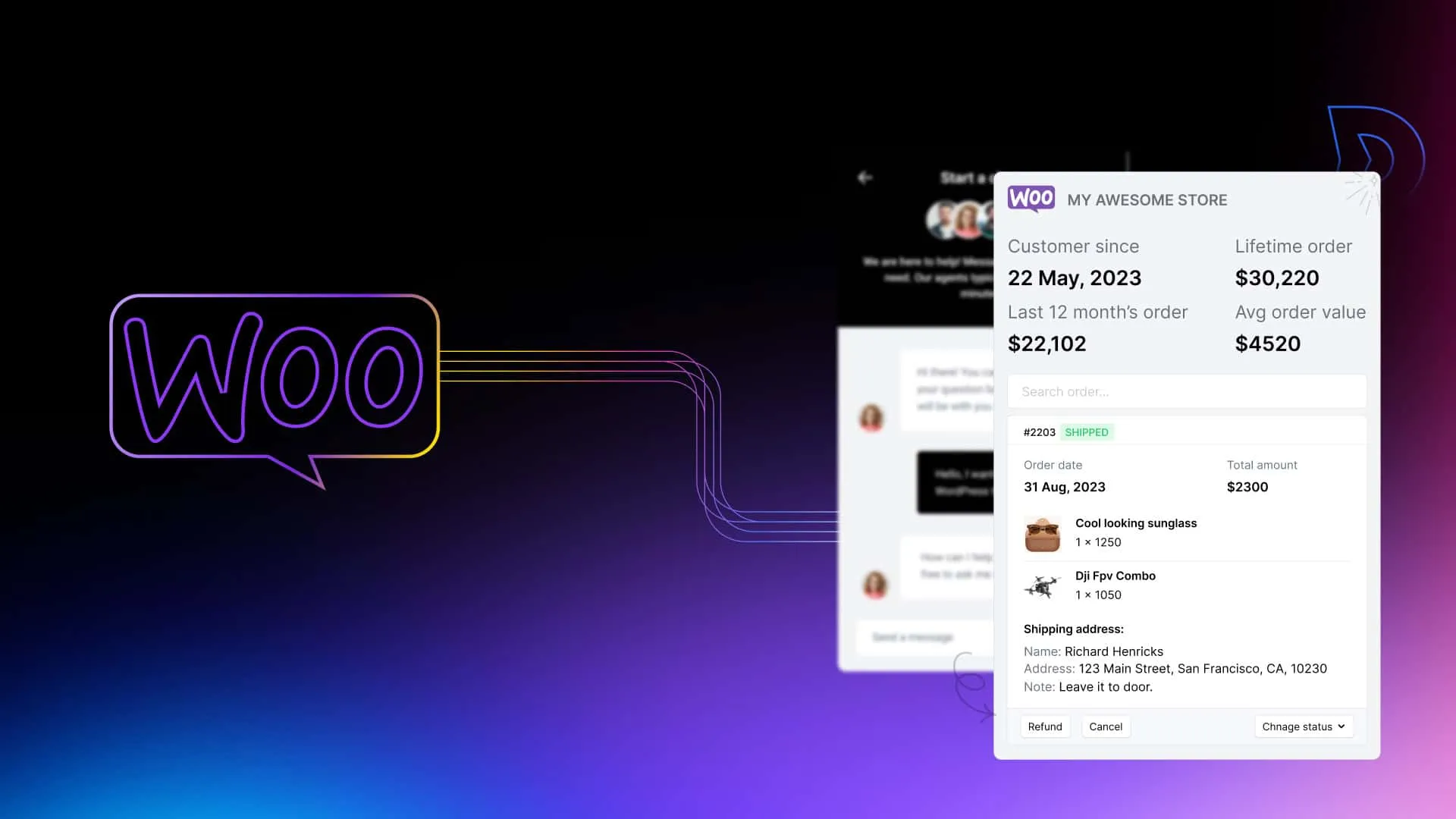
Building WooCommerce support well means building in layers, each one serving a distinct purpose:
- Layer 1: Helpdesk and shared inbox (ticket management, agent collaboration, customer history)
- Layer 2: Live chat and messaging (real-time customer communication and pre-sale conversion)
- Layer 3: Knowledge base and self-service (deflect the questions your docs can answer)
- Layer 4: Automation and AI (handle the repetitive work so agents handle the complex work)
- Layer 5: Analytics and feedback (measure what matters and improve deliberately)
Every section of this guide covers one layer, in order. You can build them in parallel, but understanding the architecture first is worth ten minutes.
Layer 1: a help desk that shows WooCommerce orders
What “WooCommerce-native” means
There is a meaningful difference between a helpdesk that has a WooCommerce integration and one that was designed with WooCommerce in mind from the start.
A generic integration gives you a sidebar that shows order data if you click a button and wait for an API call. A native integration surfaces the customer’s full order history, current shipping status, subscription information, and previous support conversations the moment a ticket opens, with no manual lookup required.
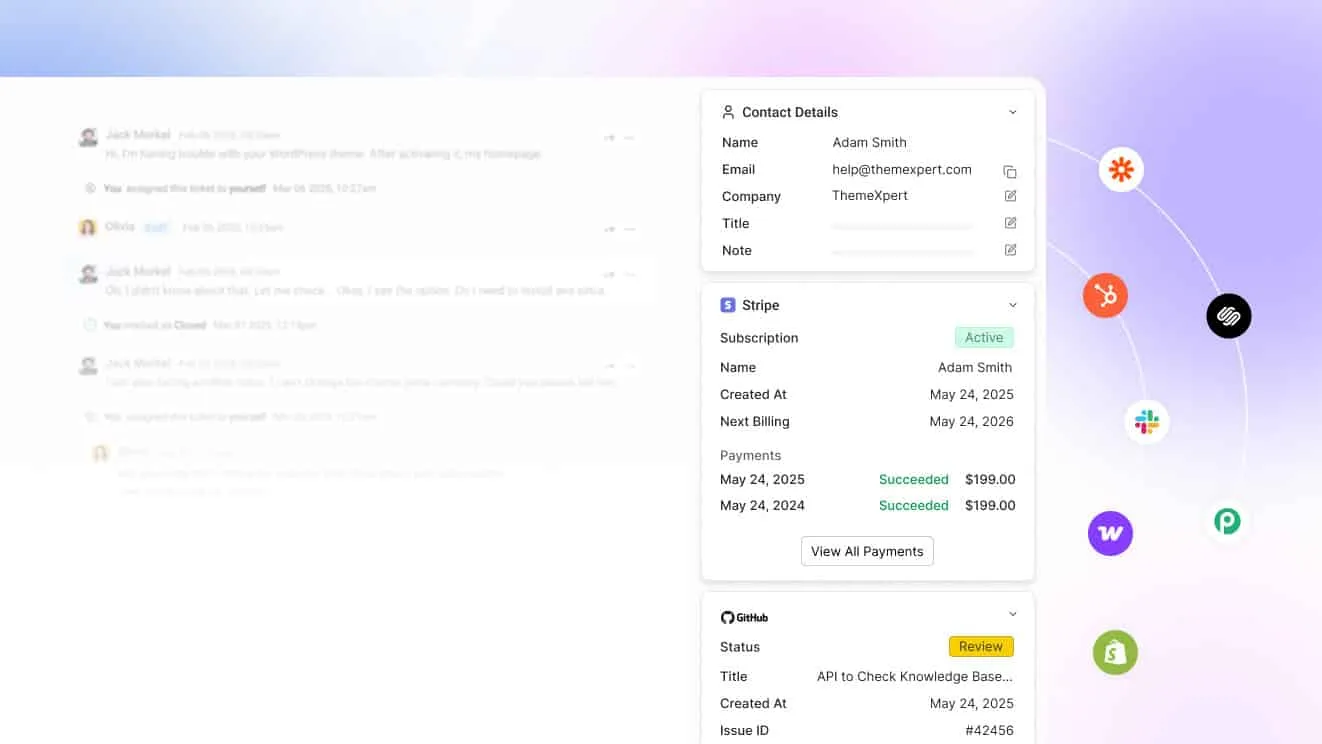
The must-have capabilities for any WooCommerce helpdesk are these: view complete order history inside the ticket, process refunds without leaving the helpdesk, auto-link customer emails to their WooCommerce account, and support multi-store setups if you run more than one store.
The nice-to-haves that separate good from excellent: subscription data sync so agents can manage WooCommerce Subscriptions from within a ticket, granular agent permissions so you control which agents can cancel, refund, or modify orders, and the ability to embed a customer-facing support portal directly inside the WooCommerce My Account page.
Help desk comparison for WooCommerce stores
The market has options at every price point. Here is how the main players compare on what actually matters for WooCommerce:
| Tool | WooCommerce integration depth | WordPress-native | Price for small stores | Setup complexity |
|---|---|---|---|---|
| ThriveDesk | Native, built by core engineers | Yes, WPPortal included | Affordable, startup-friendly | Low |
| Help Scout | Third-party plugin, limited depth | No | Mid-range | Medium |
| Freshdesk | Plugin available, surface-level | No | Free tier, paid features cost more | Medium-high |
| Zendesk | Integration via plugin, not native | No | Expensive at any meaningful tier | High |
| Crisp | Chat-first, basic order lookup | No | Low, limited helpdesk features | Low |
For small and midsize stores, a help desk built around WordPress usually beats an external enterprise tool on what a WooCommerce team needs. The integration goes deeper, setup is faster and agents work in one place instead of switching between platforms.
ThriveDesk is the one tool in this table that was built by the same engineers who built the integration. That matters because the WooCommerce sidebar inside ThriveDesk is not a third-party connector bolted on after the fact.
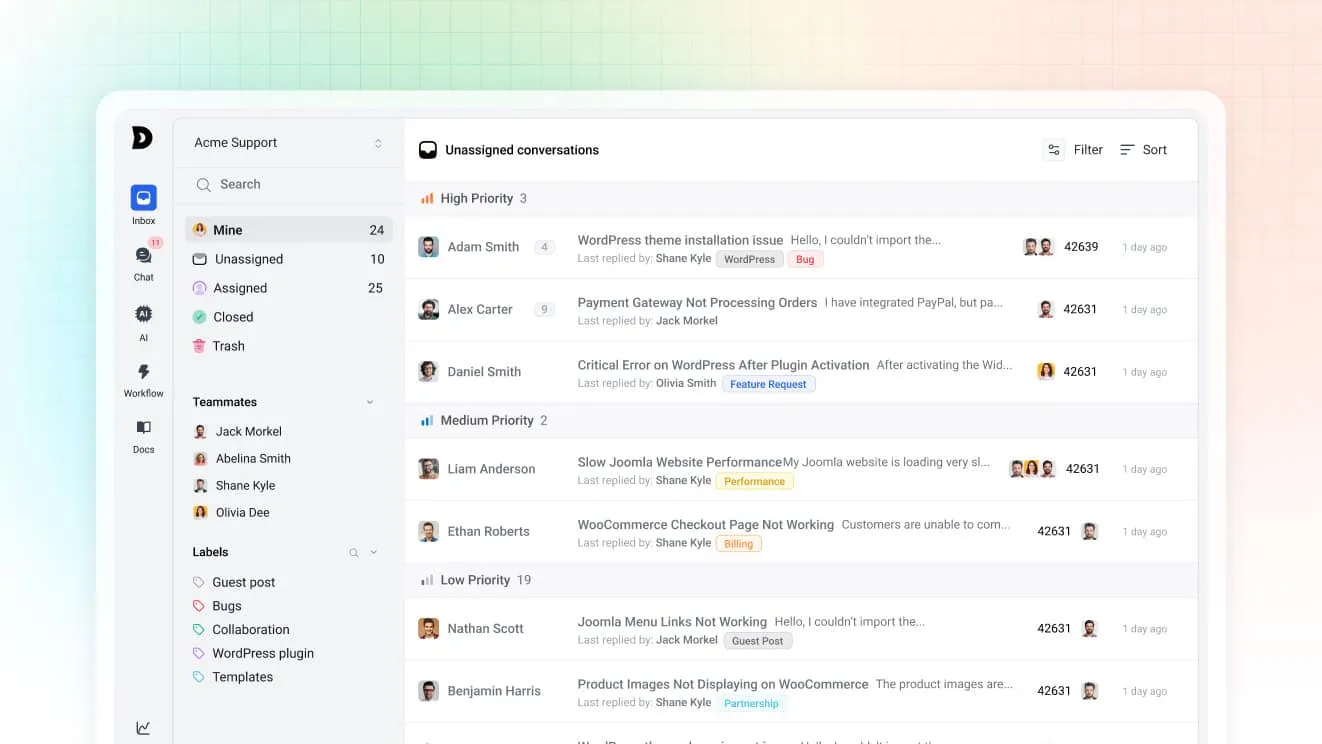
It surfaces recent orders, shipping details, lifetime value, average order value, and prior conversations in the same panel where agents work. Agents can cancel orders, process refunds, modify order contents, and manage subscriptions without opening a new tab.
Granular permissions let you decide which agents can do which actions, so a junior support agent cannot accidentally process a refund they were not supposed to.
How to see a customer’s WooCommerce orders inside the support ticket
Connect your store to the help desk with the ThriveDesk app and the ThriveDesk WordPress plugin. After that, every ticket from a customer with a store account shows their orders beside the conversation. Setup takes a few minutes and needs no developer.
Step 1: Install the WooCommerce app. In ThriveDesk, switch to the workspace you want, open App Store in the left sidebar, search for WooCommerce and click Install App. Only the workspace owner or an admin can install apps.
Step 2: Install the ThriveDesk plugin. In your WordPress dashboard, go to Plugins > Add Plugins, search for ThriveDesk, then install and activate it.
Step 3: Connect the store. Go to Settings > ThriveDesk and click WooCommerce Connect. WordPress sends you back to ThriveDesk, where the connection window opens.
Step 4: Label it and pick inboxes. Give the store a label so you can identify it in the sidebar, then select the inboxes that should use it. You can select more than one.
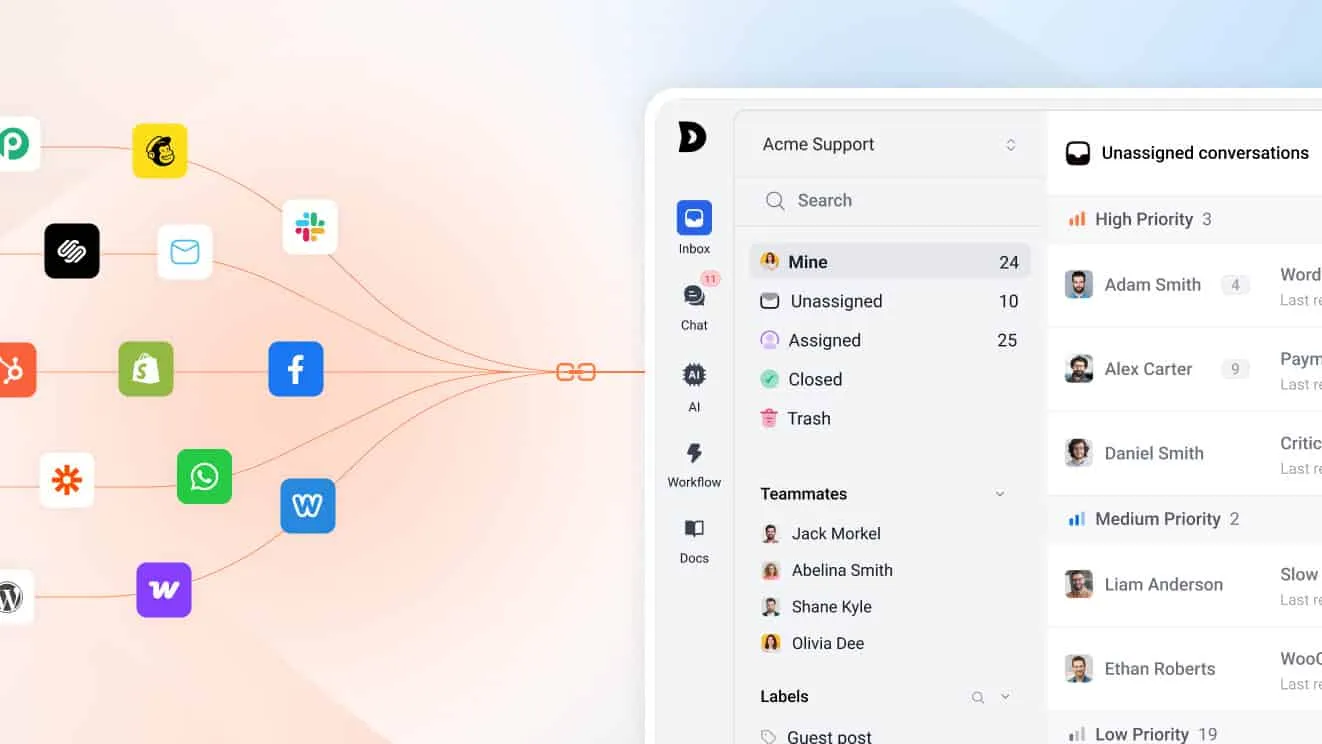
Once connected, the ticket sidebar shows the customer’s contact details, three numbers (lifetime value, annual value and average order value) and their 10 most recent orders. From there, agents can refund, cancel or edit an order, and you choose which agents are allowed to do each.
Guest checkout is the one thing that blocks this. Orders placed without an account are not tied to a customer record, so they will not appear in the ticket. If you want order context in every ticket, turn off guest checkout or prompt customers to create an account at checkout.
Running more than one store? Repeat steps 2 to 4 for each store. Each one gets its own label in the sidebar. To check the connection, open a ticket with an email that has orders in your store; the orders should appear in the sidebar right away.
Layer 2: live chat that converts and supports
Pre-sale and post-sale chat need different setups
Live chat on a WooCommerce store serves two completely different purposes, and running them through the same configuration is one of the most common setup mistakes.
Pre-sale chat is a conversion tool. The goal is to answer a hesitant shopper’s question before they abandon the cart. It belongs on product pages, cart pages, and the checkout page, and it should be proactive.
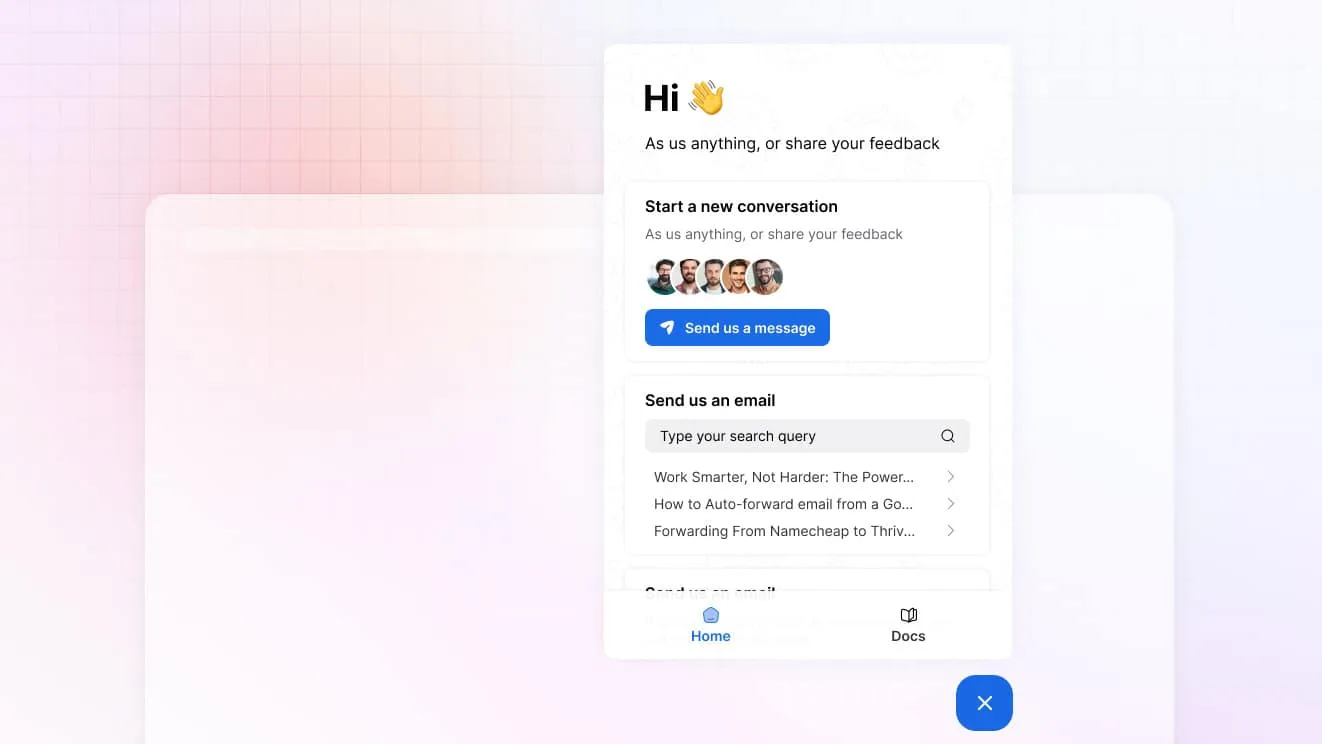
A triggered message on the checkout page after 60 seconds of inactivity can recover carts that would otherwise go cold. Route pre-sale chats to whoever handles sales questions, not your support queue.
Post-sale chat is a support tool. The goal is to resolve a customer’s issue as quickly as possible after they have already purchased. It belongs on the order status page, the My Account page, and the help center. It should be reactive, and it should route directly to your support team with the customer’s WooCommerce data already loaded.
Mixing these two flows causes real problems. A support agent getting a pre-sale question about product specs is not prepared to convert a sale. A sales rep getting a post-purchase refund request is in over their head. Separate them from the start.
Chat widget configuration for WooCommerce
Placement strategy is where most teams underinvest. Every page type on your store deserves a deliberate decision about what chat experience to offer:
- Product pages: proactive chat widget with a sales-focused greeting
- Cart and checkout pages: proactive chat with an availability message and a single clear prompt
- Order status page: reactive widget, customer data pre-loaded, support routing
- My Account page: reactive widget or link to help center, support routing
- Blog and informational pages: knowledge base search first, chat as fallback
Business hours versus always-on is a decision that depends on your team size, not your ambition. If you cannot staff chat outside business hours, use ThriveDesk’s availability settings to show an offline message that redirects customers to the help center or a contact form.
A clear “we’ll respond within 4 hours” message beats a chat widget that sits there and ignores people.
Passing WooCommerce data into chat for logged-in customers removes the single most irritating thing about ecommerce support: asking customers to repeat information you already have.
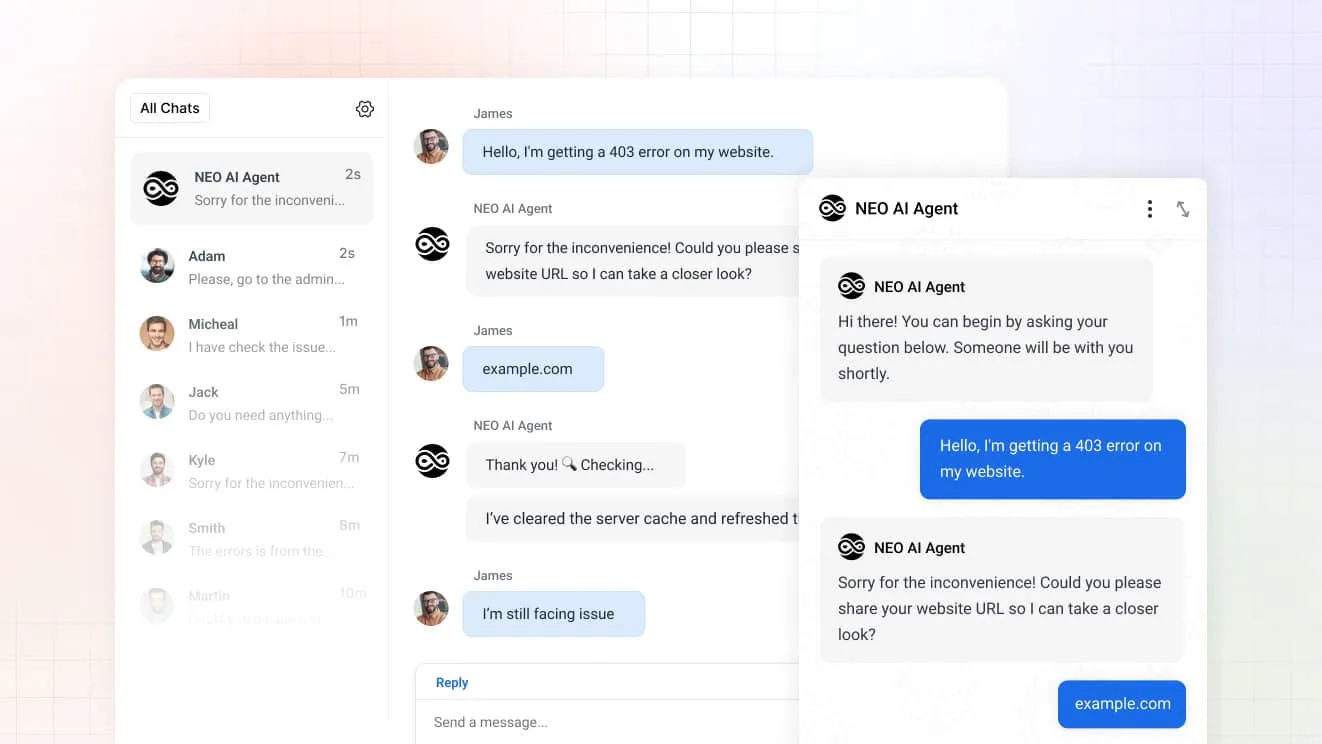
ThriveDesk’s live chat integration with WooCommerce handles this automatically for logged-in customers. When a registered customer starts a chat, their name, most recent order, shipping status, and customer lifetime value appear in the agent’s sidebar before the first response is typed.
For developers who want to pass custom session data, the chat widget supports identity verification and custom attributes through its JavaScript API. This lets you surface any WooCommerce session variable in the chat panel, including current cart value, last order status, or membership tier.
Chat transcripts belong in the help desk
Unresolved live chat conversations should automatically become tickets in your helpdesk. If a chat ends without resolution and no ticket is created, the customer’s context disappears and the follow-up starts from zero.
In ThriveDesk, live chat and the shared inbox run in the same platform, so chat conversations that require follow-up can be moved directly to the inbox as a ticket, with the full chat transcript attached.
The agent handling the follow-up has the complete history. The customer does not have to repeat themselves. The resolution time drops.
Layer 3: self-service that reduces tickets
Build a WooCommerce knowledge base
Every WooCommerce store answers the same twenty questions repeatedly. The only variable is whether agents answer them manually each time, or a well-built help center answers them automatically.
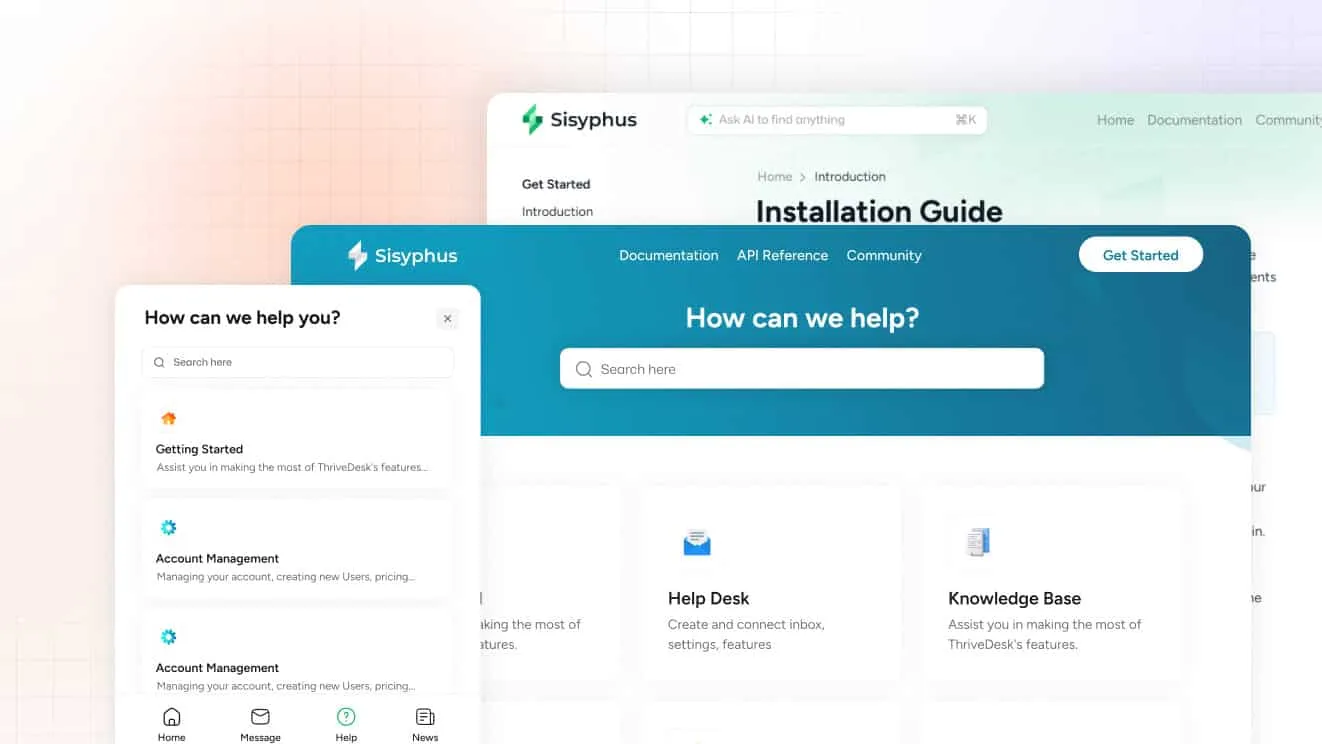
The core article set every WooCommerce store needs covers five categories:
Shipping and delivery: how to track an order, what to do if an order has not arrived, estimated delivery times by region, what happens when a delivery is missed.
Returns and refunds: how to initiate a return, how long refunds take to process, what items are eligible for return, what to do if a refund has not appeared.
Payments and billing: payment methods accepted, what to do if a payment fails, how to update billing information, how subscriptions are charged.
Account and orders: how to view order history, how to cancel or modify an order before it ships, how to change account details, how to manage a subscription.
Product-specific questions: sizing guides, compatibility notes, product limitations, anything that requires linking to specific WooCommerce product categories or policies.
A good knowledge base article follows a simple structure: state the problem clearly in the title and opening sentence, explain the solution in steps, link to related articles.
ThriveDesk’s built-in help center supports nested categories, article search, and custom branding, so your knowledge base lives at your domain and matches your store’s look.
You can also embed the ThriveDesk knowledge base search directly inside the WooCommerce My Account page using the WPPortal plugin. Customers who can find answers inside their account page create fewer tickets than customers who have to navigate to a separate help site.
Order tracking self-service
“Where is my order” is the single highest-volume support query for ecommerce stores, and it is almost entirely avoidable with the right setup.
The goal is to give customers a real-time order tracking page they can access without contacting support. WooCommerce Shipment Tracking lets you add carrier tracking numbers to orders and display a live tracking status on the order details page.
AfterShip goes further, aggregating tracking data from over 1,000 carriers and displaying it in a unified customer-facing page.
Pair the tracking page with automated order status emails that include a direct tracking link at each status change.
A customer who receives a “your order has shipped” email with a one-click tracking link is much less likely to write in to ask where their order is. A customer who receives only an order confirmation and then silence often will.
FAQ pages and chatbot deflection
A well-structured FAQ page does two things: it deflects tickets, and it ranks in search results for customers who Google their question before contacting support. Both outcomes reduce your support load.
Structure FAQ pages around question clusters, not random lists. Group by topic: shipping questions together, returns together, account questions together.
Use real customer language in the question phrasing, not internal jargon. “How long does shipping take to Australia?” will rank and deflect better than “International Delivery Timelines.”
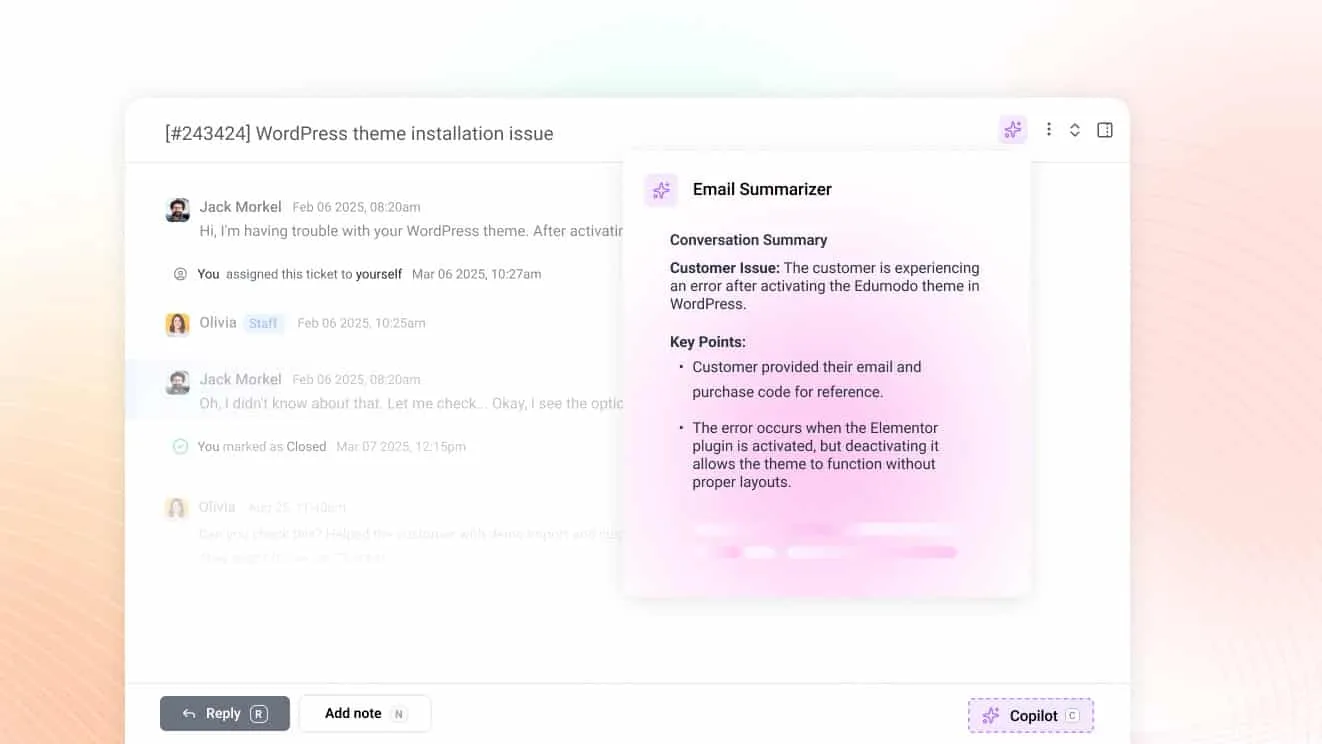
Neo, ThriveDesk’s AI agent, can run on your knowledge base and FAQ pages and surface the right article before a customer creates a ticket.
A customer who types “my order is late” into the chat widget gets shown the “what to do if your order hasn’t arrived” article first. If the article answers the question, no ticket is created. If it does not, the customer starts a conversation with the article context already visible to the agent.
Measure deflection rate monthly. Divide the number of help center sessions where no ticket was created by the total sessions.
Many stores aim for a deflection rate between 20 and 40%. Below 10% means content is either missing, hard to find, or not addressing the actual questions customers have.
Layer 4: automate the repetitive work
Ticket automation rules every WooCommerce store needs
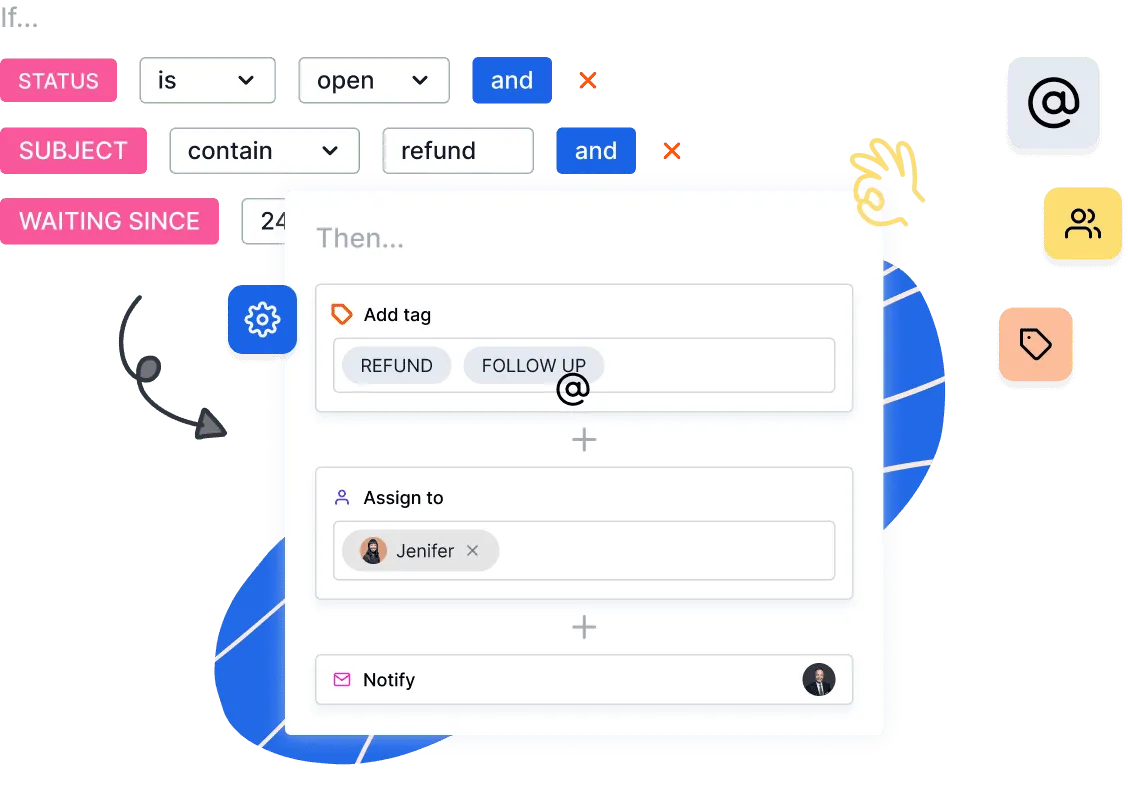
ThriveDesk’s workflow engine works on an if-then logic: set conditions for what to look for in a conversation, then define what actions to take automatically.
Workflows run once per conversation and check against the conditions you define. Here are the four rules every WooCommerce store should set up first.
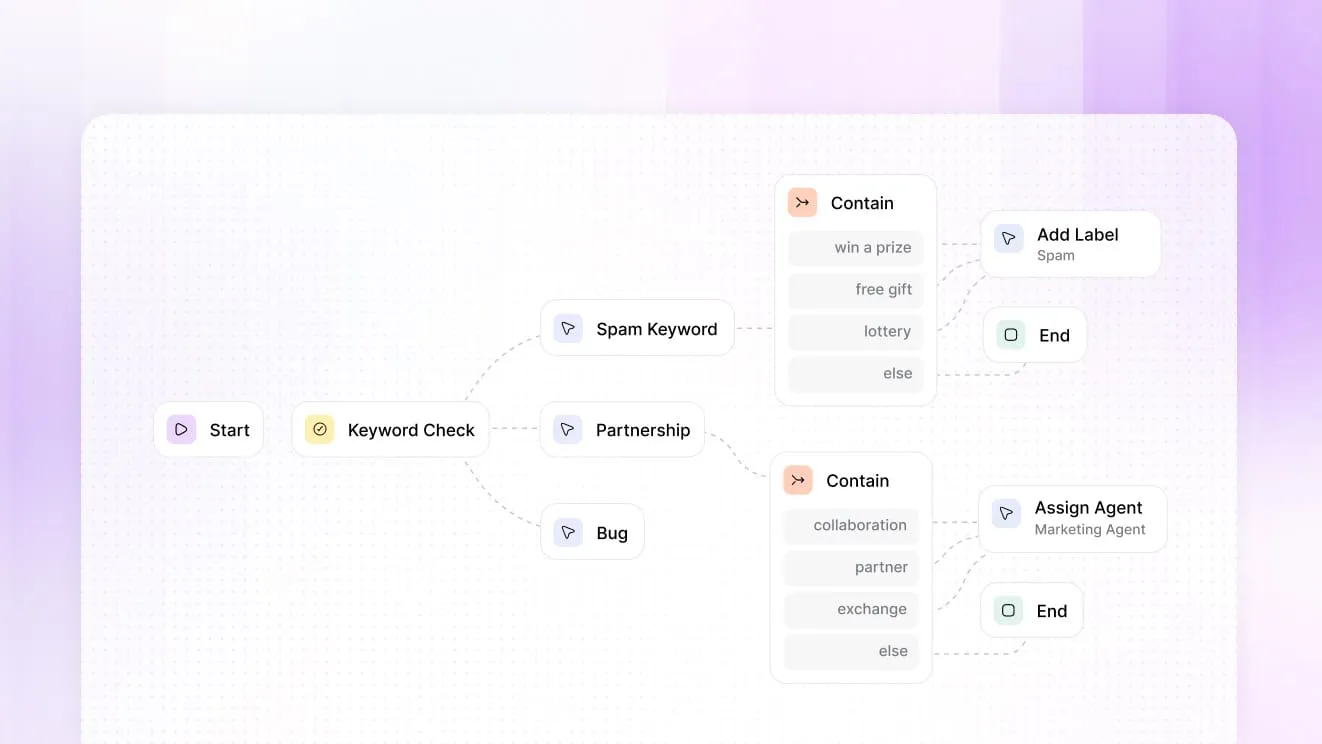
Auto-tagging by order status: create a workflow where the condition is “subject contains Refund” and the action is “Add Label: Refund Request.” Do the same for “Order Confirmation,” “Shipping Delay,” and “Subscription.”
This means agents can filter the inbox by label and see every refund request or shipping complaint grouped together, without manually reading and sorting tickets.
Auto-assignment by ticket type: a workflow that assigns any conversation containing “refund” or “billing” to your billing-focused agent, and any conversation containing “shipping” or “delivery” to your logistics agent.
In ThriveDesk, the action is “Assign to User” and the condition is “Message contains.” This eliminates the round-robin guessing that happens in a shared inbox when no one knows who should handle what.
Auto-close after resolution: a workflow where the condition is “Status is Pending” and the action after a defined waiting period is “Change Status to Closed.” This keeps your inbox clean and prevents old tickets from aging silently.
Escalation rules for high-friction conversations: use the “Last Customer Reply” condition to catch conversations where the customer has replied multiple times without resolution, then trigger a “Notify Agents” action to alert a senior team member.
Conversations with three or more customer replies are usually stuck on something that needs a different approach.
Workflows in ThriveDesk are inbox-specific, so you create them per inbox. Go to the Workflow menu, select your inbox, click Add New, and start from a template or from scratch.
Templates cover common scenarios and are a fast starting point if you have never built a workflow before.
WooCommerce-triggered automations
Beyond inbox-level workflows, the most useful automations for WooCommerce stores are the ones triggered by events in the store itself rather than by incoming messages. Most teams skip these and then wonder why customers are writing in about things that already happened.
When a refund is processed: send an automated confirmation email to the customer with the refund details and a one-question satisfaction survey. Customers who write in about a refund are already anxious about money.
A fast, proactive confirmation removes the anxiety and removes the follow-up “did my refund go through” ticket that would otherwise arrive three days later.
When an order is delayed beyond its estimated delivery window: send a proactive notification before the customer has to ask. “We noticed your order is running a bit late. Here is the current status and the updated estimated delivery date.” A message that arrives before the complaint usually lands better than a reply to one.
When a subscription is about to renew: send a heads-up two to three days before the renewal charge. Customers who are surprised by a subscription charge dispute it. Customers who were notified rarely do. For a store with recurring billing, this one automation can cut payment disputes.
When a review is one or two stars: create a support ticket automatically and assign it to a senior agent for outreach. A customer who left a bad review and then received a genuine, empathetic follow-up sometimes updates that review. At the least, the problem moves from a public page to a private conversation.
These WooCommerce-triggered automations run via webhooks or through plugins that connect WooCommerce order events to ThriveDesk. ThriveDesk supports webhooks for custom integrations, which means any WooCommerce event you can hook into can trigger an action in ThriveDesk.
AI customer support for WooCommerce stores
AI handles WooCommerce support well in the categories covered in the self-service section: order status lookups, return policy questions, shipping information and account how-to questions. These have clear answers, documented sources and predictable intent.
AI should not handle billing disputes, angry customers, complex technical troubleshooting or anything that needs judgment or authority. Routing those to AI makes the situation worse and creates repeat contacts that double the workload.
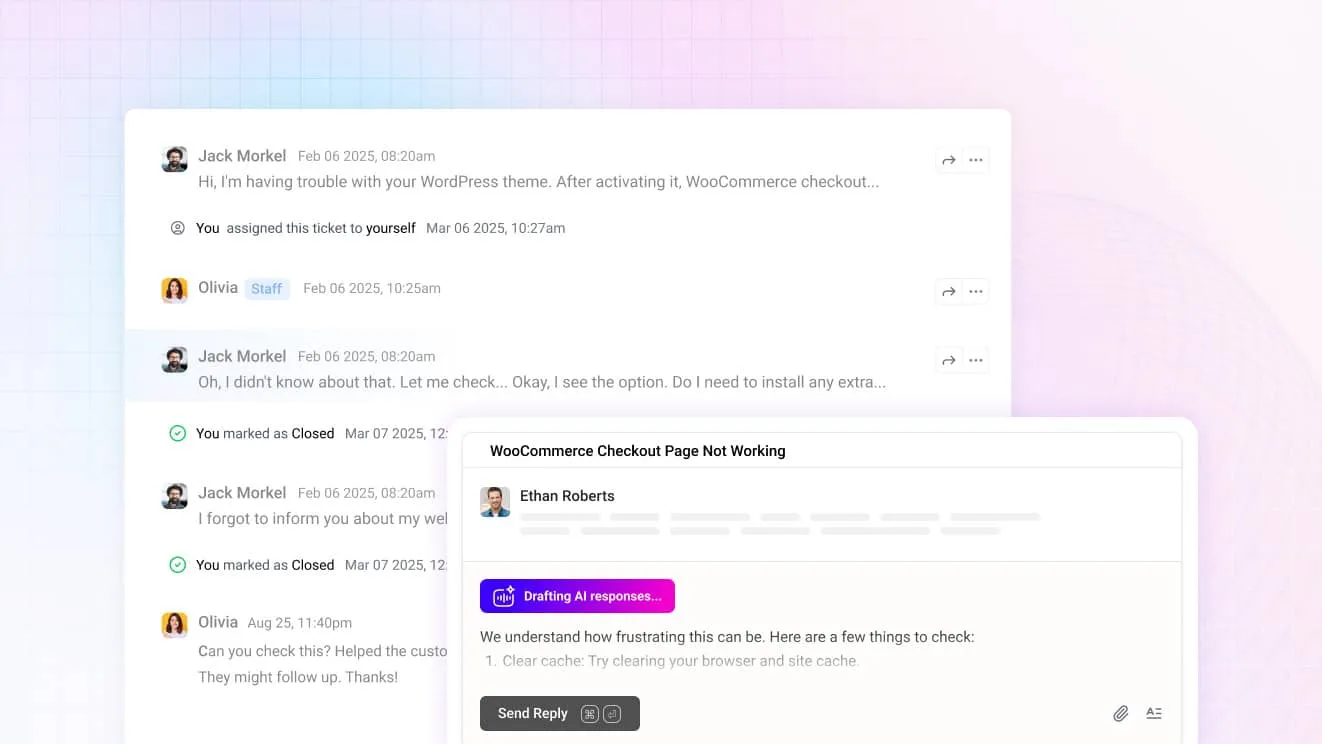
The setup that works for WooCommerce: train Neo on your knowledge base articles, your return and shipping policy pages, and custom Q&A pairs for the edge cases your docs do not cover. Then give it the store tools it needs. With the WooCommerce connection, Neo can look up an order, check tracking, update a shipping address on an order that hasn’t shipped, or cancel one after a teammate approves.
Use the AI Playground to test how Neo responds to real customer questions before it goes live. Then turn it on in the chat widget and email, and check resolution rate and CSAT weekly for the first two months. Neo replies in 50+ languages, around the clock, and resolves up to 65% of conversations once its content is in place.
Because ThriveDesk’s knowledge base and AI live in the same platform, Neo’s answers change as soon as you update a help article. There is no separate training pipeline to manage.
How to automate order status questions in WooCommerce
“Where is my order?” is the question to automate first, because it is the most common and the easiest to answer from data. Five steps cover it.
- Connect the store. Follow the steps above so the help desk can read WooCommerce orders.
- Write one tracking article. Cover how to track an order, delivery times by region, and what to do when a parcel is late. Neo quotes it, and customers find it in the help center.
- Turn on order lookup for the AI agent. Set the order and tracking tools to run directly, so Neo finds the order by email or order number and replies with the status, carrier and tracking link.
- Send tracking before customers ask. Make sure every WooCommerce status email includes a tracking link, so the answer reaches the customer before the question does.
- Set the handoff rules. Send late orders, high-value orders and address changes after dispatch to a teammate. The teammate gets a private note with the order and what Neo already checked.
Check the result after two weeks. Count the order-status conversations Neo closed, the ones it handed over, and the reasons for each handoff. Most gaps come from a missing article or a tool left switched off.
Layer 5: measure what matters
The WooCommerce support dashboard
Most support dashboards track response time and CSAT. Those matter, but for WooCommerce stores there are two additional metrics that most teams ignore and both of them are more actionable than generic averages.
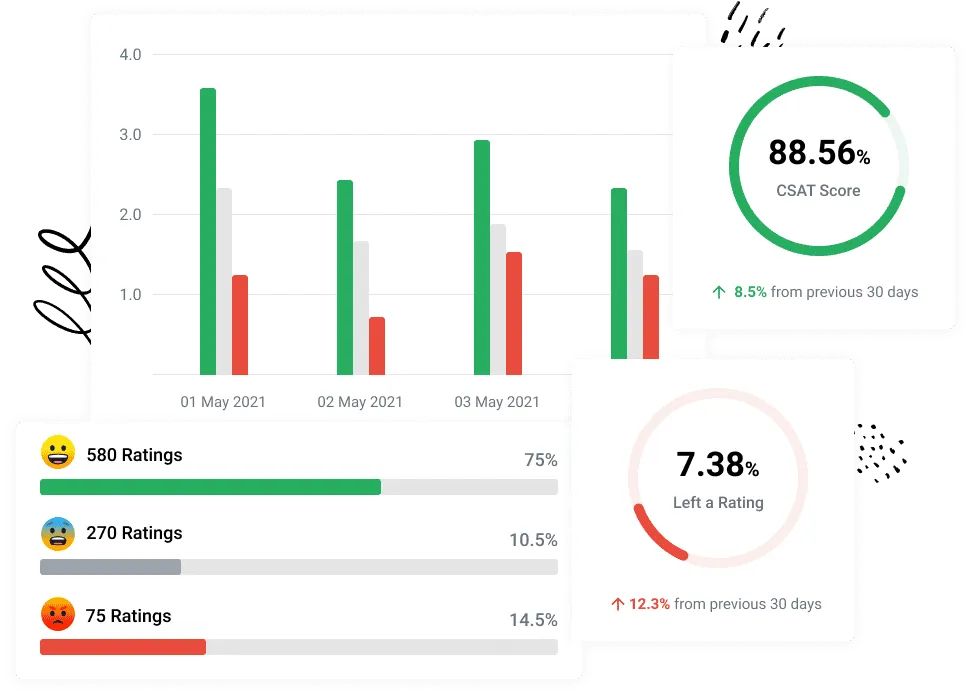
The five metrics that drive real decisions for a WooCommerce operation:
- First response time: benchmark is under two hours for email, under one minute for live chat. Satisfaction drops as replies get slower.
- One-touch resolution rate: what percentage of tickets are resolved with a single response. Target 60 to 75%. Below 50% usually means agents lack the tools or authority to resolve issues without back-and-forth.
- CSAT score: 85% and above is the target. Below 70% is a signal that something systemic is broken rather than a few tickets going wrong.
- Tickets per 100 orders: your support burden ratio. Divide your monthly ticket volume by the number of orders processed and multiply by 100. This number tells you how much support load your store generates relative to its transaction volume.
A high-volume store with a low ratio has done something right with self-service and proactive communication. - Knowledge base deflection rate: what percentage of help center sessions did not result in a ticket. Target 20 to 40%.
ThriveDesk’s reporting dashboard tracks volume, response time, resolution time, and CSAT out of the box. The tickets-per-100-orders metric requires pulling numbers from both ThriveDesk and WooCommerce, which is worth setting up as a monthly manual calculation even if it cannot be automated.
Connect support data to revenue
Support is not a cost center if you measure it correctly. Three revenue-relevant numbers are worth tracking alongside the standard support metrics.
Track how resolved tickets relate to repeat purchases. If your store and help desk share customer identifiers, you can compare repeat purchase rates for customers whose issue was resolved with those whose issue was not.
Measure the conversion impact of pre-sale chat. Split test periods with and without proactive chat on product and checkout pages and compare conversion rates. The uplift from a well-configured chat widget on a checkout page is typically measurable within a few weeks.
Calculate the ROI of your entire support stack. Total the cost of your tools plus the agent time spent on support. Divide by the number of tickets resolved. That is your cost per resolution.
Compare it against your average order value and repeat purchase rate. Support investment that retains customers who would otherwise churn often pays for itself.
The complete plugin stack
This is the full architecture for a WooCommerce support operation that runs inside the WordPress ecosystem without relying on external enterprise tools:
- Help desk, shared inbox, live chat, knowledge base and AI: ThriveDesk. One platform handles all five layers, with a native WooCommerce integration built by ThriveDesk’s own engineers. Setup takes under an hour.
- Order tracking self-service: WooCommerce Shipment Tracking for basic carrier tracking display, AfterShip for multi-carrier aggregation and a dedicated customer-facing tracking page.
- Post-resolution feedback and NPS: ThriveDesk CSAT surveys built into the ticket close workflow. WPForms as an alternative for custom survey formats embedded in your site.
- Analytics and performance monitoring: ThriveDesk reporting for all support-specific metrics, MonsterInsights for GA4 integration if you want to track how help center traffic and chat interactions correlate with purchase behavior.
The reason ThriveDesk anchors this stack rather than being one tool among equals is that consolidating helpdesk, live chat, knowledge base, and AI into one platform eliminates the API sync problems, data lag, and duplicate customer records that come with stitching together separate tools.
Customer profiles, order history, conversation history and knowledge base articles share the same data layer, and agents work in one interface.
ThriveDesk is AI customer service software for ecommerce: an agentic omnichannel helpdesk, intelligent chatbot, modern help center and powerful reporting, plus Neo, the AI agent that answers customers around the clock. Plans are flat: Basic is $29 a month for 2 teammates, Standard $69 for 5 and Unlimited $129 for unlimited teammates, with the AI agent included and no per-resolution fee. See the pricing page for the full plan list.
Your 7-day WooCommerce support setup checklist
This is the order that works. Each day builds on the previous one.
Days 1 and 2: Install ThriveDesk, connect the WooCommerce integration using the steps in this guide, and migrate your existing support email into the shared inbox. Set up your inbox structure, assign your team, and configure basic labels for your most common ticket types: refund requests, shipping questions, account issues.
Days 3 and 4: Write your first 20 knowledge base articles covering the categories listed in the self-service section. Focus on the questions your agents answer most often. Write them in plain language, link to related articles, and publish them in your ThriveDesk knowledge base. Install WPPortal to embed the knowledge base inside your WooCommerce My Account page.
Days 5 and 6: Install and configure the ThriveDesk chat widget on your key pages. Set up routing rules to separate pre-sale chats from post-sale support. Build your three most important chatbot flows: order status lookup, return policy, and the offline fallback to email.
Day 7: Set up your four core automation workflows. Configure the CSAT survey to trigger automatically on ticket close. Run a test order end-to-end through the entire stack: place the order, open a support ticket using the customer email, process a refund from within ThriveDesk, and verify the WooCommerce data appears correctly in the sidebar. Fix anything that feels broken before real customers start using it.
WooCommerce support does not have to be a scavenger hunt across six tabs. The tools exist to put everything in one place, surface order context automatically, and handle the repetitive work so your agents spend their time on the conversations that actually need a human.