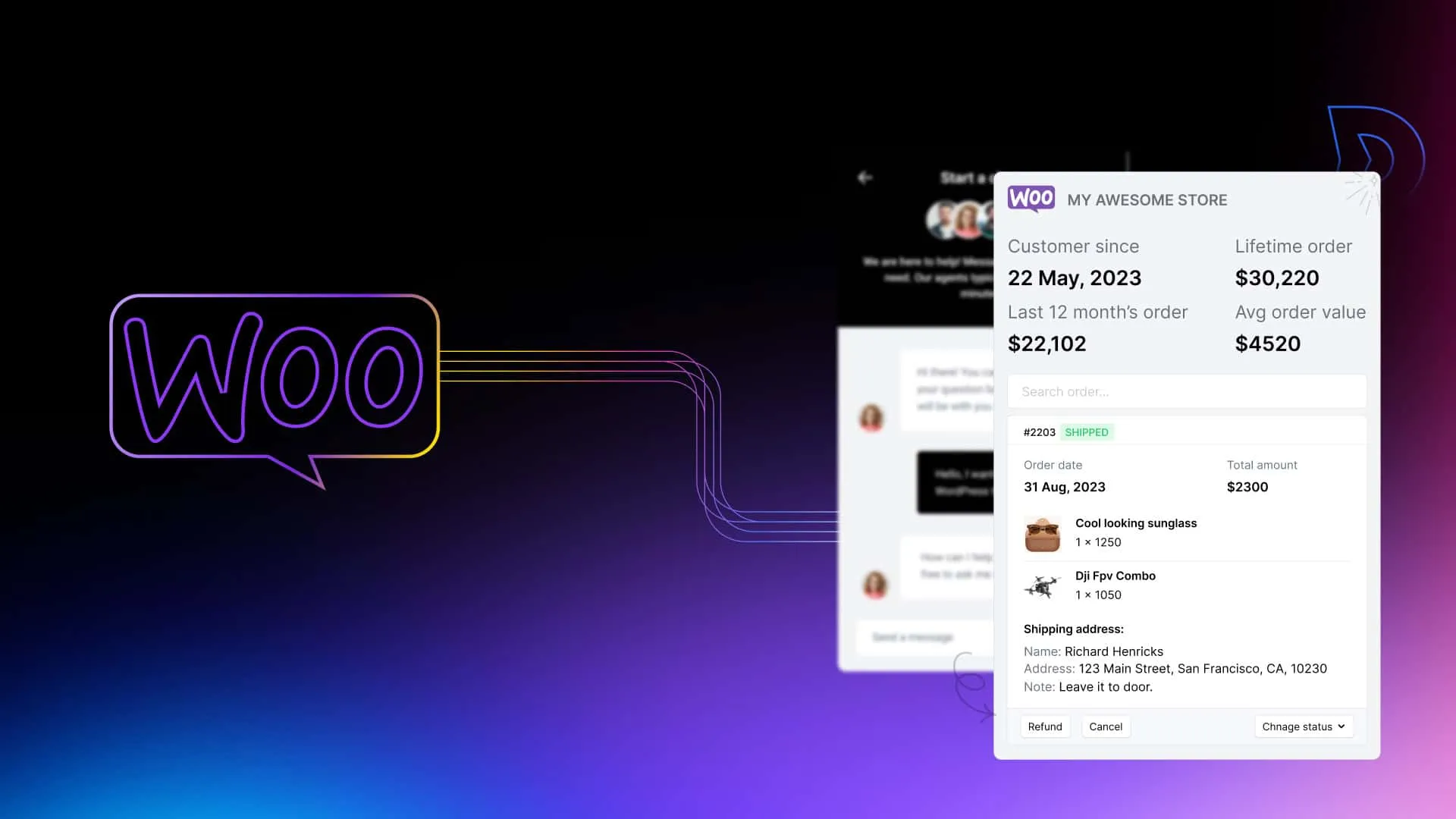
The best customer support plugin for WooCommerce shows each customer’s orders inside the support ticket, lets agents refund or edit an order without opening wp-admin, and puts an AI agent on the routine order questions. ThriveDesk’s WooCommerce integration does all three, and you set it up by installing the ThriveDesk plugin, clicking WooCommerce Connect and choosing the inboxes that should see your orders.
This guide walks through the setup step by step. It covers what the integration shows in the ticket, what agents can do from there, what the AI agent can answer with your store data, and the mistakes that leave orders missing from tickets.
You will need admin access to your WordPress site and the owner or admin role in your ThriveDesk workspace. The connection itself takes a few minutes and needs no developer; writing your first help articles takes longer.
Watch the WooCommerce integration overview on YouTube
What to look for in a WooCommerce customer support plugin
Most WooCommerce tickets are about a specific order: where it is, when it arrives, how to change it or how to return it. A support plugin earns its place when it removes the trip to wp-admin for each of those. Check four things before you install one:
- Order data in the ticket: recent orders, items, shipping details and status beside the message, matched by the customer’s email.
- Actions with permissions: refunds, cancellations and edits from the ticket, with control over which agents can do each.
- An AI agent that reads orders: a chatbot that only knows your FAQ cannot answer “where is my order?” One that can look up the order can.
- Self-service on your store: a help center customers reach from their account page, so they can find answers and follow up on tickets without email.
Price matters too. Plugins and help desks that charge per agent or per AI resolution get expensive in November and December, which is when a store needs them most. The WooCommerce help desk plugin roundup compares the main options.
Ticket plugin inside WordPress or a connected help desk?
WooCommerce support tools come in two shapes, and the choice affects setup more than any single feature.
A ticket plugin that runs inside WordPress, such as Fluent Support or Support Genix, stores tickets in your own WordPress database. It suits a store that wants everything on its own server and mostly handles email tickets. The trade-off is that your hosting carries the load, and live chat, AI and reporting often come from separate add-ons.
A connected help desk such as ThriveDesk runs outside WordPress and links to your store through a plugin. Email, live chat and the help center share one inbox, the AI agent reads the same order data as your agents, and support traffic adds no load to your WordPress server. The trade-off is a monthly subscription instead of a one-time license.
For a store with more than one person on support, or with steady chat volume, the connected model usually saves more time. For a solo owner answering a few emails a week, a plugin inside WordPress can be enough.
What the WooCommerce integration shows in the ticket
When a customer with a store account writes in, ThriveDesk matches their email to WooCommerce and shows their store data in the sidebar of the ticket and the live chat panel.
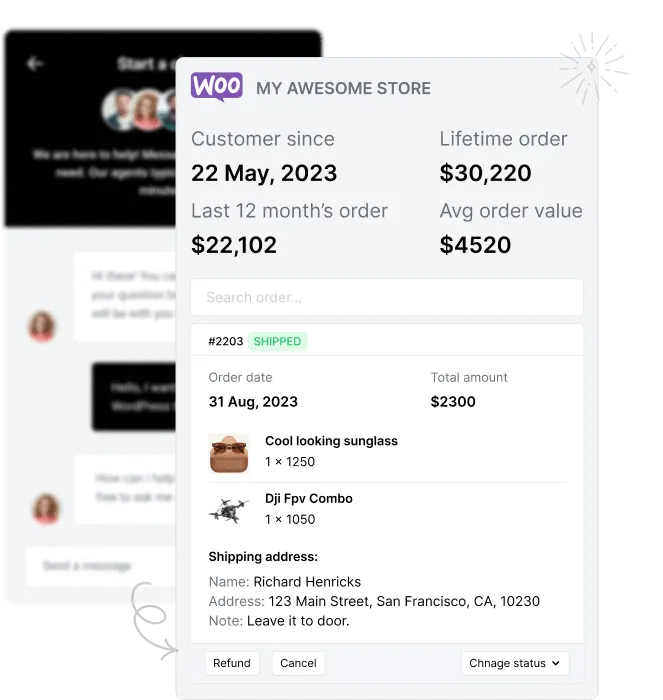
At the top, three numbers: lifetime value, annual value (the last 12 months) and average order value. Below them are the customer’s 10 most recent orders. Each order shows:
- The order number, date, total and current status.
- Each product with its image, quantity and price.
- The shipping address and any order note.
ThriveDesk pulls this data live from your store when an agent opens the ticket. It does not keep or reuse your store data.
Search orders and products as you type
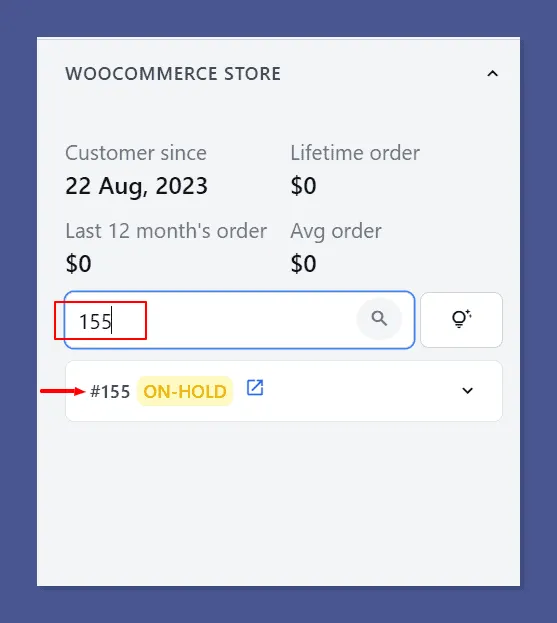
The search box filters orders and products with each keystroke. An agent can find an order by number or a product by name while the customer is still typing.
Subscription details
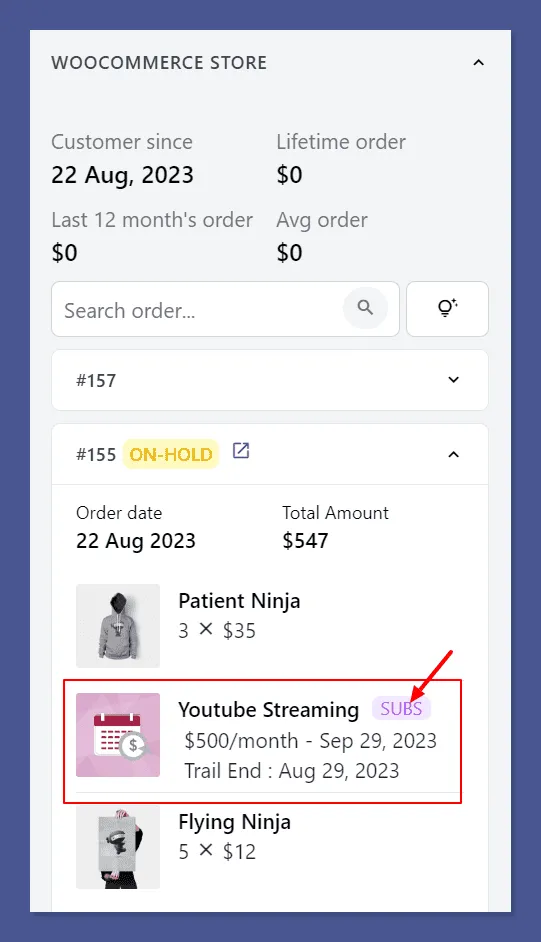
If you sell with WooCommerce Subscriptions, agents see subscription charges and renewal dates, and subscription products are marked so they stand apart from one-time orders. Agents can add, edit and cancel subscriptions from ThriveDesk.
How to set up the ThriveDesk WooCommerce plugin
Setup has two sides: an app in ThriveDesk and the ThriveDesk plugin on your WordPress site. These steps follow the WooCommerce integration guide in the ThriveDesk help center.
Step 1: Install the WooCommerce app in ThriveDesk
Log in to ThriveDesk and switch to the workspace you want to connect. Open App Store in the left sidebar, search for WooCommerce and click Install App. Only the workspace owner or an admin can install apps.
Step 2: Install the ThriveDesk plugin in WordPress
In your WordPress dashboard, go to Plugins, then Add Plugins, and search for ThriveDesk. Install and activate the plugin.
Step 3: Click WooCommerce Connect
Go to Settings, then ThriveDesk, and click WooCommerce Connect. WordPress sends you back to ThriveDesk, where the connection window opens.
Step 4: Name the store and choose inboxes
Give the store a label so you can identify it in the sidebar, then select the inboxes that should show its orders. You can pick more than one. If you run several stores, repeat steps 2 to 4 for each one; every store gets its own label.
Step 5: Set agent permissions
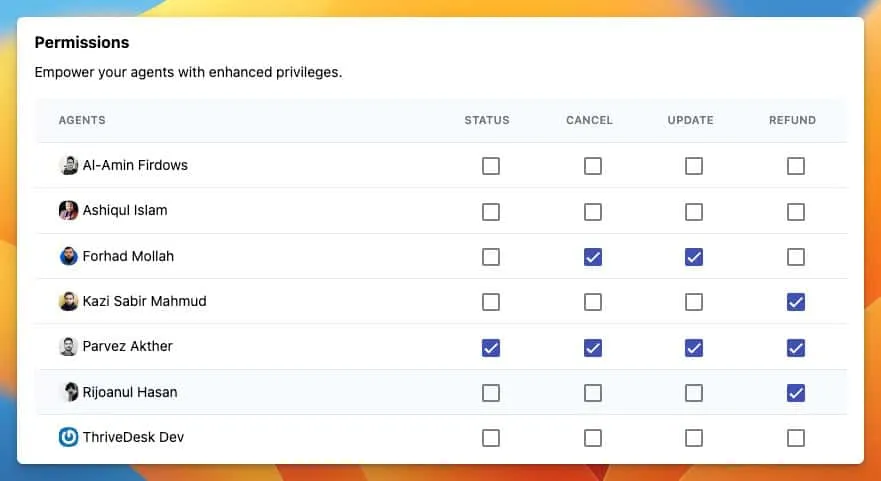
Choose which agents can change an order’s status, cancel it, update it and refund it. Each permission is a separate checkbox per agent. A common split: everyone can change status, team leads can cancel and update, and only one or two people can refund.
Step 6: Add a help center to the My Account page
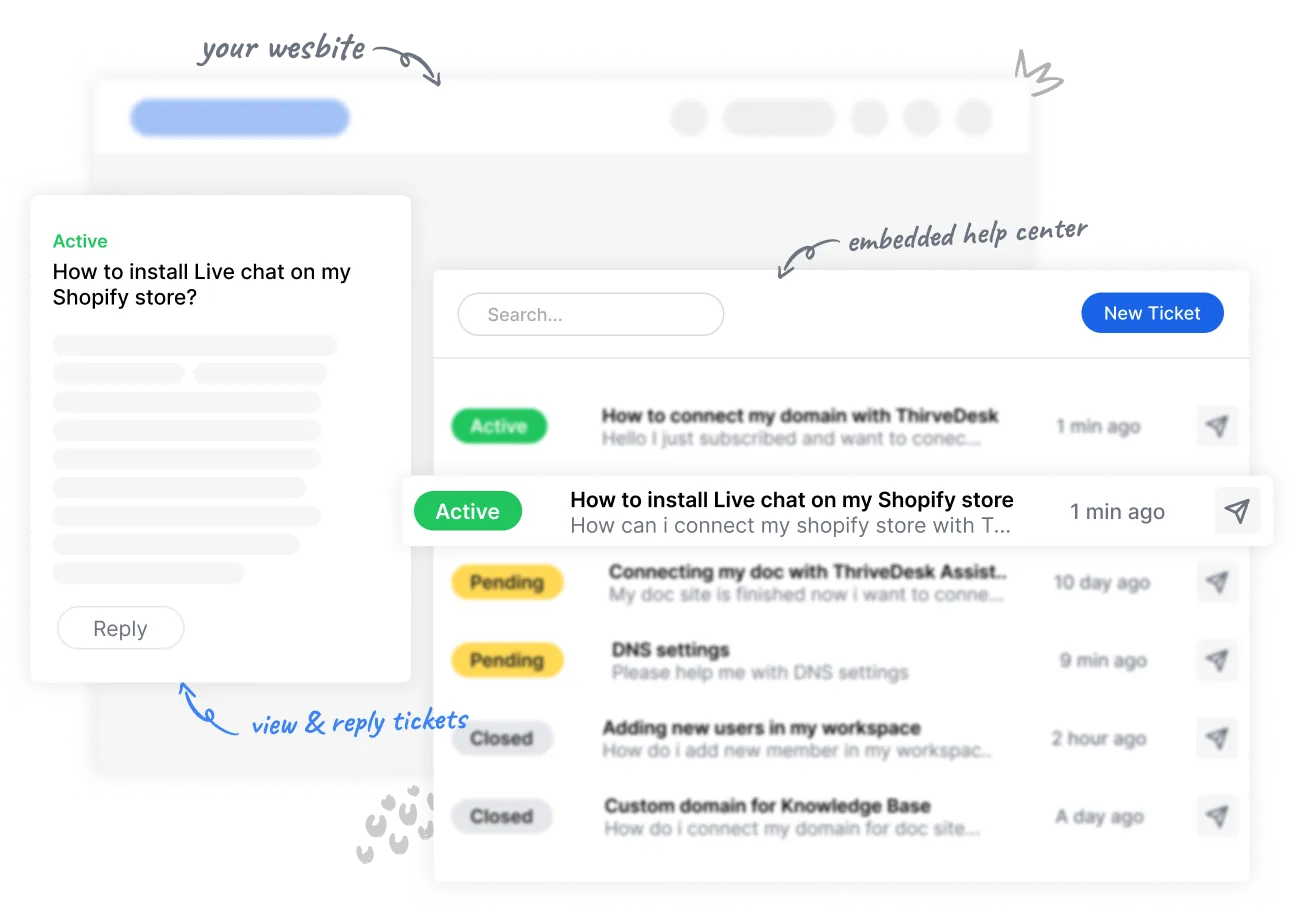
The same WordPress plugin can embed your help center in the WooCommerce My Account page, with no shortcode. In the plugin settings, paste the API key from your ThriveDesk account, validate it and enable the support page option. Customers can then search articles, open tickets and reply to them from their account. The WPPortal announcement has more detail.
Step 7: Test with a real customer email
Open a test ticket using an email address that has orders in your store. The orders should appear in the sidebar right away. If they don’t, check whether that order was placed through guest checkout (see the mistakes section below).
What agents can do from the ticket
Seeing the order is half the job. The other half is acting on it without leaving the conversation. Every change an agent makes is written back to WooCommerce.
- Refund: issue a full or partial refund from the order card.
- Cancel: cancel an order that hasn’t shipped.
- Update: edit line items and addresses, or apply a coupon.
- Change status: move an order to processing, completed or another status.
Status updates with a ready-made reply
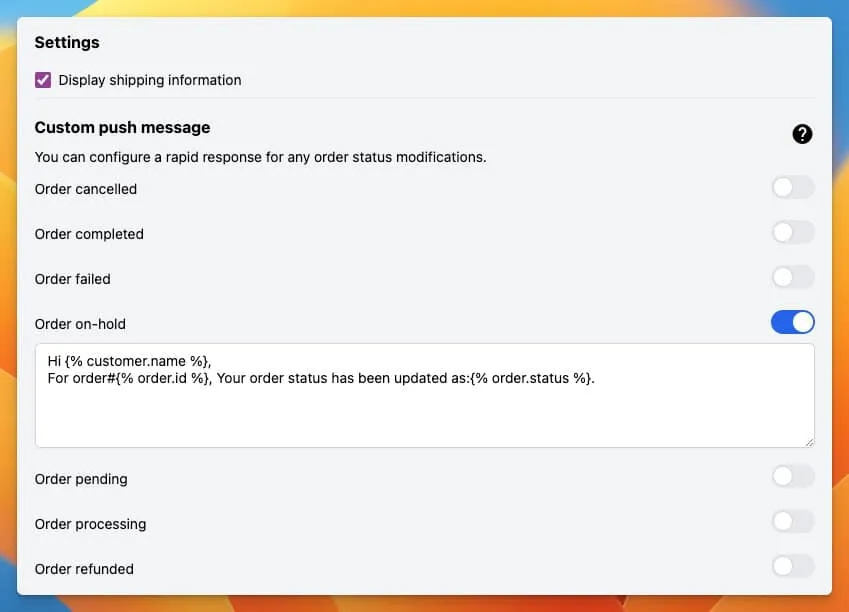
When an agent changes an order’s status, ThriveDesk adds a message about it to the reply editor. You write that message once, using variables such as {% customer.name %}, {% order.id %} and {% order.status %}, and each customer gets a reply with their own details.
Product recommendations
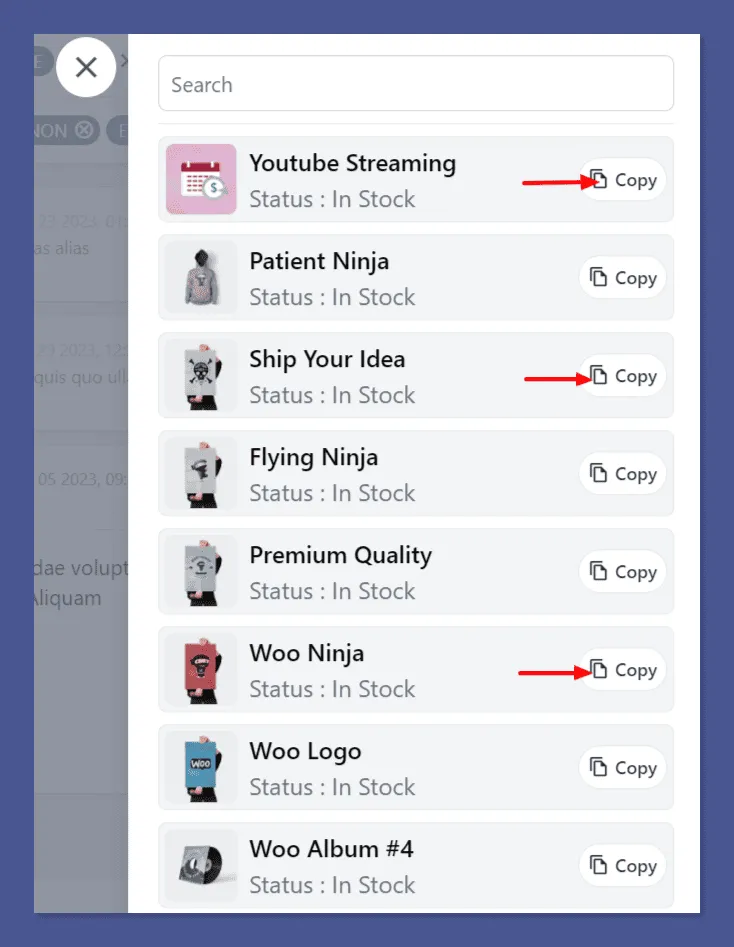
The Product Recommendations tab lists your store’s products with shareable links. An agent who wants to suggest a replacement or a bigger size copies the link from the sidebar instead of opening the store in another tab.
What the AI agent can answer with your store data
Neo, ThriveDesk’s AI agent, answers customers in the chat widget and by email. On a WooCommerce store, it answers from two sources: your help content and the store connection.
From the store connection, Neo uses built-in WooCommerce tools:
- Order status and tracking: finds the order by email or order number and replies with the status, carrier and tracking link.
- Address changes: updates the shipping address on an order that hasn’t shipped.
- Cancellations: cancels an unshipped order after a teammate approves.
- Refunds: refunds through Stripe, within the limit you set.
From your help content, it answers return policy, delivery times, sizing and product questions. Neo can also recommend products and suggest add-ons in the chat.
When a question needs a person, Neo hands the conversation to your team with a private note: what the customer wants, what Neo checked and why it handed over. Neo resolves up to 65% of conversations, replies in 50+ languages and works 24/7. The order and shipping support guide shows the full flow.
| Customer question | Who answers | What it needs |
|---|---|---|
| Where is my order? | AI agent | Order lookup and tracking |
| Can I change my address? | AI agent, before shipping | Order status and address tool |
| What is your return policy? | AI agent | A return policy article |
| Refund under your limit | AI agent, after approval if set | Stripe and your refund limit |
| Damaged or missing item | Teammate | Order details and photos |
| Billing dispute | Teammate | Full order and payment history |
Common setup mistakes
Most problems after setup come from a handful of choices. Check these before you go live.
- Guest checkout left on: orders placed without an account are not tied to a customer, so they do not show in the ticket. Turn off guest checkout or ask customers to create an account at checkout.
- Refund rights for everyone: give the refund permission to the fewest people who need it. Status changes can be wider.
- No tracking article: the AI agent answers better when a help article explains delivery times and what to do about a late parcel.
- Wrong inboxes selected: a store connected only to your sales inbox won’t show orders in support tickets. Check step 4.
- No test before launch: run one test order end to end: place it, open a ticket, change the status, refund it, and check the result in WooCommerce.
How ThriveDesk handles WooCommerce support
ThriveDesk is AI customer service software for ecommerce: an agentic omnichannel helpdesk, intelligent chatbot, modern help center and powerful reporting, plus Neo, the AI agent that answers customers around the clock. For a WooCommerce store, each step in this guide maps to a part of the product.
- Orders in the ticket: the WooCommerce integration shows lifetime value, the 10 most recent orders and subscriptions beside email and chat conversations in the shared inbox.
- Actions with permissions: refunds, cancellations, updates and status changes from the ticket, set per agent.
- An AI agent that reads orders: Neo looks up orders and tracking, and Copilot helps your team search tickets, docs and connected tools and take the next step.
- Self-service on your store: the help center embeds in the My Account page through the same plugin.
- A flat price: Basic is $29 a month for 2 teammates, Standard $69 for 5, and Unlimited $129 for unlimited teammates, with the AI agent included and no per-resolution fee. Annual billing brings them to $19, $49 and $99.
Every plan starts with a 7-day free trial, no credit card required. The pricing page lists the limits on each plan.