

A help desk ticket system turns each customer message into a tracked record with an owner, a status and a full history. Without one, support lives in a shared email inbox. Two people answer the same message, a refund request sits for days, and nobody can say who owns it. A ticket fixes that.
This guide explains what a ticket is, how it moves from the first message to a closed case, and which statuses to use. It uses order, return and refund tickets as examples, because that is the work an online store sees every day. It also covers how to choose a system now that AI agents do much of the first-line work.
What is a help desk ticket system?
A help desk ticket system is software that creates a ticket for every support request and tracks it until the issue is solved. You will also hear the names ticketing system, ticket system and trouble ticket system. They mean the same thing.
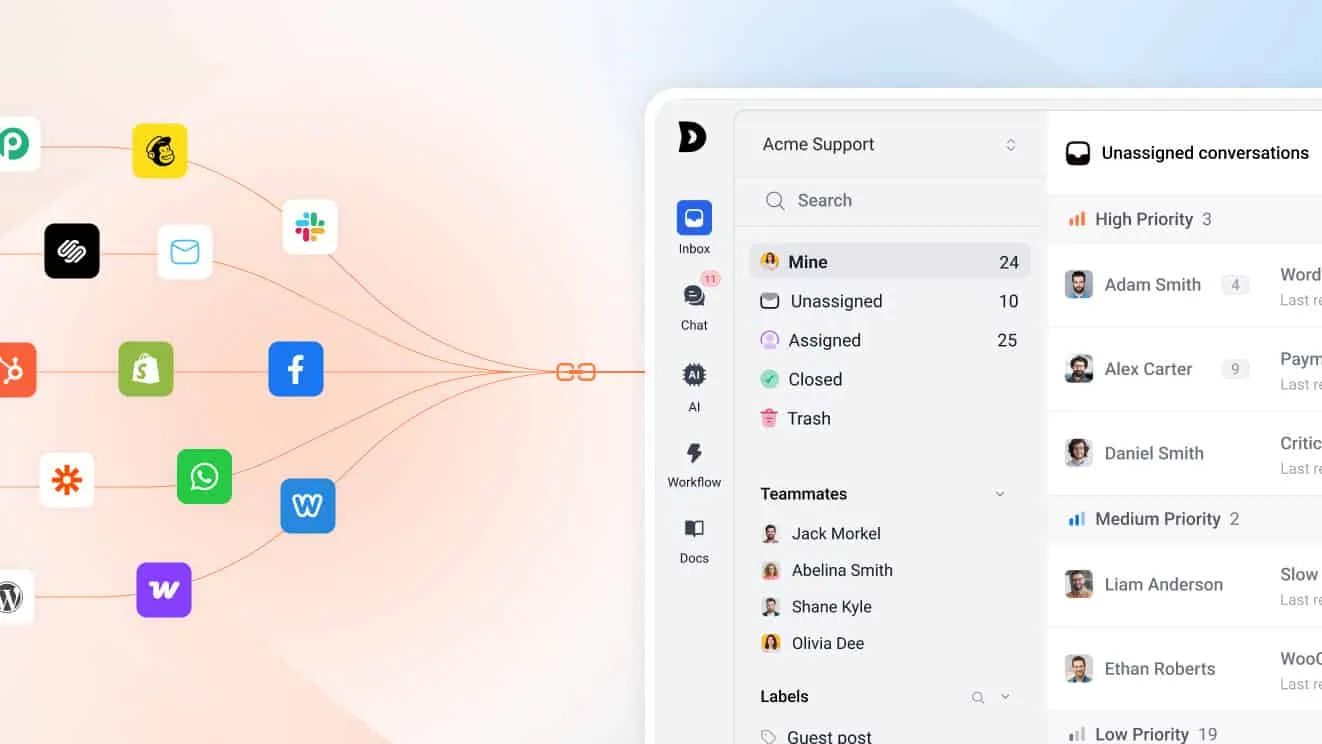
The system collects messages from your support channels in one place. It gives each message an ID, an owner and a status. It keeps every reply, note and change in one thread. Any agent can open a ticket and see what happened and who has it. The customer does not repeat the story.
Most products sold today are a full help desk. Small stores often start with email alone. That works until the second agent joins or volume doubles. The ticket system is the core, and the help desk adds a shared inbox, live chat, a knowledge base, reports and automation around it.
What a support ticket contains
A support ticket is the record of one customer issue. The first email is only one part of it.
The fields
Each ticket stores a small set of fields. Agents use them to sort and find work.
- ID: a unique number, so you can find the ticket later
- Requester: the customer, with their contact details and past tickets
- Channel: email, live chat, WhatsApp, Messenger or another source
- Subject and priority: what the issue is and how urgent it is
- Assignee and status: who has it now, and where it stands
- Tags: labels such as refund, shipping or wholesale, used for reports
The thread and the notes
The thread holds every message between the customer and your team. Internal notes sit in the same thread, but the customer cannot see them. An agent can write “Refund approved by Sam” in a private note and the next agent will see it. That history is the main reason to leave the shared inbox.
How a support ticket works from first message to close
Every ticket follows the same four steps. The tools differ, but the path does not.
Step 1: Intake
The customer writes to you. The system creates a ticket and sends an automatic reply that confirms receipt. The message can come from email, a chat widget or a messaging app.
For example, a customer writes: “My order has not arrived.” The system opens the ticket and attaches the customer’s profile.
Step 2: Routing
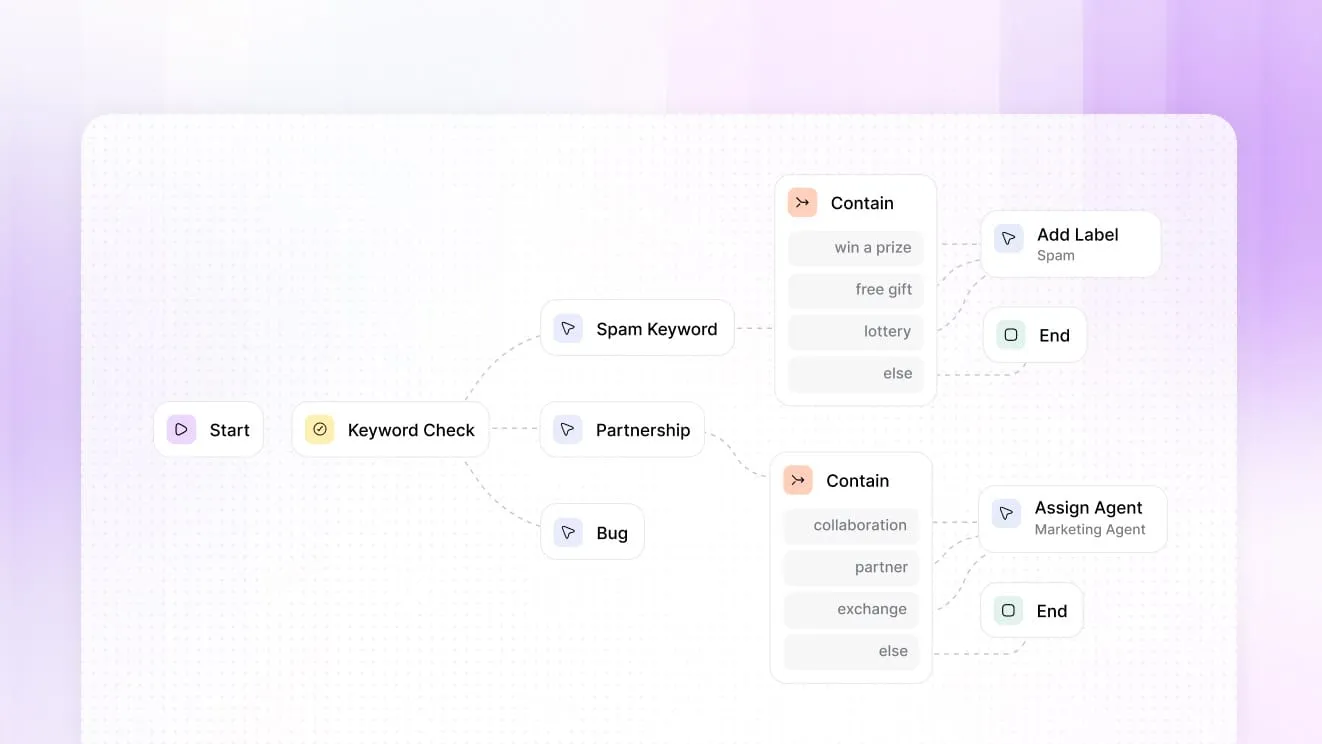
The ticket goes to a person or a queue. Rules can use the subject, a keyword, the channel or the customer’s tag. A message with the word “refund” can go to the person who handles payments. An AI agent can also read the message and route it.
Step 3: Reply and updates
The agent reads the thread and the order details, then replies. If the answer needs a colleague, the agent mentions that person in a note. The customer receives each reply by email or in the chat. The status changes as the work moves forward.
Saved replies help here. An agent inserts an approved answer for a common question and changes only the details.
Step 4: Resolution and close
The agent solves the issue and marks the ticket Resolved. If the customer does not write back, the ticket moves to Closed after a set time. If the customer writes again, many systems reopen the ticket, so the history stays in one place.
Set the close rule to match your store. A common choice is a few days after Resolved. Longer waits suit orders that ship from abroad, because customers may reply once the parcel arrives.
Ticket statuses and what each one means
A status tells the team who acts next. Use a short list.
| Status | What it means | Who acts next |
|---|---|---|
| New | The ticket arrived and nobody has opened it | The team |
| Open | An agent is working on it | The agent |
| Pending | The agent asked the customer a question | The customer |
| On hold | The team waits for a third party, such as a carrier | An outside party |
| Resolved | The agent answered and believes the issue is solved | The customer, if not satisfied |
| Closed | The ticket is final and the history is locked | Nobody |
Pending is the most useful status. Say a customer must send a photo of a damaged item. The agent sets the ticket to Pending. The clock for your reply time stops, and the ticket leaves the urgent list until the photo arrives.
Pending also helps reports. If Pending time counts as late, your numbers punish your team for the customer’s delay.
Keep the rest of the list short. Add statuses only when a real need appears. Agents ignore statuses they cannot tell apart.
A sample ticket: a refund request
Here is one ticket from start to close. The customer is made up. The steps are real.
Ticket #2041
Channel:   Email
Customer:  Maya R.
Subject:   Refund for damaged mug
Priority:  High
Tags:      refund, damaged-item
Assignee:  Sam
Status: Open- Maya writes that her mug arrived broken and attaches a photo. The system opens ticket #2041 and sends a receipt reply.
- A rule tags the ticket “refund” and assigns it to Sam. Sam sees the order, the payment and the ship date beside the message.
- Sam adds a private note, “Photo confirms damage, approve refund”, sends a refund, tells Maya, sets the status to Resolved and closes the ticket after her thanks.
Six months later, Maya writes again. The new ticket sits in her history beside the old one, so the next agent sees what happened. No one asks her to explain the broken mug a second time.
The ticket gave the case an owner and kept the photo with the thread. It also recorded who approved the refund.
Ecommerce tickets: order, return and refund
Store tickets have one thing in common. The agent needs order data to answer. If the agent must open another tab to find it, each ticket takes longer.
The volume keeps growing, because more buying happens online. The US Census Bureau reports that e-commerce sales in the second quarter of 2026 accounted for 17.1 percent of total sales. Every one of those orders can turn into a question, a return or a refund.
Order status and delivery
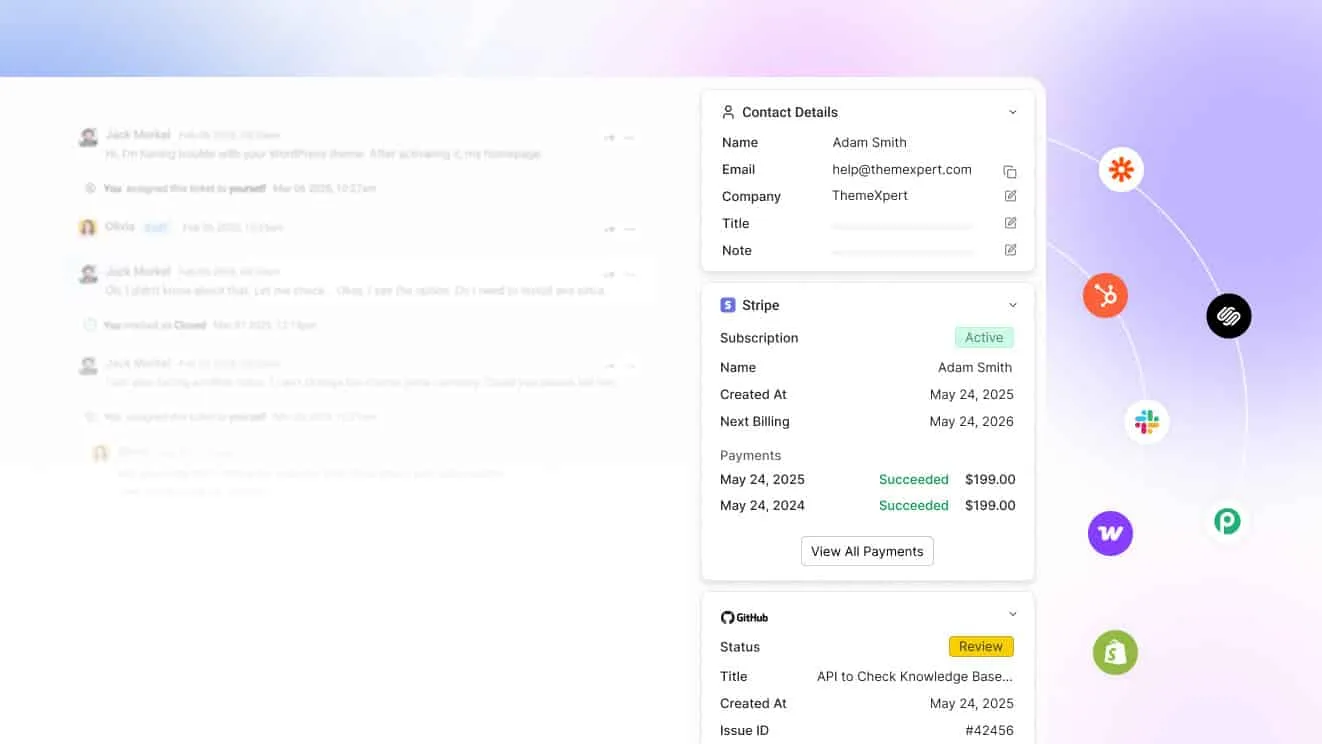
“Where is my order?” is often the largest group of tickets. The answer lives in your store and your carrier. A system that connects to Shopify or WooCommerce shows the order, items and tracking next to the thread. The question to ask: can an agent, or an AI agent, answer without leaving the ticket?
Returns and refunds
Returns tickets carry rules: the return window, the condition of the item, who pays for shipping. Write those rules once in your canned replies and your help center. Then agents and AI give the same answer each time. A refund over a set amount can also need a manager. Add a tag and a note for that case, so the approval is on the ticket. The question to ask: does the system keep a record of who approved the refund?
Pre-sale questions
Shoppers also ask about sizes, stock and shipping before they buy. These messages often arrive through live chat. Treat them as tickets too, so a slow answer does not cost a sale. The question to ask: does a chat conversation become a ticket with the same history?
For more on this work, see these ecommerce customer service practices.
Help desk ticket system vs shared inbox
A shared inbox, such as a Gmail group address, works for a team of two with a few messages a day. It stops working when volume grows.
- No owner: two agents answer the same message, or neither does
- No status: you cannot filter for what is waiting on the customer
- No history: a returning customer starts from zero
- No reports: you cannot see reply times or busy hours
The cost of a weak answer is real. A Qualtrics survey of 20,001 consumers in 14 countries found that 34% reduce their spending with a company after a negative experience and 13% cut their spending entirely.
| Item | Share of consumers |
|---|---|
| Reduce spending | 34% |
| Cut spending entirely | 13% |
Source: Qualtrics XM Institute, global consumer study of 20,001 people (2025)
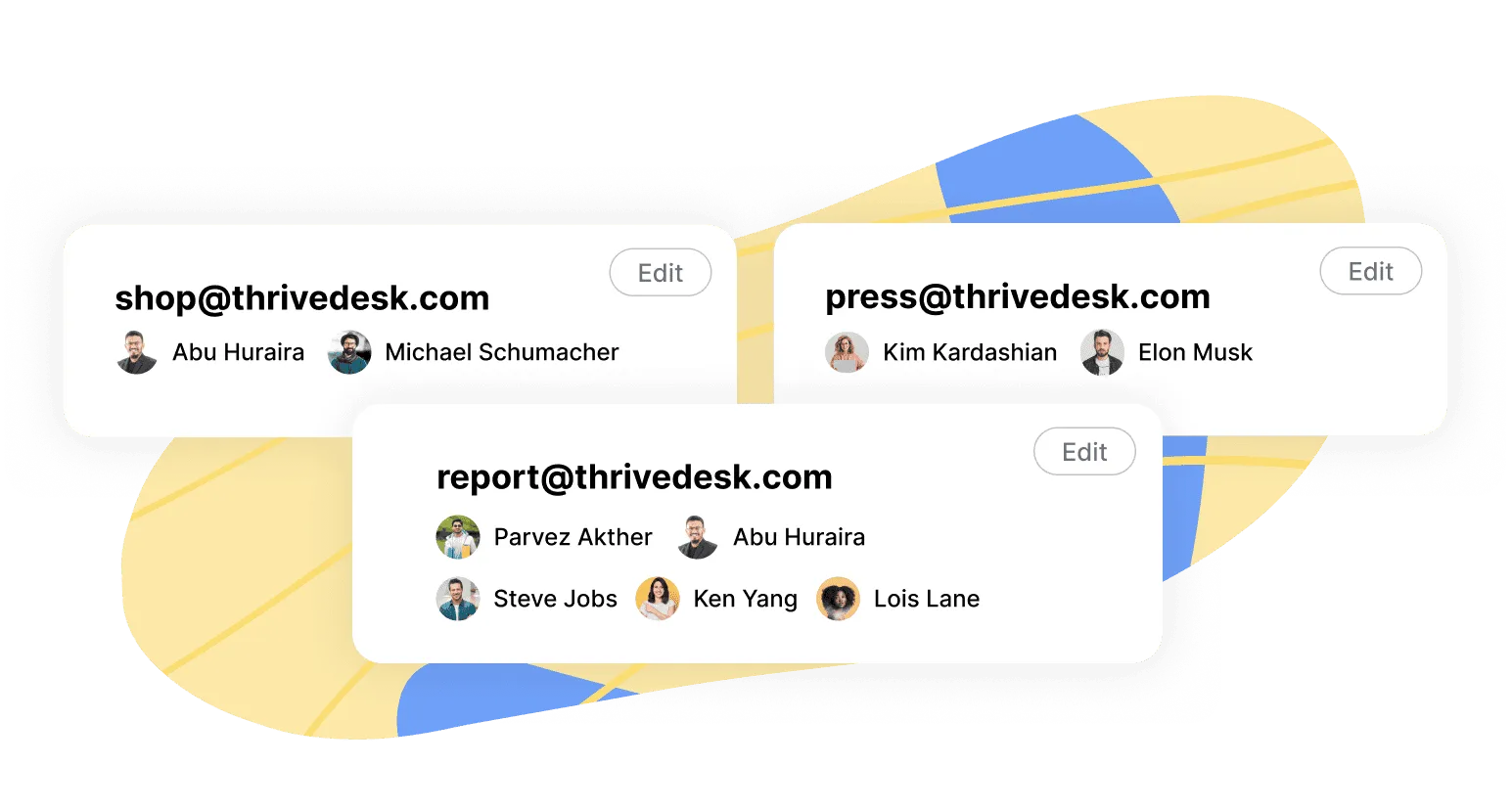
A ticket system fixes each point. Most modern tools keep the shared-inbox feel, so email still looks like email, and add the ticket structure on top. If your team now spends time asking “did anyone answer this?”, you have outgrown the inbox. Our guide to reply speed shows what to measure next.
What to look for in a ticket system
Use these questions when you compare tools. Write the answers in a simple sheet and score each product. The product that saves your agents the most clicks on an order ticket is usually the right one.
- Does it show order data in the ticket? Native Shopify or WooCommerce data saves minutes on each ticket.
- Do email and live chat share one thread? Separate tools split the customer history in two.
- Does it include an AI agent? Check that it is part of the product, not a paid extra from another vendor.
- Can you set up rules without code? Routing, tags and statuses should take an hour, not a project.
- How does it charge? Some tools charge per agent, which grows with your team. Others charge a flat price. Use the help desk cost calculator to compare totals.
- Can you leave? Check that you can export your tickets and contacts.
How to choose a ticket system now that AI agents do the work
AI agents now do much of the first-line work in support. They answer common questions, look up orders, tag and route tickets, and draft replies. That cuts manual work for your team. The ticket system is now where AI and people work on the same record.
Customers still want a person within reach. A Gartner survey of 3,566 customers found that 87% say it is essential for companies to provide an option to reach a human agent when using GenAI. Self-service alone also falls short. An earlier Gartner study found that customers fully resolve only 14 percent of their issues in self-service. Good AI answers first and then hands over cleanly.
17.1%
of total US sales in Q2 2026 were e-commerce
US Census Bureau, 2026
Nearly $3 trillion
in global sales at risk after poor customer experiences
Qualtrics XM Institute, 2025
87%
of customers say a way to reach a human agent is essential when a company uses GenAI
Gartner, 2026
14%
of service issues are fully resolved in self-service
Gartner, 2024
What to check in an AI-ready help desk
- AI built into the help desk. The AI should read the same tickets, orders and help articles as your team. A separate chatbot bolted on from another vendor splits your data.
- Handoff to a person. The AI must pass a ticket to your team with the full thread, and your team must see what the AI said.
- Training on your own content. Good AI answers from your policies, your help center and your approved replies, not from guesses.
- Proof under load. Ask how the product behaves in peak weeks, such as Black Friday.
- A track record. Ask how long the product has run and how long the company has supported stores like yours.
- Data security. Ask where your tickets are stored, who can read them and how you export them.
- A real support team. You should be able to reach a person when something breaks.
How to spot vibe-coded software
Some new help desk apps are built fast with AI code generators and launched within weeks. AI code generators are a normal tool. The risk is what you cannot check yet. Look for these signs:
- no public company history or named team
- no status page and no uptime history
- thin security documentation and no clear data-export path
- no references from stores that have used it through a busy season
Why this matters for a store
Your help desk holds customer names, addresses and order details. A young product that lacks tests can lose tickets, go down in peak season or leak data. If it shuts down, you must migrate your history in a hurry. A low price does not cover those costs.
ThriveDesk has been built since 2021, more than five years. It is an established platform with a customer base and a public reputation, and you can reach its support team. It is not vibe-coded, and it handles large support loads. Its AI agent, Neo, answers on chat and email, and your team sees every conversation. Copilot drafts replies for agents. AI actions look up orders. When a case needs a person, Neo escalates it.
How to set up a help desk ticket system in ThriveDesk
This tutorial takes a new store from sign-up to a closed test ticket. Each step uses the names you will see in the app. Where a step is optional, it says so.
ThriveDesk has three ticket statuses: Active, Pending and Closed. They match Open, Pending and Resolved or Closed in the table above.
Step 1: Start the free trial and create the workspace
Open the ThriveDesk sign-up page and choose Start your free trial. The trial lasts 7 days and needs no credit card. There is no free plan.
- Enter your first name, last name, email and password. You can also continue with Google or Microsoft.
- Enter a Workspace name, such as your store name.
- Choose a Domain. The app uses it to build your workspace address. Email sent to that address reaches your inbox. To send email from your own domain, add and verify it later.
- Answer the short onboarding questions about your business.
Step 2: Create an inbox and connect your support address
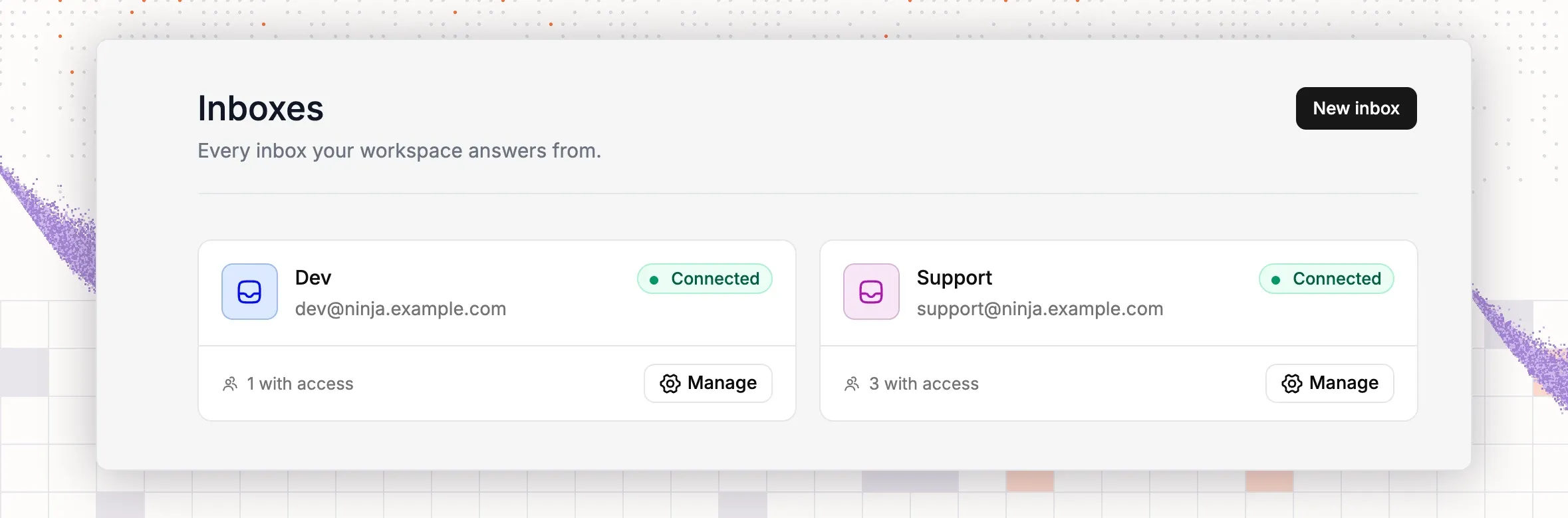
An inbox is one support mailbox. Most stores start with one, such as support@yourstore.com.
- Go to Settings → Inboxes and click New inbox.
- Type an Inbox name. Under Choose who can access this inbox, tick the teammates who need it. You are ticked by default.
- Click Add. The app opens the setup screen.
- Enter your support address in Enter your custom email address. Use a business address. Do not use a public domain such as Gmail or Outlook.com. Click Send Code.
- ThriveDesk sends a 6-digit code to that address. Enter it and click Verify. If the code fails, check the address and try again. Back returns to the first step.
- On Forward email to ThriveDesk, click the forwarding address to copy it. Then open your email provider and forward all mail from your support address to the copied address. The screen links to guides for Google Workspace, Outlook, Zoho Mail and cPanel.
- Click Check Inbox. The app opens the inbox.
To verify the link, send an email to your support address from a personal account. It must appear in the inbox. The inbox card in Settings → Inboxes shows a Connected badge when ThriveDesk can send from the address. It shows Can’t send when forwarding works but sending does not.
Step 3: Invite your teammates
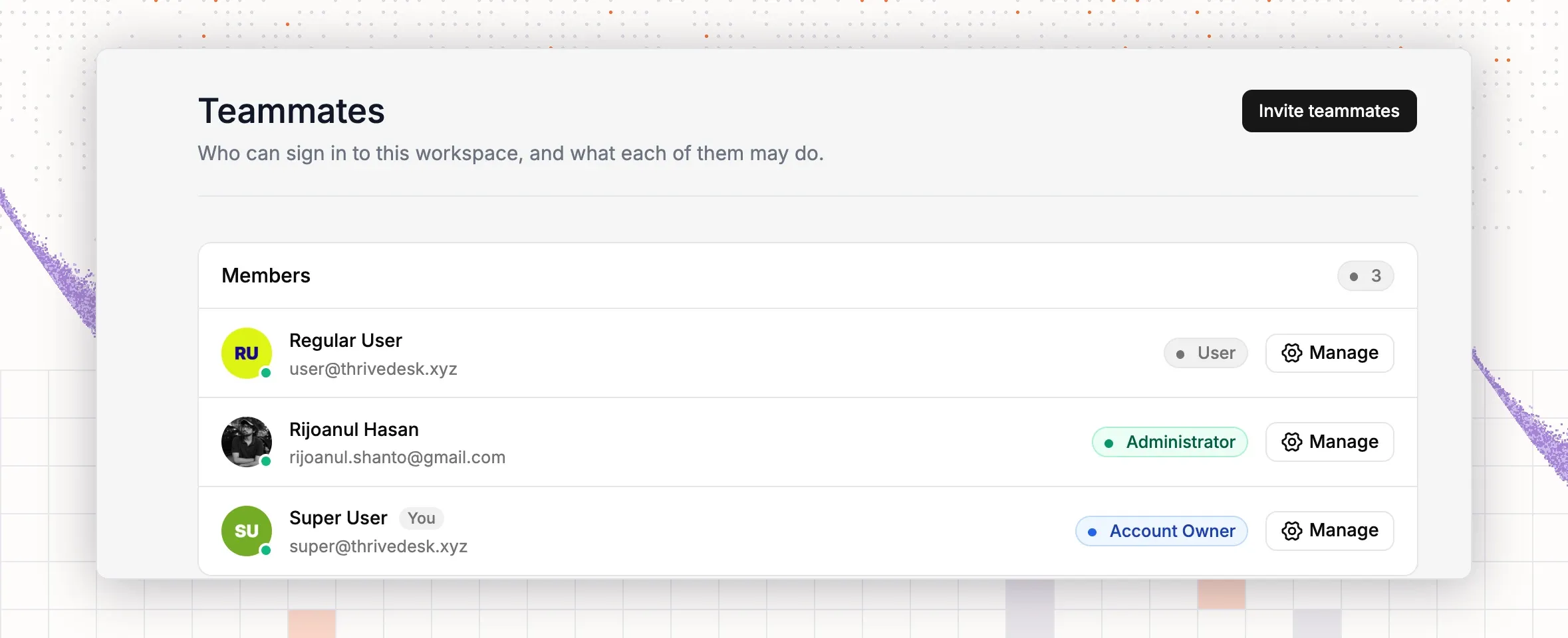
- Go to Settings → Teammates and click Invite teammates.
- Enter the teammate’s Email.
- Choose a Role: User or Admin. Give Admin only to people who manage settings.
- Under Add teammates to this inbox, tick the inboxes this person can use.
- Click Invite teammates.
The invitation stays under Pending invitations until the person accepts. If the email does not arrive, click Copy invitation link and send the link yourself. To change what a role may do, open Settings → Roles & Permission.
Step 4: Create tags and learn the priorities
Tags label tickets by topic. You use them in filters and reports.
- Go to Settings → Tags and click Add new tag.
- Enter a Tag name and pick a colour.
- Save the tag. Repeat for each topic, such as Refund, Shipping, Damaged item and Wholesale.
Priority is not a setting you create. Each ticket has a priority menu with High, Medium and Low. Agents set it on the ticket, or a workflow sets it (see Step 8).
Step 5: Work with statuses and assignment
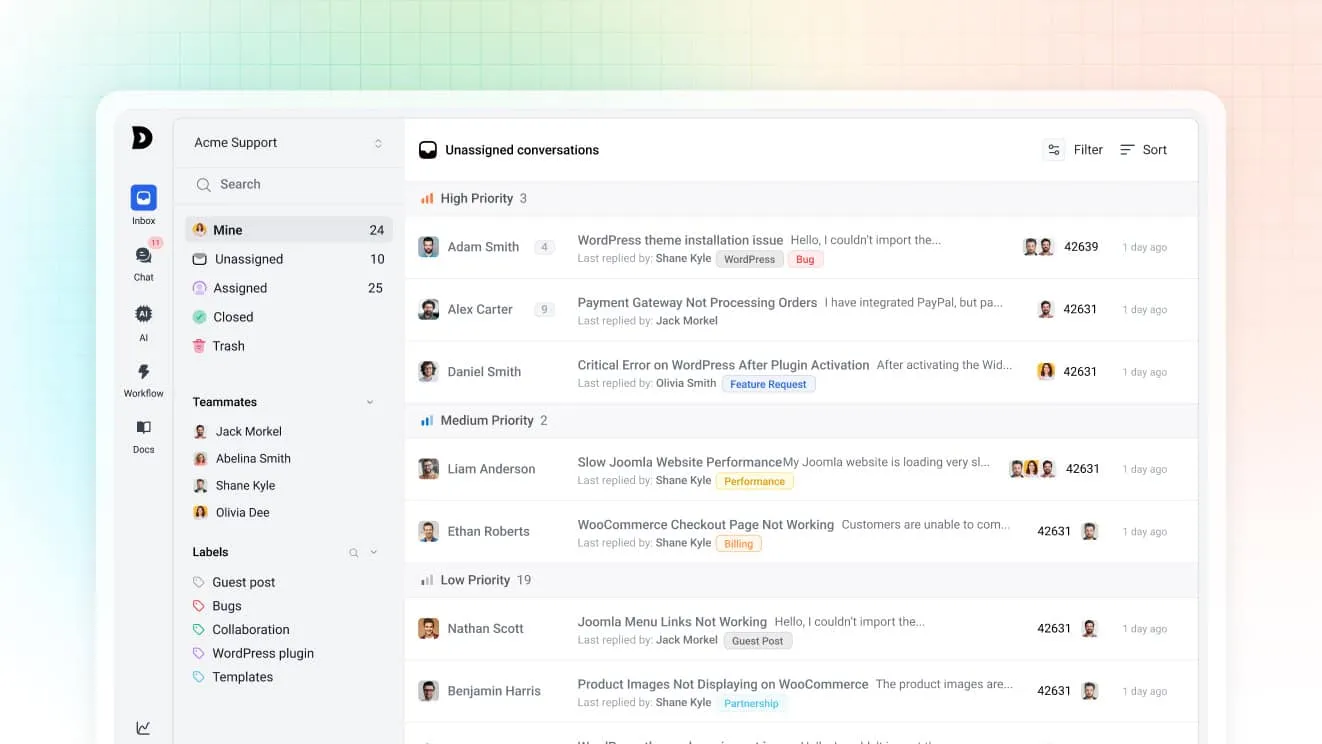
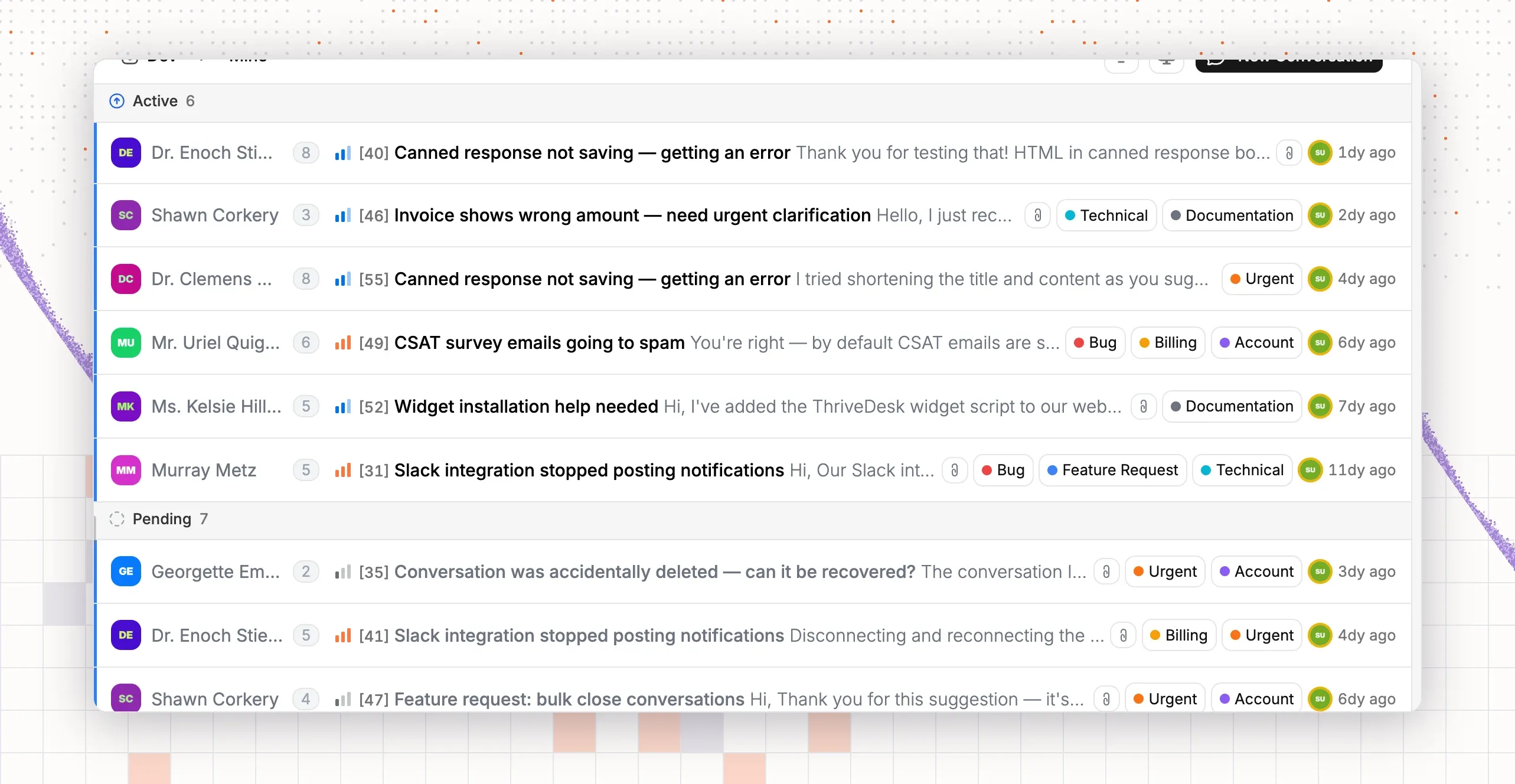
Open Inbox in the left rail. The inbox list has these views: Unassigned, Mine, Draft, Assigned, Later, Closed and Trash. New tickets arrive in Unassigned.
On a ticket:
- Click Assign and pick a teammate. The ticket moves to Assigned for the team and to Mine for that person. You can assign a ticket to yourself.
- Open the status menu and choose Active, Pending or Closed. Use Pending when you wait for the customer. Use Closed when the issue is solved.
- Open the priority menu and choose High, Medium or Low.
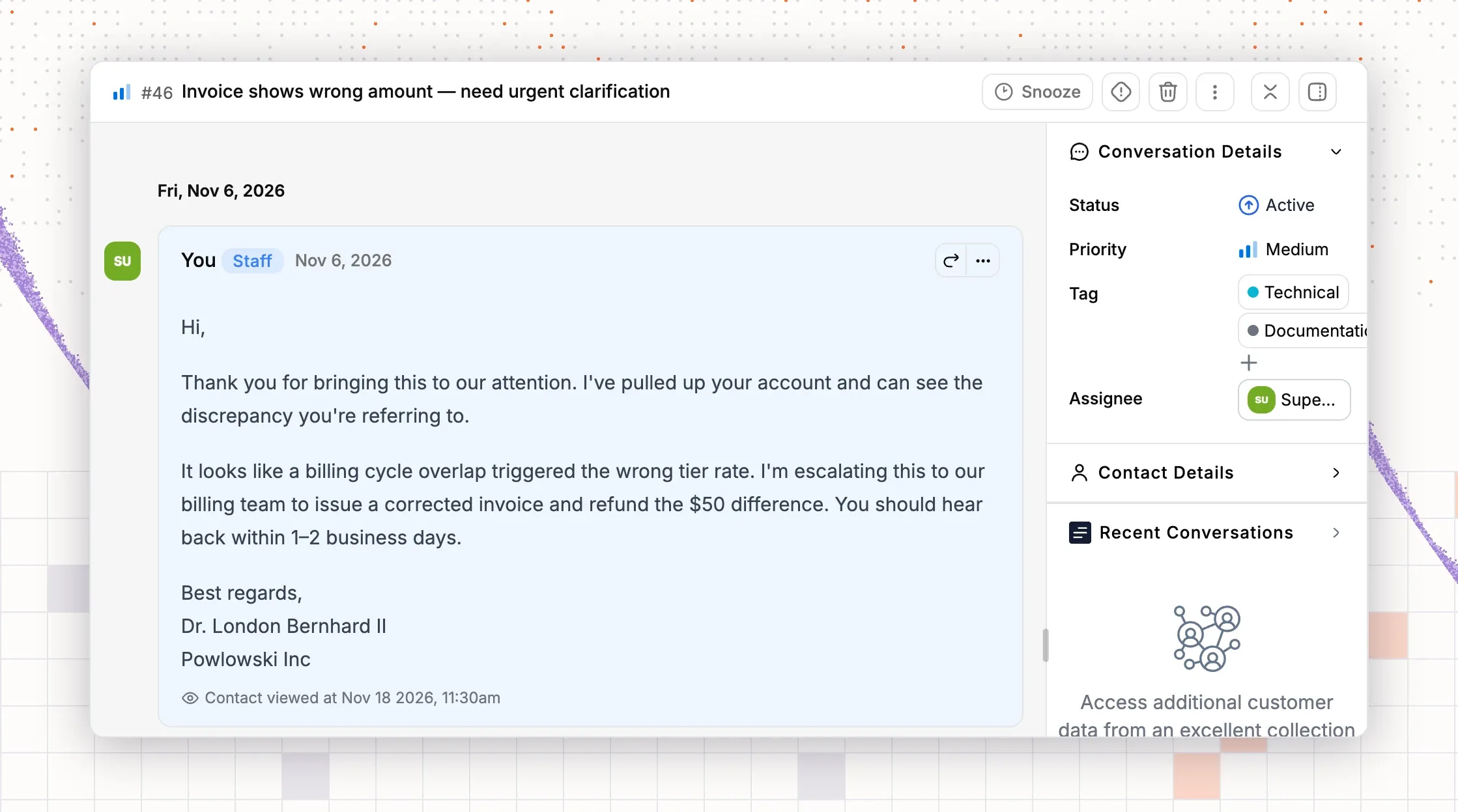
Step 6: Create saved replies
- Go to Settings → Saved Replies and click Add New Reply.
- Under Select inbox, pick an inbox, or keep Global - All inboxes so every team can use it.
- Enter a Name. Only your team sees it. Use a pattern such as “Orders - Where is my order?”.
- Write the message. Add variables, such as the customer’s first name, from the toolbar.
- Save the reply.
In a ticket, click the saved replies button in the reply box and search by name. Our guide to canned responses covers how to write them.
Step 7: Connect Shopify or WooCommerce
This step shows order data next to every ticket. Open Settings → App Store and choose your store platform. The tile reads Set up, or Manage after you connect.
Shopify:
- Open the Shopify app store and search for ThriveDesk. Click Add app.
- Approve the access request. Shopify sends you back to ThriveDesk.
- On the Configuration tab, check the Label and the Shop address. The shop address is read-only.
- Under Inboxes, tick the inboxes that should show Shopify data, then save.
WooCommerce:
- In WordPress, go to Plugins → Add New. Search for ThriveDesk, then click Install and Activate.
- Open the ThriveDesk menu in WordPress and click the WooCommerce connect button. It takes you back to ThriveDesk.
- On the configuration screen, check the Label, Store URL and Token. Click Save, then Back to store.
Open a ticket from a customer who has ordered. The sidebar shows the customer’s lifetime value, annual value and average order value, and up to 10 recent orders. One click opens an order or the customer’s store profile.
Step 8: Add workflow rules for routing
A workflow runs on each new ticket and does the routine sorting.
- Click Workflow in the left rail. The list follows the inbox you chose in the top bar.
- Click Add workflow. Choose Start from scratch, or Start from a template. The templates include Assign based on keyword, Tag based on content and Tag VIPs.
- Replace Untitled workflow with a name, such as “Refund requests”.
- The trigger is New Conversation Created. It is the only trigger today.
- Under If …, add a condition. The fields include Subject, Message, Contact email and Within Business Hours. For example, set Subject to contain “refund”.
- Under Then, do…, click Add action. Pick Assign To, Add tag, Set Priority or Move to another inbox. For example, assign to your payments teammate, add the Refund tag and set the priority to High.
- Click Save. Use the switch in the workflow list to turn a workflow on or off.
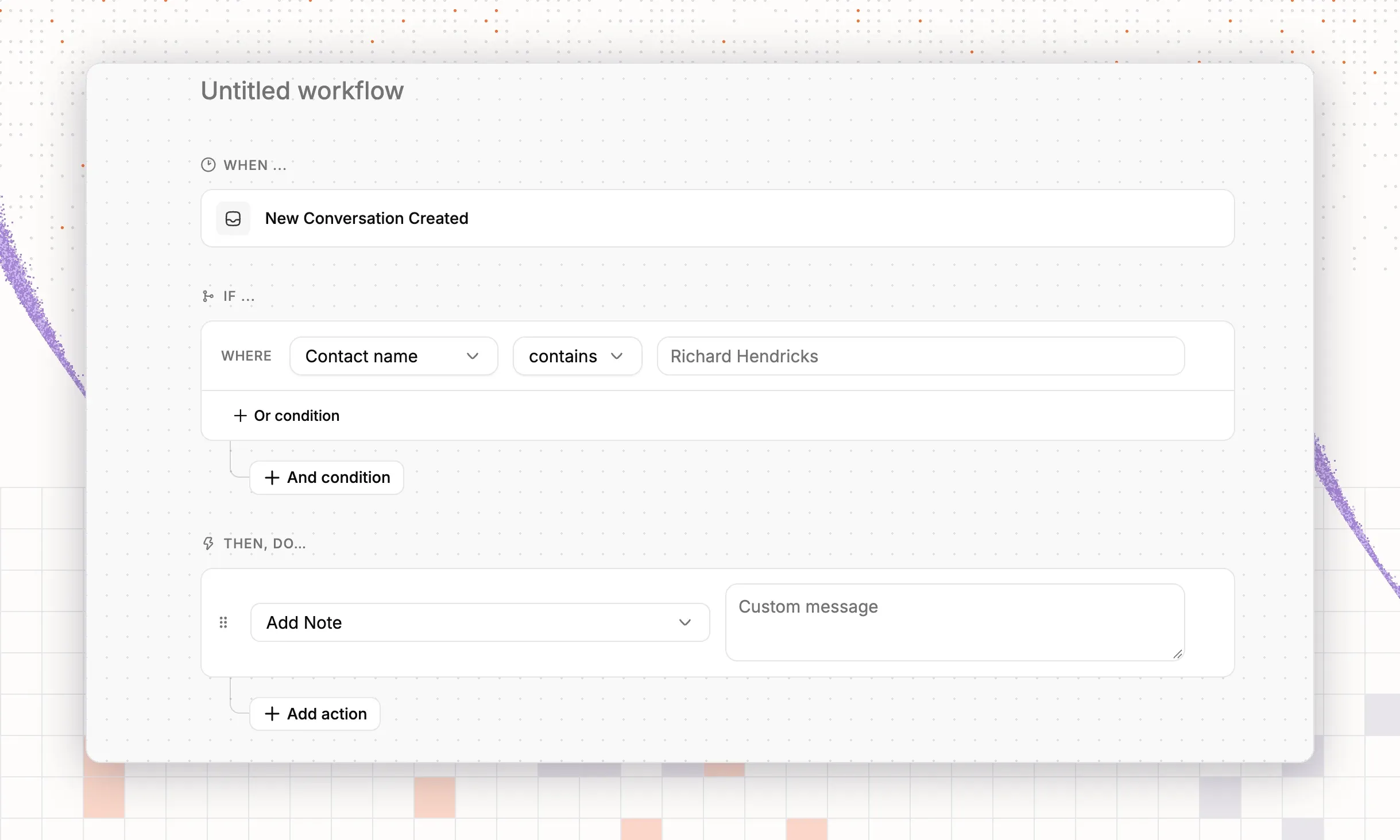
Step 9: Turn on the AI agent and train it
Neo is the ThriveDesk AI agent. It answers customers from your own content. It hands the ticket to your team when a rule says so.
- Click Neo in the left rail.
- Under Train, open Q&A. In Add Q&A, type a Question and an Answer, then click + Add. Add your return window, delivery times and refund rules first.
- Open Website. In Add website, enter your store address under Enter the URL. You can set Filters and Exclude paths, for example /cart or /checkout. The list shows each site as syncing, completed or failed. You can also add a File or a Doc from the same menu.
- Open Handoff & Escalation. Under Handoff, write the Handoff message that customers see when Neo steps aside. Turn on When no one is online, ask for an email and open a ticket if you want a ticket after hours. Click Save.
- Under Rules, click Add rule. Name the rule, pick a trigger and choose who takes over. Triggers include The customer asks for a person, A message mentions keywords and The customer sounds upset. You can also add a tag and a priority. The first rule that matches hands the ticket to your team.
- Open Preview & Simulations and ask Neo the questions your customers ask. Fix any wrong answer by editing the Q&A or the source.
- For email, open Deploy → Email. Turn on Auto reply. Keep Draft Mode on at first. Neo then writes a reply for an agent to check and send. Choose whether it drafts for All incoming message or First incoming message. Auto tags and Auto priority have their own switches.
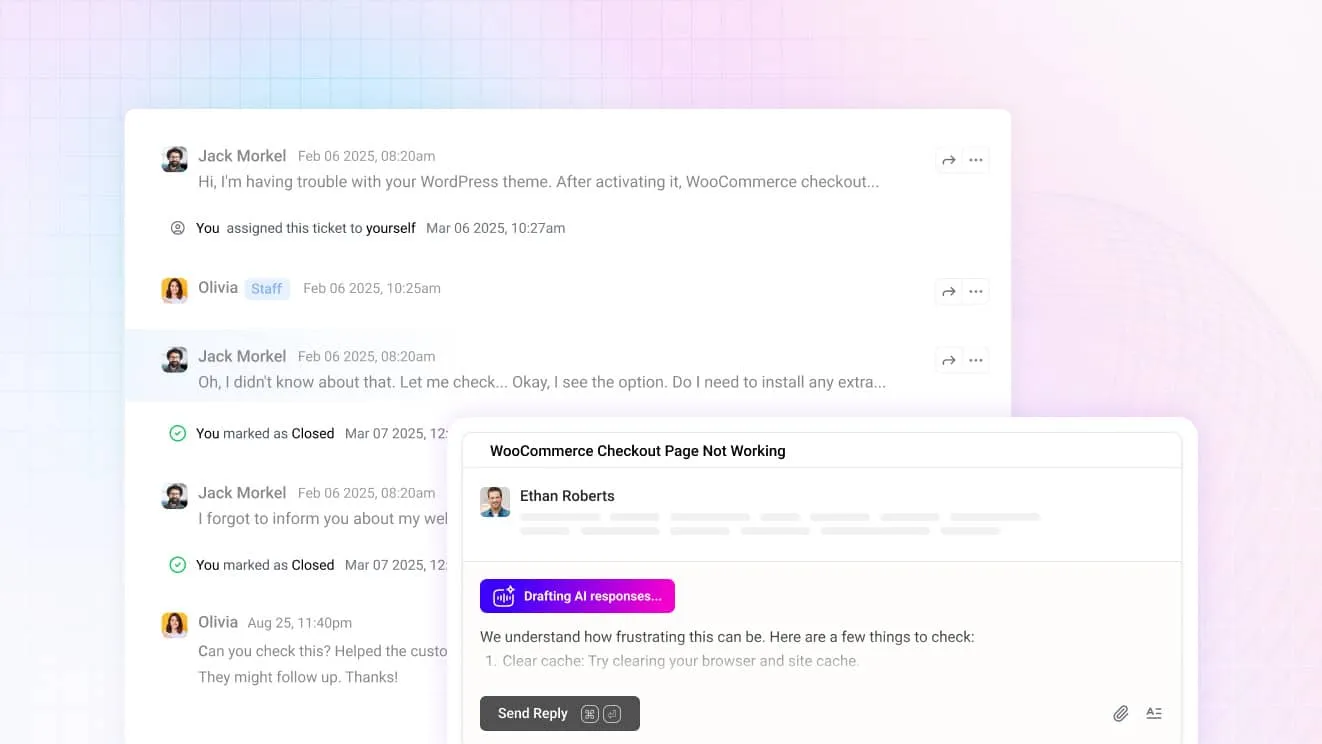
Step 10: Send a test ticket and close it
- From a personal email account, write to your support address. Use a subject such as “Where is my order?”.
- Open Inbox → Unassigned. The ticket appears there. If it does not, check the forwarding rule from Step 2.
- Open the ticket. Click Assign and pick yourself. The ticket moves to Mine.
- Set the priority to Medium. If you built the workflow in Step 8, test it with a second email whose subject contains “refund” and check the tag and assignee.
- Add a note with Add note. Only your team sees it.
- Insert a saved reply, change the details and click Send. Check your personal inbox for the reply.
- Open the status menu and choose Closed. The ticket moves to Closed.
Your help desk ticket system is now live. Tell your team where to look first. Unassigned holds new work. Mine holds their own.
How ThriveDesk fits an online store
ThriveDesk is AI customer support for online stores. The parts above work together:
- One thread per customer. Email and live chat land in one shared inbox as one ticket.
- Order context beside the reply. Shopify and WooCommerce orders show next to the message.
- AI that answers first. Neo answers routine questions from your content and hands the thread to your team. Copilot drafts replies for your agents.
- Flat pricing. Basic is $29 a month for two teammates, Standard is $69 for five and Unlimited is $129 with no teammate limit. There is no per-agent fee. The 7-day free trial needs no credit card, and there is no free plan.
Every plan includes the AI agent, live chat and a help center. See the pricing page for what each plan includes, or the live chat page for the chat widget.