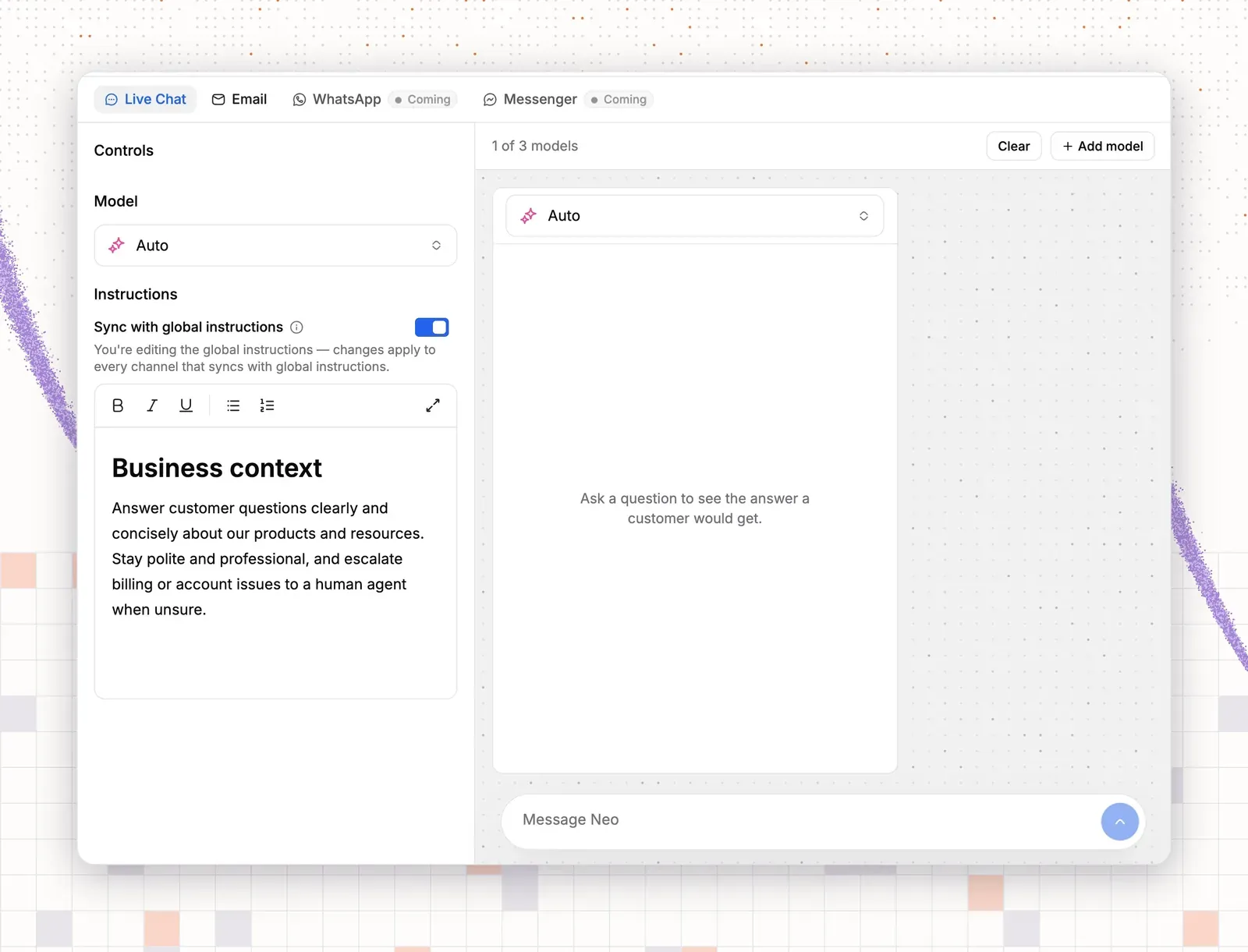

A bot with no route to a person leaves a stuck customer with no next step. Good chatbot scripts are short and honest, with a way to a person. This guide is for small SaaS and ecommerce teams. It teaches you how to write chatbot scripts from your own ticket data, then gives you 13 chatbot script templates to copy. For finished bots and more chatbot script examples, see AI chatbot examples. This post is about the writing.
What is a chatbot script?
A chatbot script is the set of messages, questions, answers and rules a support bot follows. It is a flowchart with words. It is also a voice guide that says how the bot sounds. This post covers chat for customer support, not Twitch bots or game bots.
Two kinds of script exist. A scripted bot offers buttons and keywords. You write every path, and the customer picks one. An AI agent reads free text and answers from your content, such as your help center. You write the content and the rules, and the agent writes the reply.
Most teams use both. Fixed lines cover the moments that must not change, such as the greeting and the handoff. The AI covers the rest.
Scripted bot vs AI agent script
| Scripted bot | AI agent | |
|---|---|---|
| What you write | Every message and every path | Sources, rules and a few fixed lines |
| Off-script question | Fails or repeats the menu | Answers from sources, or hands off |
| Upkeep | Edit each path when anything changes | Fix the source once |
The parts of a chatbot script
Every script, scripted or AI, has the same eight parts. Each part has one job. A SaaS line and a store line show how each one reads.
| Part | Job | Example line |
|---|---|---|
| Greeting | Say who the bot is and what it can do | “I’m the [product] bot. I can help with login and billing.” |
| Intent capture | Find out what the customer wants | “What can I help with? Order status, returns or sizing?” |
| Answers | Give the fix in as few words as possible | “Use the reset link on the login page.” |
| Clarifying question | Ask one thing when the request is vague | “Which plan are you on?” |
| Data collection | Ask only for what the next step needs | “What is your order number?” |
| Handoff | Pass the chat to a person with context | “I’m passing this to a teammate. They will see this chat.” |
| Fallback | Admit the bot is stuck and offer a way out | “I’m not sure. Want to rephrase, or talk to a person?” |
| Closing | Confirm the result and leave the door open | “Did that fix it? I’m here if not.” |
A few rules sit outside the table. The bot never claims to be human, because a customer who finds out stops trusting the next answer. Keep menus to four or five choices. Never ask for a password or a card number, and add a privacy line wherever you collect an email or an order number. In the handoff, say who answers and when, so the customer does not have to ask again. Name one owner for the whole script, because someone must change it when the business changes.

How to write chatbot scripts, step by step
This method works for a scripted bot and for an AI agent. It starts from data, not from a blank page. Good chatbot writing is short, plain and one question at a time.
Step 1: Pick the jobs from your ticket data
Export or tag the last 100 to 200 chats or tickets. Count them by topic. Take the top five to eight. Do not start with “everything”. A bot that does five jobs well beats one that does thirty badly. If you have no clean tags, run a quick customer support audit first.
Typical SaaS tags are login, billing, bug, onboarding and cancel. Typical store tags are order status, returns, sizing, shipping and stock. Write the list at the top of your script document, with the monthly count next to each job.
Step 2: Write the happy path
For each job, write the shortest route to a solved problem. Write it as a chat between two people, and keep each bubble to about 12 words. Ask one question per message, so the chatbot workflow stays easy to follow.
Do not write branches yet. Ask: what is the customer’s goal, and what is the fewest messages that get them there? For order status, the happy path is three messages: ask for the order number, give the status, offer help.
Step 3: Write the branches
Add the two or three branches that cover most chats. Skip the rest and let the fallback catch them. Each branch must end in an answer or a handoff. Write each branch as a plain rule:
- If the order is delayed, give the new date and offer a person.
- If the customer says the parcel is lost, hand off with the order number.
- If the login problem involves single sign-on, hand off to a teammate.
Keep the depth to three questions. A fourth question is a sign the job needs a person, not a longer script.
Step 4: Set the voice
Pick three traits, such as plain, warm and direct. Pick three words you never use, such as “unfortunately”, “kindly” and “per our policy”. Use the same voice in every message. The greeting says it is a bot.
Stiff: “Unfortunately, we are unable to process your request at this time.”
Plain: “I can’t do that one. A teammate can. Want me to pass this on?”
Step 5: Write fallbacks and handoffs
Write four replies before anything else: the “I don’t know” reply, the out-of-scope reply, the error reply and the handoff message. The out-of-scope reply covers questions the bot should not answer. The error reply covers a failed lookup. With the greeting and the privacy line, these replies make the five locked lines in the template section.
Always show a way to a person. Many customers distrust AI in support, as the Gartner data in the AI section below shows. A fallback that loops the same menu is worse than no bot.
Step 6: Test with real questions
Take 20 real customer messages from your export. Include typos, short fragments and angry ones. Run all 20 through the script. Mark each one pass or fix. Test on a phone too, because many customers type there.
Add three tests of your own: a message in all capitals, a message with two questions, and a message that asks for a person. Fix every fail before launch.
Step 7: Review chats every month
Read 30 chats each month. Look for three things: how often the fallback fires, why chats go to a person, and chats that reopen within a day. Add a line or a source for every gap.
Name one owner for the script. Put the review on their calendar. A script with no owner goes stale. The best chatbot scripts are the ones someone reviews each month.

Chatbot script templates for SaaS and online stores
Use each chatbot script template as a customer service chatbot script for your own help desk. Every template has a sample chat and a short list of reusable lines with [placeholders]. Fill in the brackets and test the lines with your own customers’ wording. The chats are written samples, not logs. Names and products are made up.
SaaS templates
Software teams get the same few chats all day: login, billing, how-to, bugs and cancellations. These five cover most of them. For more on the last one, see churn prevention tools.
Login and failed payment are the two account chats. The login script never asks for a password. The payment script says whether access continues and sends refunds to a person.
Reusable lines for login:
- “Use the reset link here: [reset page]. It expires in [time].”
- “I will never ask for your password.”
- “Your admin manages sign-in for [company account]. I’m passing this to a teammate.”
- “Our team replies [support hours]. You will get an email at the address on your account.”
Reusable lines for failed payment:
- “Your [plan name] plan stays active until [date].”
- “Update the card here: [billing page]. We retry in [retry window].”
- “A teammate confirms refunds. I’ve sent them this chat.”
Onboarding and bug report are the two chats for new and stuck users. The onboarding script gives three steps and one guide link. The bug script collects facts a developer can use and never promises a fix date.
Reusable lines for onboarding:
- “Welcome to [product]! Start with [first task]. It takes about [time].”
- “Next, [second task]. Then [third task].”
- “Here is the guide: [guide link].”
Reusable lines for bug reports:
- “Which browser are you using?”
- “What did you click before it failed?”
- “What email is on your account?”
- “I’ve sent this to our team. I can’t promise a fix date, but you will hear back at that email.”
A customer who wants to cancel often has a smaller problem: price, pause or a missing feature. The cancellation script asks why, offers only options you really have, and hands the rest to a person.
Reusable lines for cancellation:
- “I can point you there. May I ask why?”
- “You can [options]. Want either?”
- “Cancel here: [cancel page]. A teammate will confirm by email.”
Online store templates
Store teams get the same few chats all day too: where is my order, can I return it, will it fit, when does it arrive, is it back. These five cover most of them. For the wider picture, see ecommerce support best practices.
Order status is the biggest store chat. Returns come next. The order script asks for the order number and email and hands off a lost parcel. The returns script states the window and offers an exchange before a refund.
Reusable lines for order status:
- “What is your order number and email?”
- “It shipped with [carrier]. Track it here: [tracking link].”
- “That parcel looks lost. I’m passing your order number to a teammate.”
Reusable lines for returns:
- “Returns are open for [return window] after delivery.”
- “Do you want an exchange or a refund?”
- “Start here: [return portal link]. A teammate confirms the refund once the parcel arrives.”
Sizing and shipping are the two pre-purchase questions. The sizing script answers from your size guide and says that fit differs by brand. The shipping script asks for the country or postcode, then gives cost and window from your shipping page.
Reusable lines for sizing:
- “[Product] fits [fit note]. What is your height and usual size?”
- “I’d pick [size] for [product]. Fit differs by brand, so check [size guide].”
- “Not sure? A teammate can advise. Want me to ask?”
Reusable lines for shipping:
- “What is your country or postcode?”
- “Delivery to [country] is [cost] and takes [delivery window].”
- “Orders over [threshold] ship free.”
Be careful with stock questions. A bot should not claim live stock numbers unless a lookup is connected and tested. Without one, the script says what it can see, offers an email follow-up and hands off.
Reusable lines for back in stock:
- “I can’t see restock dates from here. Sorry.”
- “I can ask a teammate to email you about [product]. What email should we use?”
- “Thanks. I’ve passed it on. They will follow up.”
Templates for both
These three fit any team. Treat them as the base of every script you write.
After-hours capture and handoff are the two moments when a customer needs a person. The after-hours script says when the team is back and collects a name, an email and the question. The handoff message says what happens next, who will answer and how long it takes.
Reusable lines for after-hours capture:
- “Our team is offline. We’re back at [hours].”
- “Leave your name and email, and I’ll pass on your question.”
- “Expect a reply by [reply time].”
Reusable lines for handoff:
- “I’m bringing in a teammate now. They will see this whole chat.”
- “Expect a reply within [reply time].”
- “You can also email [support email].”
The “I don’t know” fallback admits the gap and gives two choices. It never guesses.
Reusable lines for the fallback:
- “I’m not sure about that one.”
- “Want to rephrase, or talk to a person?”
Keep these five locked lines in every script. Write them once and reuse them word for word.
| Locked line | Template |
|---|---|
| Greeting | “Hi, I’m the [brand] bot. I can help with [two jobs]. You can ask for a person any time.” |
| Privacy line | “I’ll use your email only to answer this request.” |
| Out of scope | “I can’t help with that here. A teammate can. Want me to ask?” |
| Error | “I couldn’t check that just now. A teammate will follow up at [email].” |
| Handoff | “I’m bringing in a teammate now. They will see this whole chat.” |
Your human team can use the same locked lines as saved replies. The canned reply guide shows how to write them.

Chatbot script mistakes to avoid
Avoid these seven mistakes. Fix each one with one short line.
| Mistake | Fix |
|---|---|
| A wall of text in one bubble | Split it. One idea, about 12 words, per message. |
| No way to a person | Show it in the first message and in every fallback. |
| A menu with 12 buttons | Cut to four or five. Let free text cover the rest. |
| A bot that pretends to be human | Say it is a bot in the greeting. |
| Guessing a refund date or stock level | Say a teammate confirms. Never invent a date or a number. |
| Asking for a password or card number | Never ask. Send a secure reset or billing link instead. |
| Never updating after launch | Review 30 chats each month and name an owner. |
Chatbot scripts in the AI agent era
A button-tree script lists every path in advance. When a customer types something outside the tree, the bot fails. An AI agent does not follow a tree, so the script you write changes shape.
For an AI agent, you write the inputs. It answers from the knowledge you give it, such as your help center, short Q&A answers, your website and files. Guidance sets the tone and the limits. Procedures cover multi-step jobs such as returns. Actions do lookups such as orders. Handoff rules say when a person must step in.
| Old script part | AI agent equivalent |
|---|---|
| Greeting | Guidance, plus one fixed line |
| Answer tree | Sources: help center, Q&A, website, files |
| Branches | Procedures |
| Data collection | Actions that look up the data |
| Fallback | Handoff rule and out-of-scope reply |
Some lines still stay word for word, because a wrong phrase here costs trust or breaks a rule. These are the greeting with the “I’m a bot” line, the consent and privacy line, the handoff message, the out-of-scope reply and the error fallback. The AI can phrase everything else from your sources. It words the answers, the order details and the follow-up questions in its own way. It does this inside the limits you set in guidance.
The fixed lines stay fixed for a reason. A greeting that hides the bot, a privacy line with new wording or a handoff that promises too much can cause a complaint. You can check a fixed line once. You cannot check every phrase an AI writes. ThriveDesk has built support software since 2021, and the AI agent follows the same rule: fixed lines for risk, sources for everything else.

Many customers are wary of AI in support. Gartner surveyed 5,728 customers in December 2023 and published the result in July 2024.
64%
of customers would prefer that companies did not use AI in customer service
Gartner press release, 9 July 2024 (survey of 5,728 customers, December 2023)
53%
would consider switching to a competitor if they found out a company would use AI for customer service
Gartner press release, 9 July 2024 (same survey)
80%
of common service issues predicted to be resolved by agentic AI without a person by 2029 (prediction)
Gartner press release, 5 March 2025
So the way to a person is the most important line you write. Show it in the greeting and in every fallback. The work moves from writing paths to writing content and rules.
How to choose a chatbot product
Check four things before you pay for any chatbot product:
- It answers only from your sources, and you can limit it.
- It shows what it did: an activity log, the source it used, and a way to test before launch.
- It hands off cleanly. The full chat goes to the person, and you control the rule.
- The team is visible. Look for a dated changelog that goes back years, a named team and a public list of integrations.
Some tools are built fast with AI coding tools and shipped with little testing or security review. They look fine in a demo. Check these signs in 10 minutes:
- No dated changelog or release history.
- No list of live integrations you can open.
- No named team or company address.
- No security or data-handling page.
- Pricing that hides limits, or “unlimited” claims with no handoff controls.
- No way to test before going live.
- No status page, and a support channel that does not answer.
ThriveDesk has run since 2021, which is more than five years. It has an established customer base and a dated changelog. Its Shopify, WooCommerce and Freemius integrations are live, and a real engineering team builds it.
Plans start at $29 a month, and the AI agent and live chat come with every plan. See pricing for the full list. For a wider comparison, read the best AI chatbots for customer support.
How to turn a chatbot script into an AI agent in ThriveDesk
This tutorial turns your script into a working AI agent in ThriveDesk. You need an account and a few help articles. The AI agent is called Neo, and the app labels use that name. Each step ends with a test. For background, read conversational customer service and the page on AI training.
Step 1: Map the script to the agent
Decide where each script part lives before you click anything.
| Script part | Where it lives in ThriveDesk |
|---|---|
| Answers | Train sources: Q&A, File, Website, Doc |
| Greeting, voice and limits | Guidance |
| Multi-step flows, such as returns | Procedures |
| Order and purchase lookups | Actions |
| Handoff and fallback | Handoff & Escalation |
Step 2: Add the sources
- Open Neo in the left rail.
- Open Doc. Your help center docs are listed under Sources. Select Create doc if an article is missing.
- Open Website, then select Add website. Type your domain, such as “example.com”. Select your product, shipping and policy pages.
- Open File, then select Upload Files. Add a size guide or a policy file. The upload takes PDF, Word, Excel and text files, up to 10 files and 50 MB at a time.
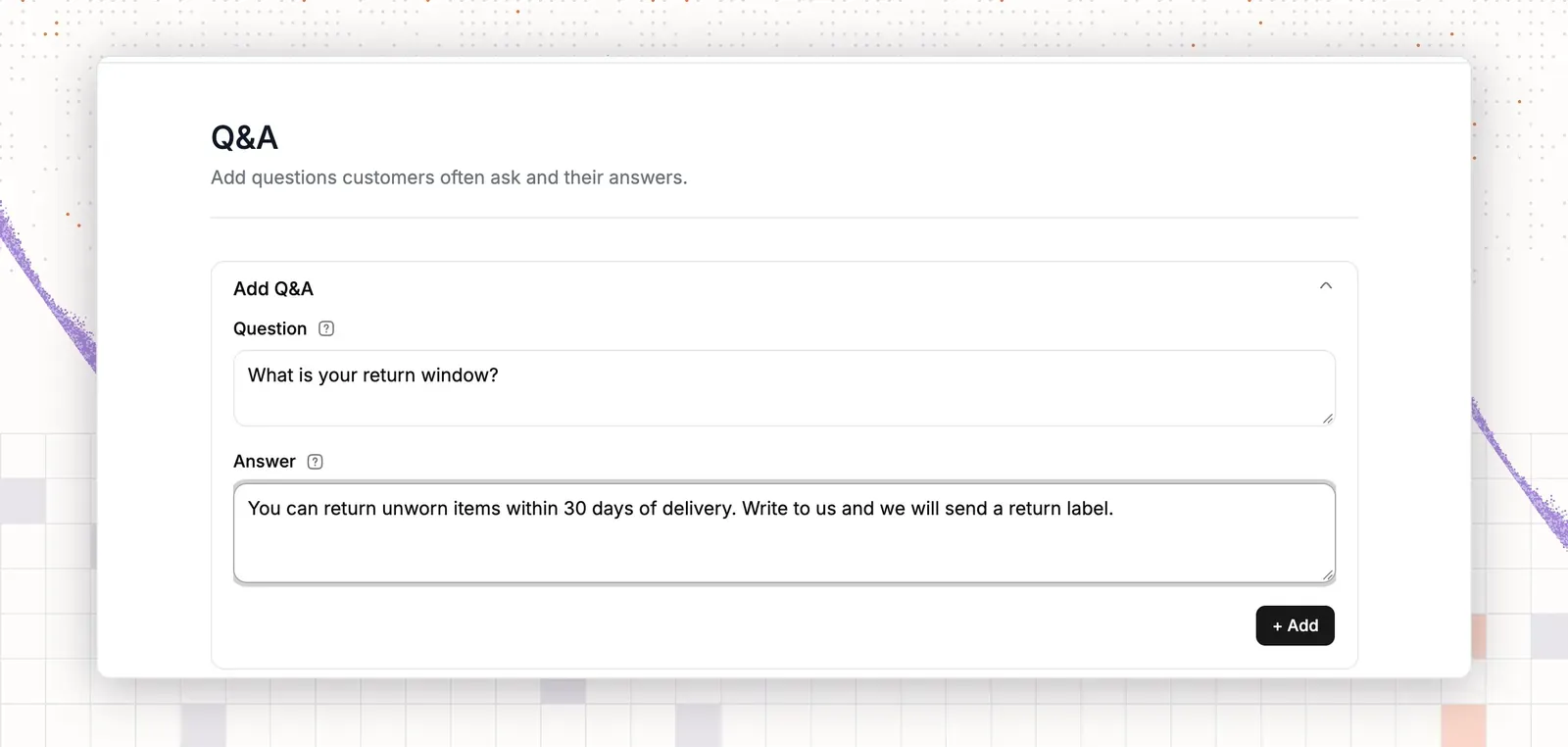
- Open Q&A, then select Add Q&A. Type one answer from your script, such as the return window. Repeat for your top ten questions.
Test: open Preview & Simulations and type “How do I reset my password?”. The reply should name the right article. If it does not, add a Q&A answer for that question or rename the article title to match the customer’s words.
Step 3: Write the guidance
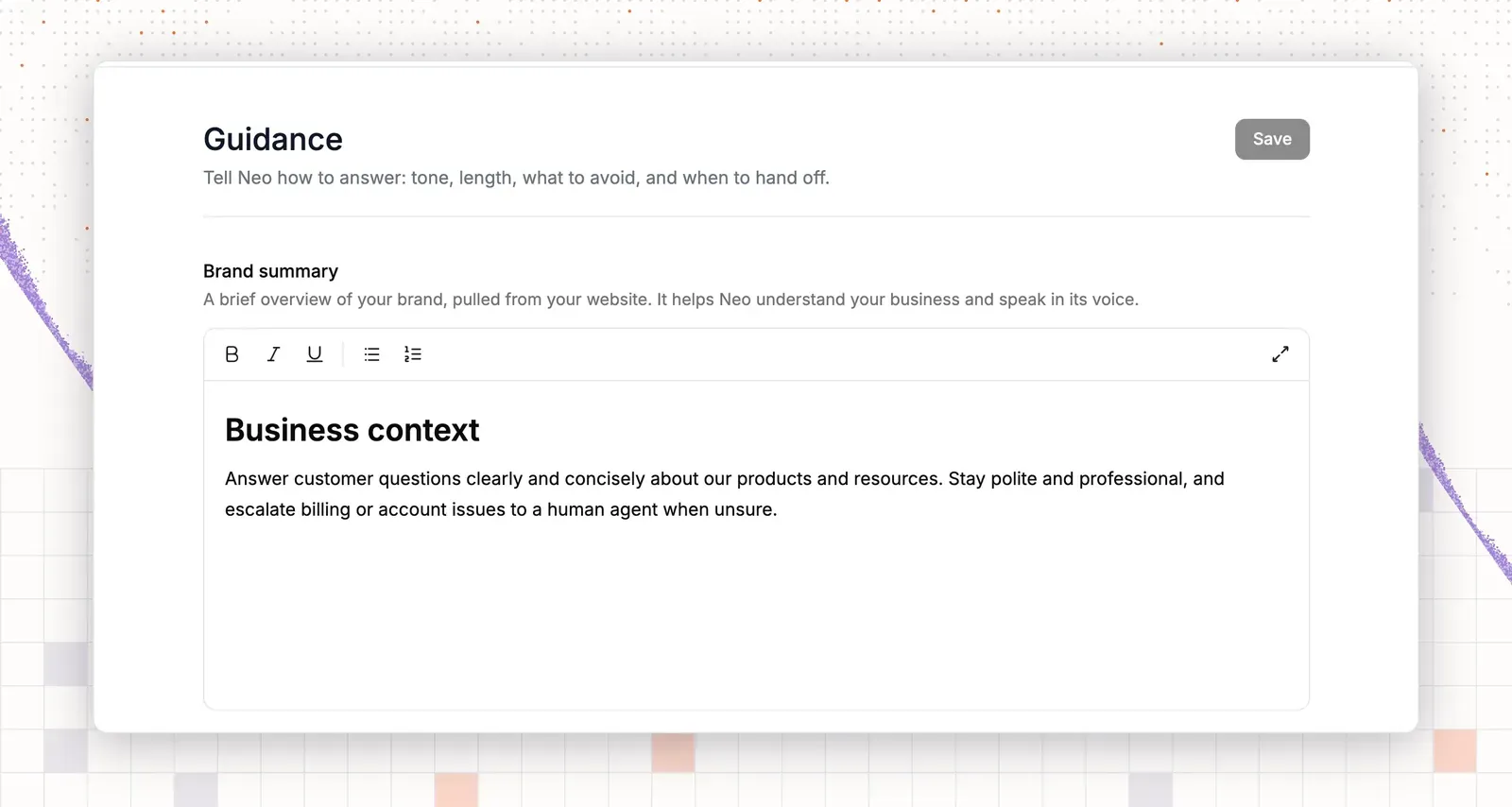
Guidance holds the voice and the limits from step 4 and step 5 of the method.
- Open Guidance.
- In Voice and tone, select a Tone, such as Friendly or Professional.
- In Answer length, select Concise for chat.
- Select the Brand summary box. Type your voice traits, your never-use words and your limits, each on its own line. For example: “Never ask for a password or a card number.” “Never promise a refund date or a stock level.” “Say a teammate confirms refunds.”
- Select Save.
Test: type “When will I get my refund?” in Preview & Simulations. The reply should give no date. If it gives one, make the rule more direct. Read more about guidance.
Step 4: Turn a flow into a procedure
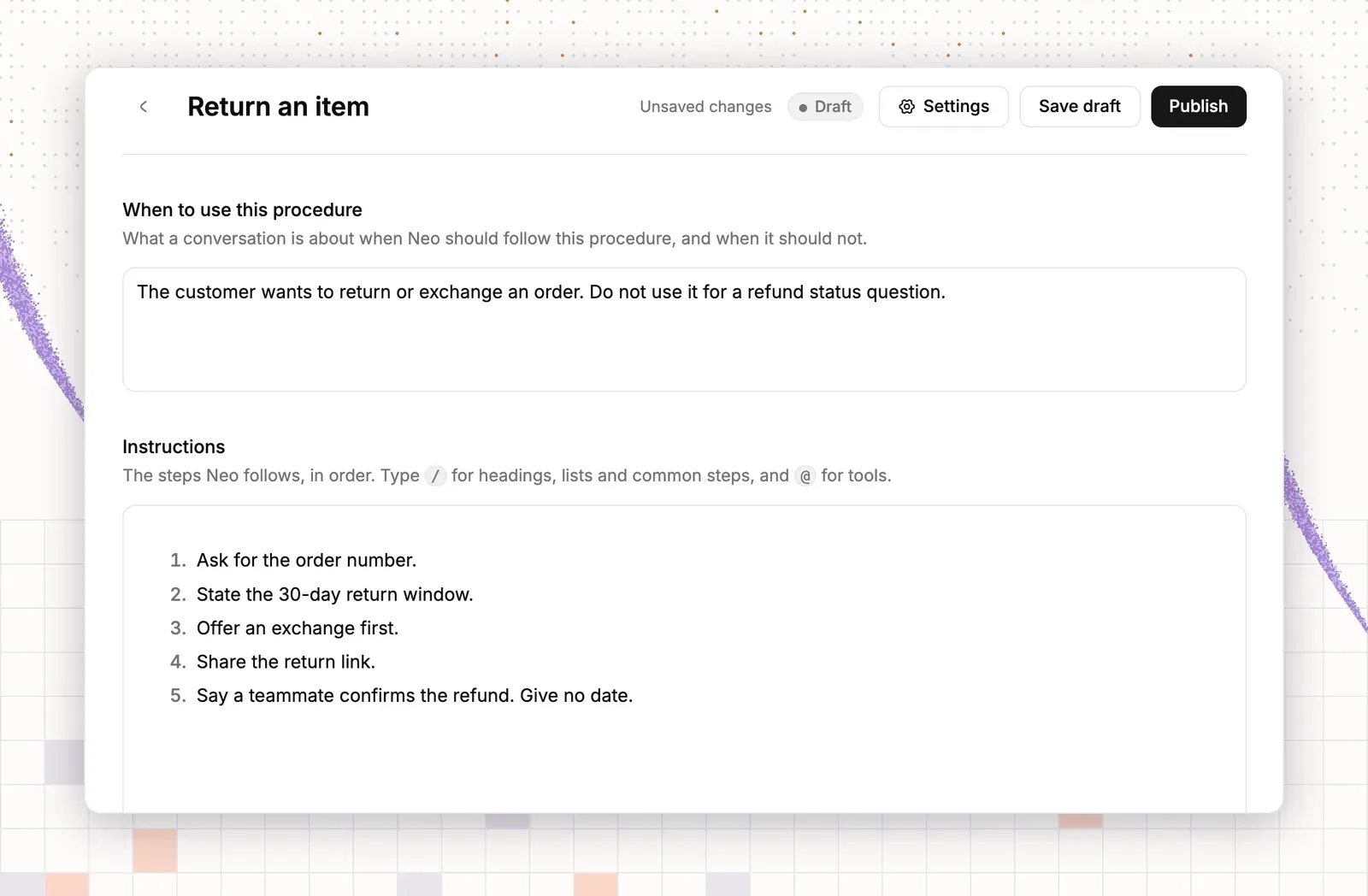
A procedure is a step-by-step instruction the agent follows for one kind of request. Use one for the return flow and one for bug reports.
- Open Procedures in the Train group. The page is titled My Procedures.
- Select Add procedure. The Browse templates tab lists ready-made ones, such as an order refund.
- Type a name in Untitled procedure, such as “Return an item”.
- In When to use this procedure, describe the request. For example: “The customer wants to return or exchange an order.”
- In Instructions, write the flow from your script in short steps: confirm the order, state the return window, offer an exchange first, share the return link, say a teammate confirms the refund.
- Select Save draft to keep working. Select Publish to make it live.
Test: type “I want to return my boots” in Preview & Simulations. The reply should follow your steps in order.
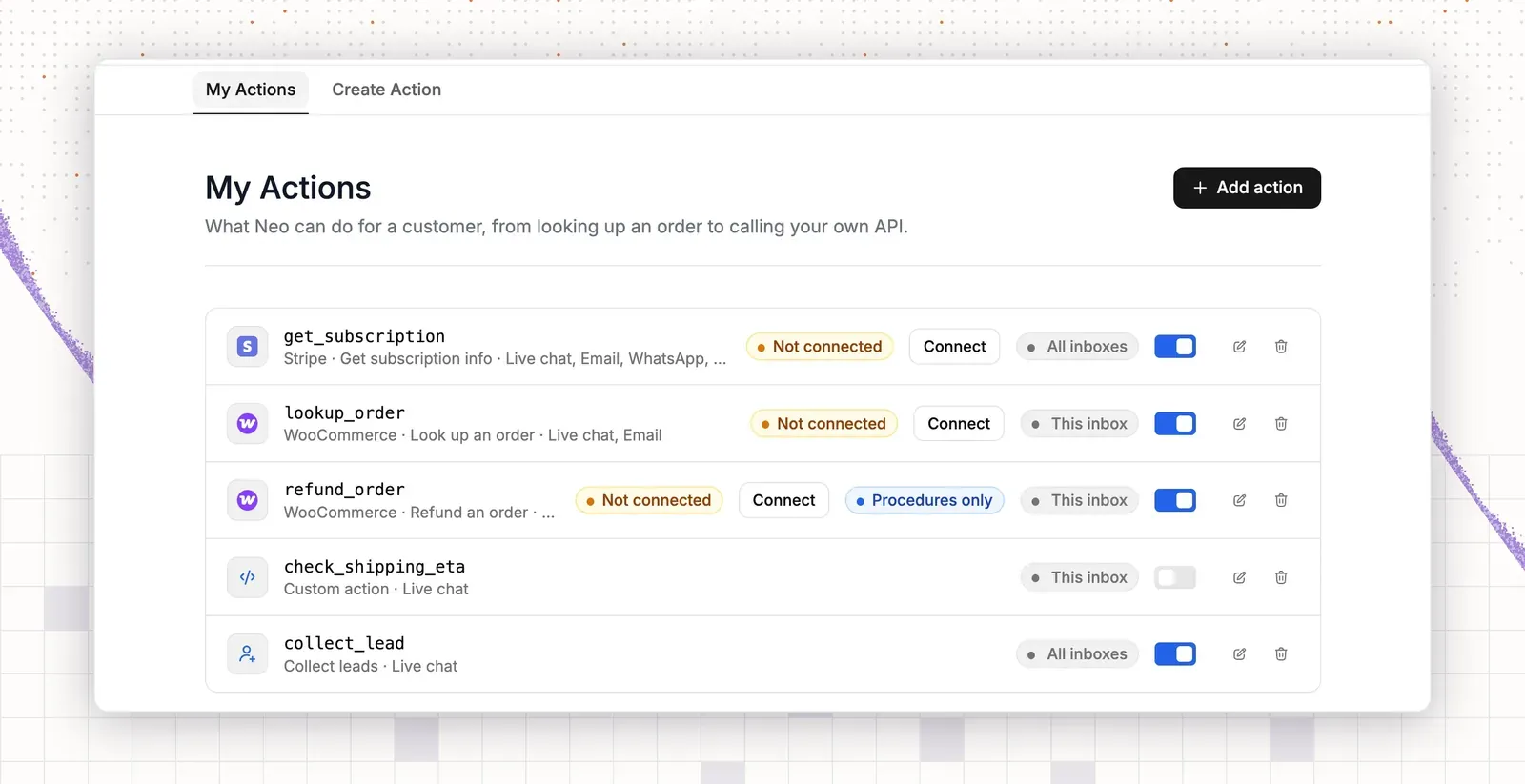
Step 5: Turn on actions for lookups
Lookups replace the data-collection part of your script.
- Open App Store in the left sidebar. Install Shopify or WooCommerce for orders. For purchases, install Stripe, Paddle or Freemius. WooCommerce also needs the ThriveDesk plugin.
- Open Actions in the Train group.
- Select Add action, then select the app you connected.
- Select the action that looks up an order or a purchase. Leave the others off until you trust the agent.
Test: type “Where is my order?”. The agent should ask for the order number and look it up. If it does not, check the app connection. See the AI actions page for more.
Step 6: Set handoff and fallback rules
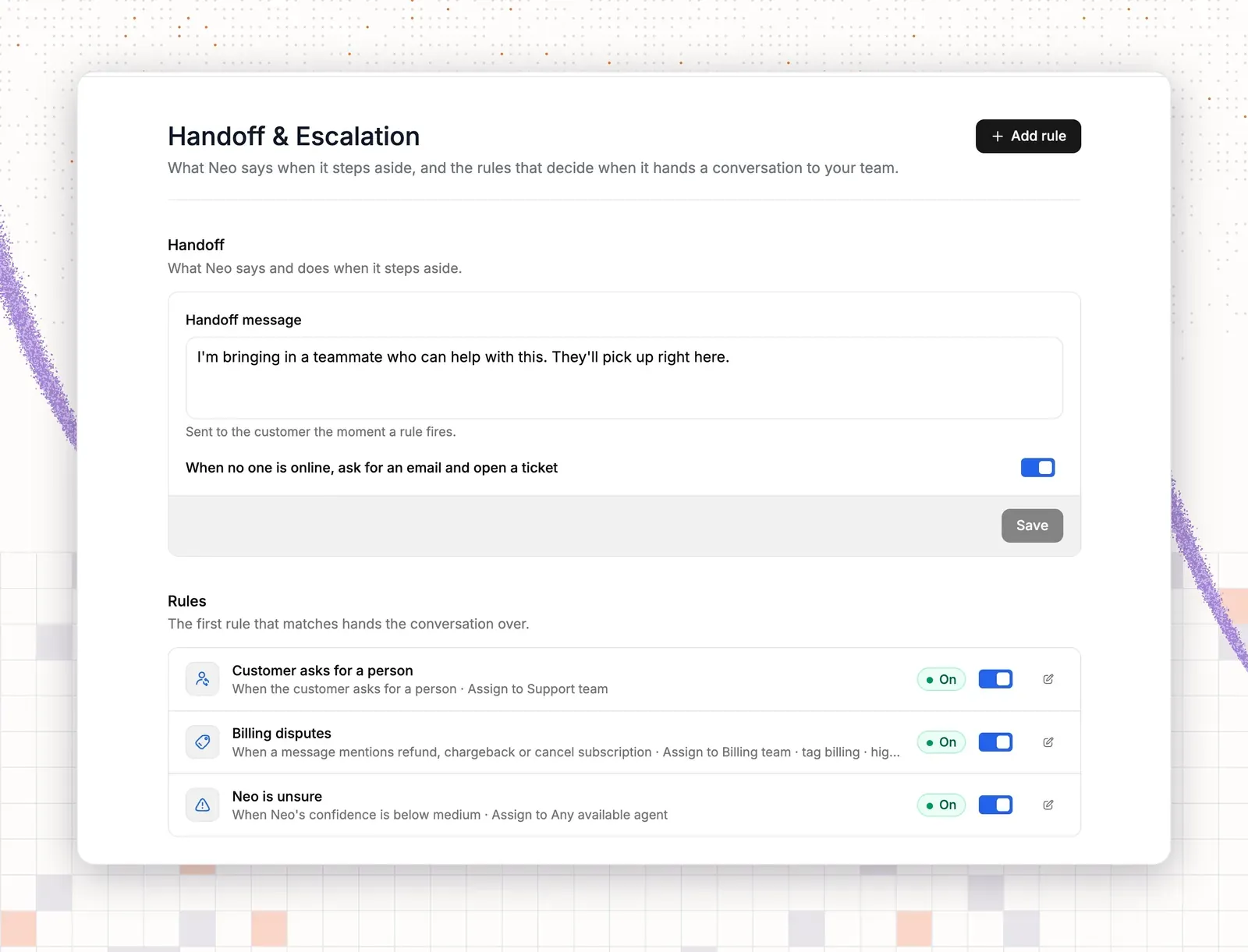
- Open Handoff & Escalation.
- Type your locked handoff message in Handoff message.
- Turn on When no one is online, ask for an email and open a ticket. This is your after-hours capture.
- Select Add rule. Type a Name, such as “Refunds”.
- In Trigger, select A message mentions keywords. In Keywords, type “refund, chargeback, cancel subscription”.
- In Assign to, select a teammate, then Save.
- Select Add rule again. In Trigger, select The customer asks for a person. Assign a teammate and Save.
Test: send a message with the word “refund”. Check that the rule applies. Read more about escalation.
Step 7: Test, then turn it on
- Open Preview & Simulations.
- Type 10 customer lines from the templates above. Include typos and one angry message.
- Select Improve Answer on a wrong reply. Fix the source or the rule behind it.
- Under Deploy, open Chat widget. If you have none, select the + next to Chat widget, type an Assistant name and choose your inbox in Select Inbox.
- Open your widget and select the NEO tab.
- Turn on Enable NEO.
After one week, open Agent Activity and read 30 chats, as in step 7 of the method. Add a source or a rule for each gap. Handoffs land in your shared inbox.