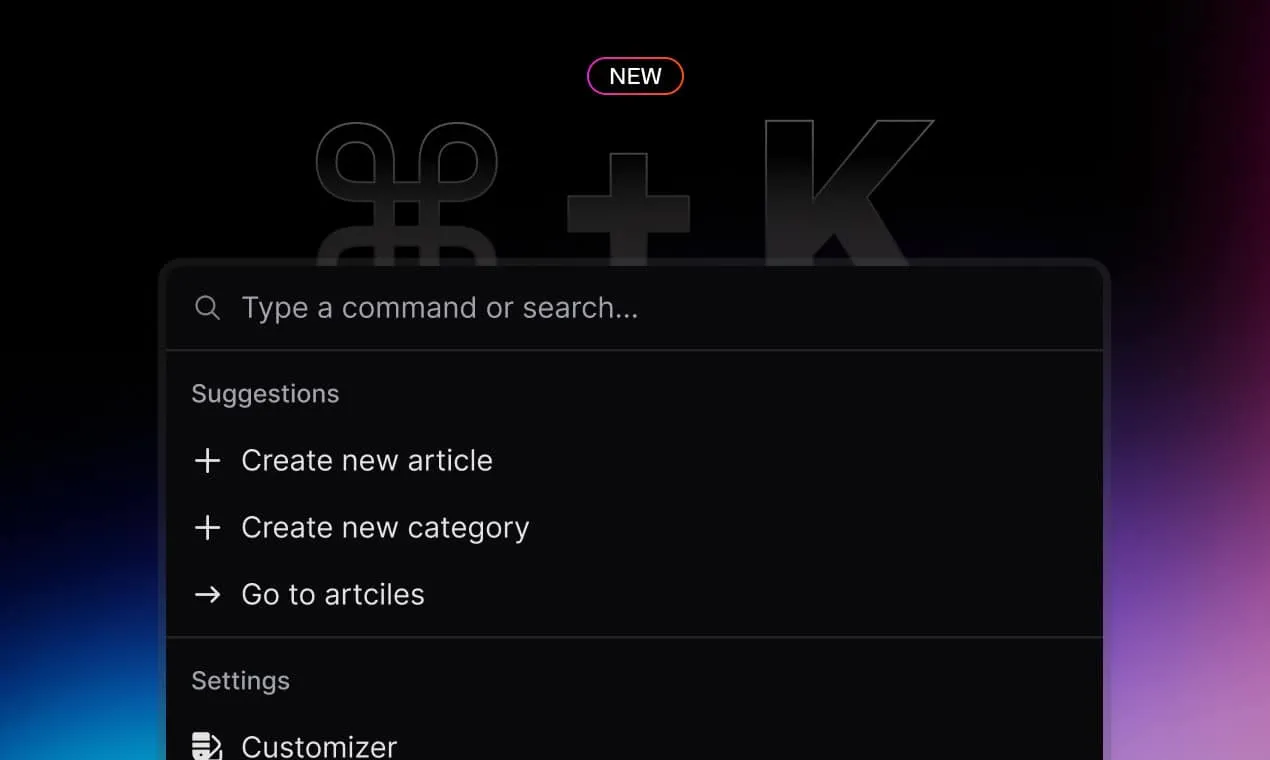
For Day 2, we’re excited to bring you Command Center ⌘+K/Ctrl+K 🕸️
Get ready to unlock new superpowers with the Command Center—your new favorite shortcut. This powerful tool puts all actions at your fingertips, helping you clear your request queue up to 10x faster.
Why it matters
Modern applications prioritize productivity and intuitive design to simplify users’ lives. When we first created the Knowledge Base, our goal was to provide a functional document management system. But two years later, it’s time to push the boundaries for maximum efficiency.
That’s why we’ve listened to your feedback and are thrilled to introduce the thoughtfully designed Command Center. This powerful tool is a direct response to your needs, helping you work smarter, not harder.
All actions in one place
Everything you need, exactly where you need it. The Command Center brings all actions together in one convenient location, accessible right from your keyboard.
Whether you’re creating articles or managing settings, it’s all just a keystroke away, making your workflow smoother and more efficient than ever.
[[VIDEO_0]]
Smart commands, where you need them
The Command Center is designed to be context-aware, offering the right commands at the right time.
When you edit an article, the Command Center displays suggested actions tailored to that specific page. If you’re creating a new article, you’ll see a different set of suggestions, perfectly aligned with your current task.
[[VIDEO_1]]
This intelligent feature helps you stay productive and efficient, ensuring that the tools you need are always within reach.
Edit recent articles in a flash
Made a mistake after moving to another page? No worries! With the Command Center, you can quickly switch back to your most recent article for immediate edits.
No more clicking through multiple pages to make a simple change—just a quick command, and you’re back in action. This feature makes article editing not only fast but also fun and efficient.
[[VIDEO_2]]
Other Releases
- Knowledge Base 2.0 - Brand new way to write documentation.
- Customizer 2.0 - Tailor Your Help Center to Perfection
- Media Library - Your Central Hub for Managing Media
- Command Center - Your New Superpower
Getting started
Our command center features are now available to all ThriveDesk users today. If you’re new to ThriveDesk, there’s no better time to dive in and elevate your customer support. Get started here and see how ThriveDesk can help your business thrive.
To keep up with the rest of Launch Week, be sure to follow us on X or join our community.